






















The authoritative source for your remaining eSIM data is your provider’s app, web dashboard, or original purchase confirmation email. Your phone’s built-in counter is a diagnostic tool, not the official balance. Open your Esimglobe account or order email right now to see your remaining GB and expiry date.
- Provider app or web dashboard: Shows the official billable balance your plan runs on.
- Purchase confirmation email: Contains plan details, expiry, and direct links to your dashboard.
- Phone settings (iPhone or Android): Useful for seeing which apps consumed data, but not the authoritative balance.
Table of Contents
- Where should you check your remaining data balance first?
- How do you check and track data on an iPhone while traveling?
- How do you set data warnings and limits on Android while abroad?
- Why do your phone’s data counter and provider balance often not match?
- What should you do when your balance looks low or wrong?
- What settings should you configure before and during a trip?
- Daily habits that help you monitor data limits while roaming
- What do you do when you still disagree with the provider’s balance?
- Key Takeaways
- The mistake most travelers make with data tracking
- Esimglobe keeps your balance visible and your trip connected
- Further reading and official resources
- FAQ
Where should you check your remaining data balance first?
Your provider tracks billable usage against plan rules. The phone only counts traffic it processed locally. Those two numbers measure different things, which is why the provider dashboard wins every time.
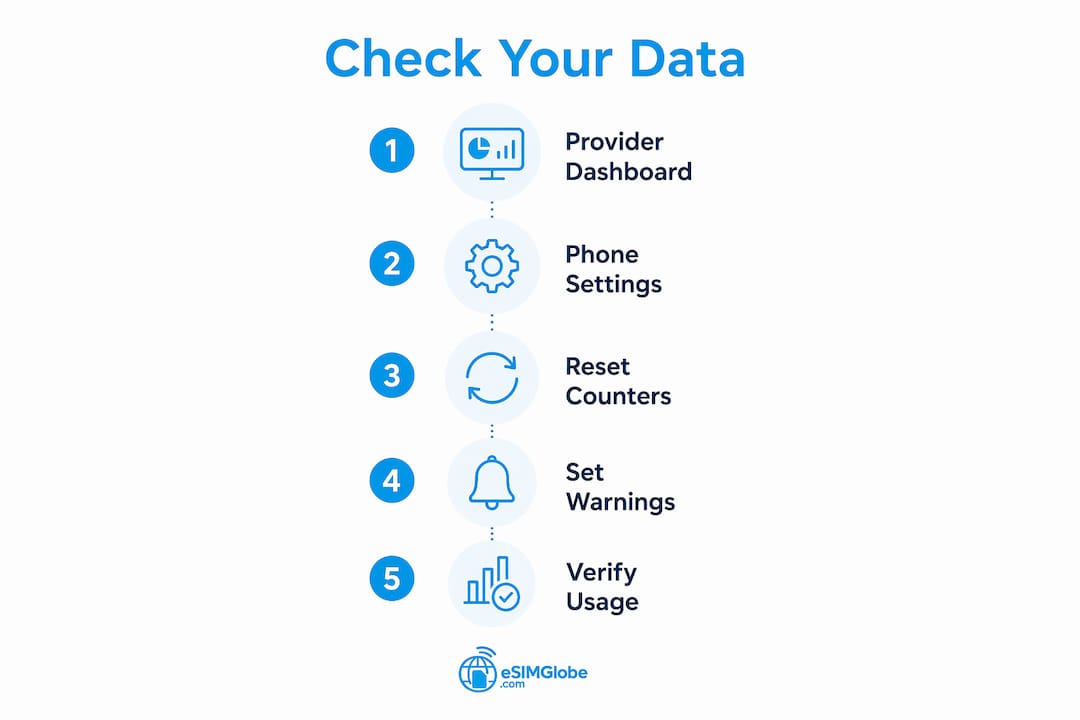
For Esimglobe plans, log into your account at esimglobe.com or open the order confirmation email. Both show remaining data, plan name, and expiry date. If you need context on how eSIM data plans work at the provider level, that background helps explain why the dashboard figure is the one that counts.
Your phone settings serve a different purpose: they tell you which app ate the data, not how much your plan has left. Use them together.
Pro Tip: Screenshot your provider dashboard immediately after activating a new plan. Store it in your camera roll or a travel folder so you have a baseline for any future dispute.
How do you check and track data on an iPhone while traveling?
iPhone’s cellular counter lives at Settings > Cellular (labeled “Mobile Data” in some regions). The key figure is Current Period, which shows total data used since the last manual reset. It does not reset automatically between trips or plan activations.
- Open Settings and tap Cellular.
- Confirm the correct eSIM line is selected under Cellular Data at the top.
- Note the Current Period total and the Current Period Roaming sub-total.
- Scroll to the bottom of the app list and check the Last Reset date.
- If you are starting a new prepaid plan, tap Reset Statistics to zero the counter.
- Take a screenshot of the reset confirmation and the new zero state.
Store those screenshots in a dedicated album or cloud folder. If your provider’s balance and your phone counter disagree later, that baseline screenshot is your first piece of evidence.
Pro Tip: Reset Statistics the moment you activate a new eSIM, not a day later. A clean start date makes the phone counter genuinely useful for trip tracking.
How do you set data warnings and limits on Android while abroad?
Android gives you more granular control than iPhone. The path varies slightly by manufacturer, but on stock Android and Pixel devices: Settings > Network & internet > Internet, then tap the gear icon next to your active eSIM carrier.
From there you can view a usage graph, see per-app breakdown, and set two key controls:
- Billing cycle date: Set this to match your eSIM plan’s activation date so the phone counter aligns with your actual plan window. Android 16 and recent releases support custom billing cycle dates.
- Data warning: A notification fires when you hit a threshold you define (in MB or GB). Set it at roughly 80% of your plan size.
- Data limit (optional): Cuts mobile data automatically at a hard cap. Use this cautiously if you rely on provider top-ups, since a hard cutoff can strand you before you have a chance to top up.
Pro Tip: Prefer the warning over the hard limit when you are traveling. A notification gives you time to switch to Wi-Fi or buy a top-up. An automatic cutoff can disconnect you mid-navigation.
Take a screenshot of your warning settings and the current usage graph before you leave the menu. That image is useful if you later need to show a provider support agent what your phone recorded.
Why do your phone’s data counter and provider balance often not match?
The phone counts every byte of traffic it processed. The provider counts billable network usage under your specific plan rules, which include regional eligibility, tethering policy, and rounding increments. Those are not the same calculation.
Roaming adds another layer. When you use data on a partner network abroad, that network sends usage records to your home provider for processing. That reconciliation takes time.
Reporting lag for roaming usage commonly runs 2–10 days. In edge cases involving heavy activity across multiple partner networks, the delay can extend further. Never assume a low dashboard balance during the first days of a trip means you have actually used that much.
Other common causes of discrepancy include dual-SIM routing (data slipping through the wrong line), a non-reset “Current Period” counter on iOS that includes usage from a previous trip, background app activity, and hotspot sessions that the phone counts once but the provider may count differently under tethering rules.
What should you do when your balance looks low or wrong?
Act in this order to avoid losing connectivity while you sort out the discrepancy.
- Switch to Wi-Fi immediately and disable mobile data to stop further consumption.
- Turn off background data, auto-updates, and hotspot in device settings.
- Enable Low Data Mode (iPhone: Settings > Cellular > your eSIM line) or the Android equivalent.
- Screenshot your provider dashboard showing current balance, plan name, and expiry.
- Screenshot your phone’s data usage showing Current Period (iPhone) or the usage graph (Android) with per-app breakdown.
- Note the local time, date, and country you are in when you capture those screenshots.
- Wait the reporting window (up to 2–10 days for roaming) if the discrepancy is small and you have Wi-Fi access.
- Contact provider support with all screenshots and a clear request: balance review, usage audit, or immediate top-up if you need access now.
If you need connectivity right away and cannot wait, request a temporary top-up while the audit runs. Preserve all evidence before that top-up posts, so the before-and-after states are documented.
What settings should you configure before and during a trip?
A few minutes of setup before departure prevents most overage surprises.
Before you leave:
- Confirm you can log into your provider dashboard and that your plan covers your destination countries. Check the right plan size and coverage before you go.
- Note your plan’s expiry date and set a calendar reminder two days before it.
- Set a data warning threshold at roughly 80% of your plan allowance.
- Reset iPhone Statistics or set the Android billing cycle date to match your plan start.
On the device:
- iPhone: enable Low Data Mode, disable Wi-Fi Assist, turn off Background App Refresh for non-essential apps, set app updates to Wi-Fi only.
- Android: restrict background data per app, set mobile data warning, disable auto-updates over mobile.
During the trip:
- Use hotel or public Wi-Fi for video calls, map downloads, and software updates.
- Avoid running a mobile hotspot unless necessary; tethering consumes data faster and may be counted differently under some plan rules.
- Download offline maps (Google Maps, Maps.me) before leaving Wi-Fi range.
Daily habits that help you monitor data limits while roaming
Lightweight routines take under two minutes a day and prevent the end-of-trip scramble.
- Morning check: Open your provider app, note remaining GB and days left. If either looks lower than expected, investigate before you need data urgently.
- App audit: Once every two days, check your phone’s per-app data breakdown. Streaming apps, cloud photo sync, and social media background refresh are the most common culprits.
- Screenshot anomalies: If the dashboard drops more than you expect overnight, screenshot both the dashboard and the phone counter immediately. Timestamps matter.
- Prefer offline tools: Offline maps, downloaded podcasts, and cached content use zero mobile data.
Pro Tip: Set both a provider app alert and a phone-level warning. They measure different things, so getting both notifications before you hit a cap gives you a two-layer safety net: one authoritative, one proactive.
What do you do when you still disagree with the provider’s balance?
Collect evidence first, then escalate in order.
| Evidence type | Why it helps | Where to capture it |
|---|---|---|
| Provider dashboard screenshot | Official balance and expiry proof | Provider app or web account |
| Device usage screenshot | Shows per-app consumption and total | iPhone: Settings > Cellular; Android: Settings > Network & internet |
| Roaming sub-total | Isolates travel usage from home usage | iPhone: Current Period Roaming; Android: roaming breakdown |
| Timestamps and location | Ties usage to a specific date and country | Add manually to screenshot filename or notes |
Contact template you can copy:
Subject: Usage Dispute — [Plan Name] — [Your Account Email]
I am disputing a balance discrepancy on my [Plan Name] plan (activated [date], expiry [date]). My provider dashboard shows [X GB] remaining; my device counter shows [Y GB] used. I have attached screenshots of both. Please review my usage log for [date range] and confirm the correct balance, or provide a temporary top-up while the audit runs.
Attachments: provider dashboard screenshot, device usage screenshot, roaming sub-total screenshot.
Wait the 2–10 day reporting window for roaming disputes before escalating to email if the issue is not urgent. For immediate access needs, request the top-up first and the audit second.
Key Takeaways
The provider dashboard is always the authoritative source for your remaining eSIM data; your phone counter is a diagnostic tool only.
| Point | Details |
|---|---|
| Provider dashboard is authoritative | Check your provider app, web account, or order email for the official remaining balance and expiry. |
| Phone counters are diagnostic | iPhone and Android counters show per-app usage but do not reflect plan rules or roaming reconciliation. |
| Roaming lag runs 2–10 days | Do not assume a low dashboard balance is final during the first days of a trip; partner network records take time. |
| Reset iPhone stats at plan start | Tap Reset Statistics when activating a new eSIM so the phone counter tracks only current-trip usage. |
| Esimglobe dashboard and top-ups | Esimglobe’s account dashboard shows remaining data and expiry, with instant top-up options and 24/7 support. |
The mistake most travelers make with data tracking
Most travelers check their phone settings and stop there. That is the wrong move. Device counters are built for diagnosing which app consumed data, not for confirming how much your plan has left. Treating them as the same thing is the single most common mistake that leads to unexpected cutoffs.
The second mistake is ignoring the reporting lag. A dashboard that looks nearly empty on day two of a trip may simply be catching up with roaming records from partner networks. Acting on that number immediately, by panicking and buying an unnecessary top-up, wastes money. Waiting the 2–10 day window and monitoring Wi-Fi usage in the meantime is almost always the right call.
The practical fix is simple: reset your iPhone counter or set your Android billing cycle date the moment you activate a plan, screenshot the provider dashboard as your baseline, and check both sources together rather than either one alone. Two data points beat one.
Esimglobe keeps your balance visible and your trip connected
Running low on data abroad does not have to mean scrambling for a local SIM or hunting for Wi-Fi. Esimglobe’s prepaid data-only eSIM plans cover 170+ countries and deliver instantly to your email, with a clear account dashboard that shows your remaining data, plan name, and expiry at a glance. When your balance drops, instant top-ups are available directly from the dashboard, no new plan purchase required. And if your usage figures ever look off, 24/7 support is there to review your account and resolve disputes with real documentation.
Check your current balance or pick up a plan for your next destination at esimglobe.com.
Further reading and official resources
- Apple Support: “Use cellular data on your iPhone or iPad” — the official guide to Settings > Cellular, Current Period, and Reset Statistics.
- Google / Pixel Phone Help: “Reduce and manage mobile data usage” — covers Android data warnings, hard limits, and per-app controls.
- Esimglobe Help and Plans: esimglobe.com — account dashboard, top-up options, and plan coverage by country.
- Esimglobe Travel Tips: eSIM travel tips for 2026 — practical guidance on managing data and staying connected abroad.
- Business travel connectivity: Convenience in business travel — how travelers prioritize reliable connectivity when managing data on the road.
Screenshot your provider dashboard and store it alongside these links before your next trip.
FAQ
How do I find out my data balance on a prepaid eSIM?
Open your provider’s app or web dashboard and look for remaining GB and expiry date. That figure is the authoritative balance; your phone’s built-in counter is for per-app diagnosis only.
Why does my phone show more data used than my provider dashboard?
Your phone counts all traffic it processed locally; your provider counts only billable network usage under your plan rules. Roaming records from partner networks can also take 2–10 days to appear in provider logs, so the dashboard may lag behind your device counter temporarily.
How do I reset data usage statistics on an iPhone?
Go to Settings > Cellular, scroll to the bottom of the app list, and tap Reset Statistics. Do this immediately after activating a new prepaid eSIM so the counter tracks only current-trip usage.
Can Android automatically stop data when I hit my plan limit?
Yes. In Settings > Network & internet, you can set a hard data limit that cuts mobile data at a defined cap. Experts recommend setting a warning threshold first (around 80% of your plan) so you have time to switch to Wi-Fi or top up before access is suspended.
What should I do if my Esimglobe balance looks wrong?
Screenshot your Esimglobe dashboard and your device usage screen, note the date and country, then contact Esimglobe’s 24/7 support with that evidence. If you need immediate connectivity, request a top-up while the usage audit runs.