






















TL;DR:
- Finding your phone number varies between SIM types and device settings on Android and iPhone.
- USSD codes and carrier apps are useful alternatives if the number doesn’t appear automatically.
- Pre-travel preparation by saving all active numbers helps avoid connectivity issues abroad.
You land in Tokyo, open a local delivery app, and it asks for your phone number. Simple enough—except you just swapped in a new SIM and have no idea what number it assigned you. This situation is more common than most travel guides admit. Whether you are using a physical SIM picked up at the airport or a digital eSIM activated before departure, locating your number is not always straightforward. This guide walks through every reliable method, from built-in device settings to USSD codes and carrier apps, so you can find your number fast on both Android and iPhone, regardless of where you are.
Table of Contents
- What you need to know before you start
- Step-by-step: How to get your phone number from SIM and eSIM on Android and iPhone
- Alternative methods: Using USSD codes and third-party apps
- What if the number isn’t showing? Advanced troubleshooting for travelers
- A travel pro’s perspective: Rethinking SIM numbers for digital nomads
- Stay connected wherever you roam with eSIM options for global travelers
- Frequently asked questions
Key Takeaways
| Point | Details |
|---|---|
| Check device settings first | Most Android and iOS phones show the SIM or eSIM number in their settings if provisioned by your carrier. |
| Try USSD codes abroad | USSD codes offer a quick way to display your number when settings are unavailable, but vary by carrier and country. |
| Data-only eSIMs rarely show numbers | Many travel eSIMs provide data service only, so don’t expect a phone number to appear in settings. |
| Have backup methods ready | If your number doesn’t show, use carrier apps, call a friend, or contact support for help while traveling. |
What you need to know before you start
Before diving into device-specific steps, let’s cover what you should know and check first.
Not all SIMs and eSIMs work the same way. A physical SIM purchased locally almost always carries a voice number. An eSIM, however, may be a data-only plan, meaning it provides mobile internet but no traditional phone number at all. Understanding eSIM terms for travelers helps set the right expectations before you start troubleshooting.
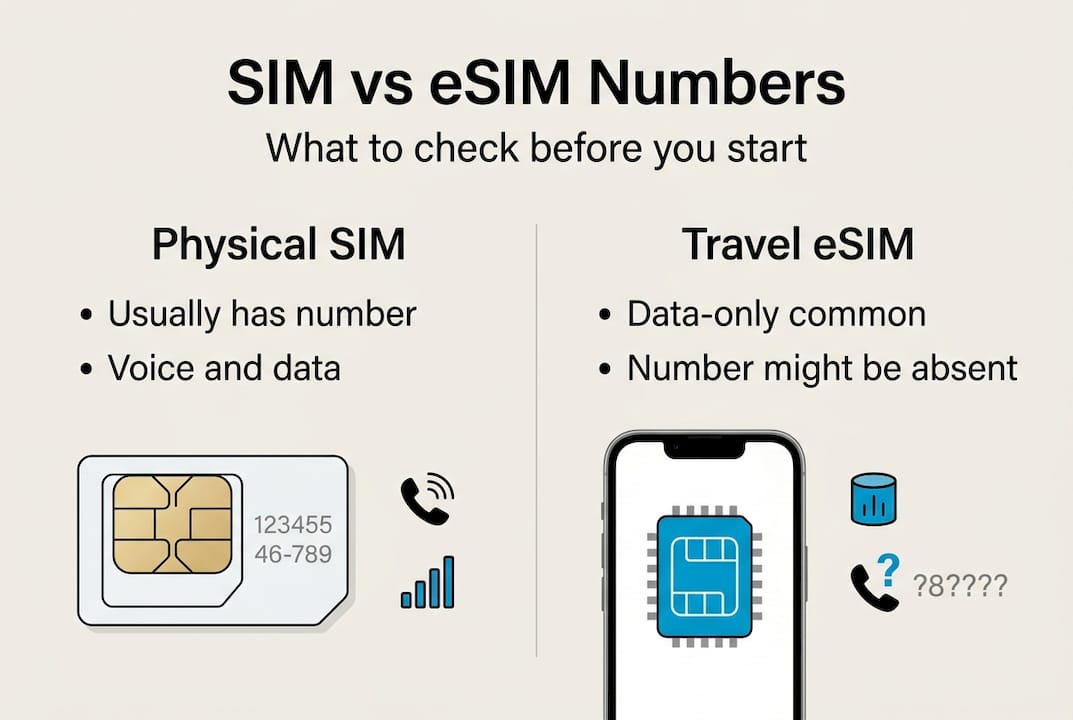
Key differences between physical SIM and eSIM for travelers:
| Feature | Physical SIM | Travel eSIM |
|---|---|---|
| Phone number | Almost always included | Often absent (data-only) |
| Number visible in settings | Yes, typically | Sometimes, if provisioned |
| Voice calls | Supported | Plan-dependent |
| Swap process | Physical card change | Digital profile switch |
| Carrier info available | On card packaging | In device settings |
For international travel eSIMs, many are data-only and do not provide a local phone number; any assigned number is viewed under eSIM plan details in device settings, but is often absent compared to voice SIMs.
Before you begin, confirm these items:
- Your SIM or eSIM is inserted and fully activated
- Your device shows a signal or data connection
- You have basic access to your phone’s Settings app
- You know whether your plan includes voice or is data-only
- You have your carrier’s name or account info available, just in case
Dual-SIM users face an extra layer of complexity. If you carry your home SIM alongside a travel eSIM, your device manages two separate numbers. Knowing which line is which matters for calls, SMS, and two-factor authentication (2FA), which is a security method that sends a code to your phone to verify your identity.
Pro Tip: Check your eSIM plan confirmation email before departure. Carriers often include the assigned number there, saving you the trouble of hunting through settings mid-trip.
Step-by-step: How to get your phone number from SIM and eSIM on Android and iPhone
With your device ready, follow these simple instructions for Android and iPhone.
On iPhone:
- Open Settings
- Tap Phone
- Look for My Number at the top of the screen
- For eSIM plans, go to Settings > Cellular, then tap the specific eSIM plan name
- The number, if provisioned by your carrier, appears under the plan details
The phone number for a SIM or eSIM is displayed in Settings > Phone > My Number for physical SIM, or under Cellular > [plan name] for eSIM plans, showing the number if the carrier has provisioned it.
On Android:
- Open Settings
- Tap About phone
- Select Status or SIM status
- Look for Phone number or My phone number
- On some Android versions, this is under Settings > General management > SIM card manager
On Android, SIM status details are found in Settings > About phone > Status or SIM status, showing the phone number linked to the active SIM or eSIM.

Summary by device and SIM type:
| Device | SIM type | Settings path |
|---|---|---|
| iPhone | Physical SIM | Settings > Phone > My Number |
| iPhone | eSIM | Settings > Cellular > [Plan name] |
| Android | Physical SIM | Settings > About phone > SIM status |
| Android | eSIM | Settings > About phone > SIM status |
For dual-SIM setups, both numbers appear in the SIM manager section. Labels like “Primary” and “Secondary” help you tell them apart. eSIM phone number extraction works identically to a physical SIM via OS settings, as long as the eSIM is active.
Pro Tip: If the number field is blank, do not assume the plan has no number. Wait 10 to 15 minutes after activation and check again. Carrier provisioning sometimes takes a few minutes to push the number to your device.
For a broader comparison of your connectivity options, the eSIM vs local SIM guide and the global eSIM connectivity guide cover regional differences in detail.
Alternative methods: Using USSD codes and third-party apps
If your number doesn’t show up in device settings, try these proven alternatives.
USSD codes (Unstructured Supplementary Service Data) are short codes you dial like a phone number that trigger an instant on-screen response from your carrier. They work without internet access and bypass language barriers in foreign menus, making them especially useful when traveling.
Common USSD codes to try:
- *135# — used by many carriers globally (T-Mobile US, Airtel India, and others)
- *#100# — works on several African and Asian networks
- *#NUM# — a generic format some carriers recognize
- 1112# — used by some European operators
- Check common USSD codes by country for a regional breakdown
USSD codes like *135# or carrier-specific codes can display the phone number directly on screen without needing to open settings at all.
Limitations to keep in mind:
- USSD codes do not work on data-only eSIMs with no voice channel
- Codes vary by carrier and country, so one code will not work everywhere
- Some prepaid SIMs block certain USSD functions until fully activated
Third-party apps on Android offer another route. Apps like SIM Card Info on Android can read SIM data including phone number if available on the card, which is particularly useful for dual-SIM setups where you need to confirm which number belongs to which slot.
| Method | Works on eSIM | Requires signal | Works offline |
|---|---|---|---|
| Device settings | Yes | No | Yes |
| USSD code | Voice plans only | Yes | Yes |
| SIM info app | Yes (Android) | No | Yes |
| Carrier app/portal | Yes | Wi-Fi OK | No |
Pro Tip: Always verify the correct USSD code for your specific carrier and country before dialing. Using the wrong code wastes time and occasionally triggers unintended service menus. Your carrier’s website or the global eSIM options page lists plan details that may include support contacts.
What if the number isn’t showing? Advanced troubleshooting for travelers
Still can’t see your number after trying the above? Here’s how to solve rare and stubborn cases.
Some situations go beyond a simple settings check. If both device settings and USSD codes return nothing, the issue is usually one of the following:
- Data-only plan: No phone number exists to display. This is expected and not a malfunction.
- Activation delay: The carrier has not yet pushed the number to your SIM profile. Wait and retry.
- Provisioning error: The carrier failed to assign a number during setup. Requires carrier contact.
- Incompatible device: Rarely, some devices do not read eSIM number fields correctly.
Some carriers or SIMs do not store or display the phone number in settings at all; in those cases, contacting the carrier, using their app, or calling a friend to read back the caller ID are the next steps.
Practical solutions when settings and USSD codes fail:
- Open the carrier’s official app and log in with your account credentials. Most carrier apps display your active number on the home screen.
- Visit the carrier’s website over Wi-Fi and check your account dashboard.
- Call or message a contact and ask them to read back the number shown on their caller ID display.
- Send a text message to a second device and check the sender number.
Warning: Not all SIMs and eSIMs store your phone number on the card itself. Some carriers keep this data server-side only. If you reset your device or reinstall the eSIM profile, the number may not reappear in settings until the carrier re-provisions it. Always record your number externally before making major device changes.
For travelers using unfamiliar local SIMs with foreign-language interfaces, the carrier’s English-language support line or chat is often the fastest route. Many carriers serving tourists offer multilingual support. Explore travel eSIM options that include clear documentation and English-language support to reduce this friction.
A travel pro’s perspective: Rethinking SIM numbers for digital nomads
Now that the technical steps are clear, here’s what experienced digital nomads wish all travelers knew before their next trip.
Most guides treat the missing number problem as a technical glitch to fix on arrival. The smarter approach is to treat it as a pre-trip checklist item. Before you board, open your phone settings, locate every number on every active SIM or eSIM, and save them in a secure cloud note or password manager. This takes two minutes and eliminates a category of problems entirely.
For dual-SIM users running a home voice SIM alongside a travel eSIM for data, the home number is the one that matters most for 2FA SMS. Set your travel eSIM as the default for data, and keep the home SIM active for incoming messages. This setup means you receive verification codes on your familiar number without paying roaming data rates.
The harder truth: if your travel eSIM is data-only, no troubleshooting step will produce a phone number. That is by design, not a flaw. Accepting this early saves significant frustration. For communication without a number, WhatsApp, Signal, and similar apps work over Wi-Fi or mobile data and cover most traveler needs.
Being prepared before departure consistently outperforms emergency fixes at the airport. Visit EsimGlobe to review plan details, including whether a number is included, before you purchase.
Stay connected wherever you roam with eSIM options for global travelers
Ready to avoid SIM and number headaches on your next adventure? Here’s how to set up seamless connectivity.
EsimGlobe provides eSIM plans for travelers across more than 130 countries and regions, with immediate digital activation and no physical card required. Whether you need a United States travel eSIM for a domestic trip or North America eSIM plans covering multiple countries at once, the platform lists plan details clearly, including data allowances and voice support status. Heading to Japan? The Japan eSIM plan covers major networks with straightforward activation.
Browse global eSIM solutions to compare regional and country-specific options, check coverage details, and activate your plan before departure. Knowing exactly what your plan includes, including whether a phone number is part of it, starts with choosing the right eSIM from the start.
Frequently asked questions
Why can’t I see my phone number in my phone’s SIM or eSIM settings?
Some carriers or SIMs do not store or display the phone number in device settings at all. It may also take several minutes to appear after initial activation, so waiting and rechecking is worth trying first.
Can I get a phone number from a data-only eSIM?
Most data-only eSIMs do not include a voice phone number, so none will appear in your settings. Many travel eSIMs are intentionally data-only, meaning the absence of a number is expected behavior, not an error.
What are common USSD codes to show my phone number when traveling?
USSD codes like *135# or other carrier-specific codes can display your number on screen instantly. These vary by country and provider, so confirm the correct code for your specific carrier before dialing.
Is it possible to retrieve my number using carrier apps or portals?
Yes, most carriers provide an official app or online account portal that displays your active phone number once you log in. Carrier apps and portals are often the most reliable fallback when device settings show nothing.
How can I prepare for SIM or eSIM number issues before traveling?
Record all active phone numbers in a secure note or password manager before you leave home. For dual-SIM users, extracting and saving the home number in advance ensures you can receive 2FA messages without scrambling to find it abroad.