






















TL;DR:
- Your phone number remains linked to your carrier account, not the eSIM profile itself.
- Activating a travel eSIM adds a second plan without disrupting your existing number or service.
Your phone number is tied to your carrier account, not to any physical or digital SIM card. That means knowing how to keep your number with eSIM comes down to one thing: activating the right plan on the right device without disrupting your existing carrier account. For international travelers and expatriates, this distinction is critical. You can run a travel eSIM for local data abroad while your home number stays fully active for calls and messages. This guide walks through every step, from device requirements to dual SIM management, so you never miss a call because of a SIM swap gone wrong.
How to keep your number with eSIM: what you need first
Keeping your number with eSIM starts with confirming three things: your device supports eSIM, your carrier supports eSIM activation, and your account has international roaming enabled. Skip any one of these and the process stalls before it starts.
Device and carrier compatibility
Not every phone supports eSIM. iPhones from the XS onward support eSIM, and iPhone 13 and later models support multiple active lines on a single device. Most flagship Android devices from Samsung, Google Pixel, and Motorola also support eSIM, though availability varies by region and carrier lock status. Check your device settings under “Cellular” or “Mobile Network” for an “Add eSIM” or “Add Data Plan” option. If that option exists, your device is compatible.

Your carrier must also support eSIM provisioning. Most major carriers in the United States, Europe, and Asia Pacific now offer eSIM activation through their apps or websites. Call your carrier or check their website before you travel to confirm eSIM support and request activation if needed.
The roaming requirement travelers miss
International roaming must be active on your home carrier account before you leave. This is the most overlooked prerequisite. Some carriers block all incoming and outgoing calls and texts the moment your device connects to a foreign network, and no eSIM can fix that. Roaming activation is a carrier account setting, not a device setting. Contact your carrier at least 48 hours before departure to confirm it is enabled.
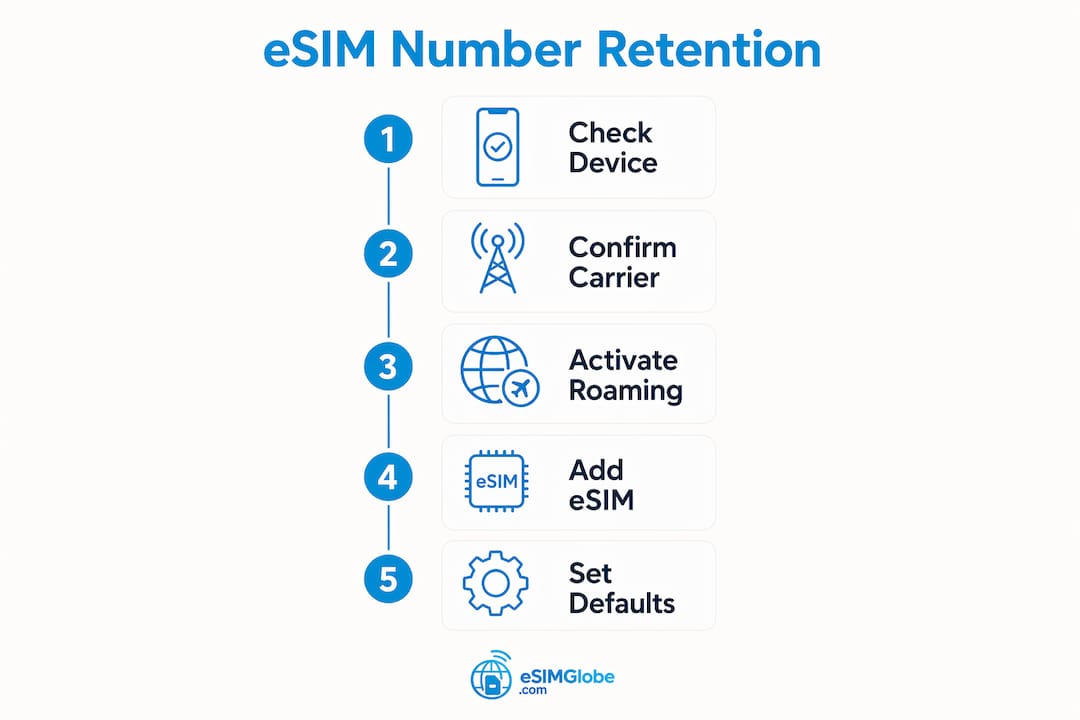
Feature and requirement summary
| Feature | Requirement for number retention |
|---|---|
| Device eSIM support | iPhone XS or later; compatible Android flagship |
| Dual SIM capability | iPhone 13+; select Android models |
| Carrier eSIM activation | Must be enabled on your account |
| International roaming | Must be active on home carrier account |
| Data roaming toggle | Must be enabled on travel eSIM line |
How do you activate an eSIM without losing your number?
Activating a travel eSIM does not touch your existing number. Your number stays with your carrier regardless of what eSIM profiles you add or remove from your device. The activation process simply adds a second cellular plan alongside your home line.
Activation methods in 2026
Three methods cover the vast majority of eSIM activations:
- QR code scanning. Your eSIM provider sends a QR code by email or displays it in their app. Go to Settings > Cellular > Add eSIM, then scan the code. The profile downloads in seconds.
- Carrier app activation. Many carriers and eSIM platforms let you activate directly through their app without a QR code. Esimglobe uses this approach for a fully digital process.
- eSIM Quick Transfer. Apple’s eSIM Quick Transfer feature, available on iPhone 13 and later, moves your primary number from an old device to a new one without contacting your carrier. Profiles typically activate within 2 hours after the carrier processes the transfer request.
Cross-platform transfers
Moving an eSIM from Android to iPhone, or the reverse, requires extra steps. Cross-platform transfers often need a QR code issued by the carrier, even in 2026 when many automated transfer tools exist. Some carriers still require a phone call or store visit for cross-brand moves. Plan for this if you are switching device ecosystems and want to retain your number on the new device.
Step-by-step activation checklist
- Confirm your device supports eSIM and dual SIM.
- Enable international roaming on your home carrier account.
- Purchase your travel eSIM from a provider like Esimglobe.
- Receive your QR code or app activation link.
- Open Settings > Cellular (iPhone) or Settings > Mobile Network (Android).
- Select “Add eSIM” and scan the QR code or follow the app prompts.
- Label the new line clearly, for example “Travel Data.”
- Set your home number as the default for calls and messages.
- Enable data roaming on the travel eSIM line only.
- Test both lines before boarding your flight.
Pro Tip: Never delete your old eSIM profile until you have confirmed the new one is fully active and receiving calls. Deleting a profile only removes it from your device. Your carrier account and number remain intact, but getting a new QR code from your carrier takes time you may not have at the airport.
How do you manage two numbers on one phone abroad?
Dual SIM functionality is the practical core of keeping your home number active while using a travel eSIM for data. Dual SIM iPhones and compatible Android devices let you run two active lines simultaneously, each with its own number, carrier, and data plan. The key is configuring each line correctly so calls go to the right number and data charges go to the right plan.
Setting defaults for calls, messages, and data
Your phone needs clear instructions on which line handles what. Set your home SIM as the default for calls and SMS. This keeps your existing number reachable without any extra steps from callers. Set the travel eSIM as the default for cellular data. This routes all app traffic, web browsing, and streaming through the local plan you paid for, not through your home carrier’s roaming rates.
On iPhone, go to Settings > Cellular and select each line to assign its role. On Android, the path varies by manufacturer but is typically found under Settings > Connections > SIM Card Manager.
Protecting yourself from accidental charges
Disabling data roaming on your home SIM line is the single most effective way to avoid surprise charges. Background data leakage occurs when apps silently use whichever data connection is available. If your home SIM has data roaming on, those apps will use it and your carrier will bill you at international rates. Turn data roaming off on the home line and on for the travel eSIM only.
Recommended practices for dual SIM use abroad:
- Set home SIM as default for calls and SMS only.
- Set travel eSIM as default for cellular data.
- Disable data roaming on the home SIM line.
- Enable data roaming on the travel eSIM line.
- Use Wi-Fi Calling on your home line as a backup for voice calls.
- Set up call forwarding to your travel number if you expect to be in areas with poor home carrier signal.
- Check your carrier’s app weekly for unexpected usage alerts.
Pro Tip: If you rely on two-factor authentication codes sent by SMS, keep your home SIM active and receiving messages at all times. Most authentication systems send codes to your registered number, not your data line. Losing SMS access can lock you out of banking apps, email, and work accounts while you are abroad.
For more guidance on eSIM travel practices that protect both your number and your budget, Esimglobe’s blog covers region-specific tips in detail.
What should you do when eSIM activation fails?
Most eSIM activation problems fall into a small set of categories, and most resolve without calling your carrier. The most common causes are incorrect cellular data line settings, disabled data roaming, and network refresh issues. Knowing which problem you have cuts resolution time from hours to minutes.
Common issues and solutions
| Problem | Likely cause | Solution |
|---|---|---|
| QR code scan fails | Code already used or expired | Request a new QR code from your provider |
| eSIM installed but no data | Data roaming not enabled on travel line | Enable data roaming in cellular settings |
| Home number not receiving calls | International roaming not active | Contact home carrier to enable roaming |
| Activation stuck “in progress” | Carrier processing delay | Wait up to 2 hours; restart device |
| eSIM profile disappeared | Premature factory reset | Contact carrier for reissue via new QR code |
| No signal after activation | Network not refreshed | Toggle airplane mode off and on |
Preventing irreversible profile loss
Factory resetting a device before confirming eSIM transfer completion can permanently delete the eSIM profile. Restoring it requires contacting your carrier, which may involve a store visit or a wait of several business days. Always verify that your new eSIM is active and making calls before wiping any device. This applies equally to travelers switching phones mid-trip and to expatriates setting up a new device in a foreign country.
Toggling airplane mode is the fastest fix for a network that is not responding after activation. It forces the device to drop all connections and reconnect from scratch. If that does not work, a full device restart clears most temporary network errors. Only contact carrier support if the issue persists after both steps.
For a full walkthrough of eSIM setup for travelers, including country-specific activation notes, Esimglobe’s 2026 setup guide covers the details.
Key Takeaways
Keeping your number with eSIM requires carrier roaming activation, correct dual SIM settings, and verified profile transfer before deleting any existing lines.
| Point | Details |
|---|---|
| Number stays with carrier | Installing or removing an eSIM never changes your existing phone number. |
| Roaming must be pre-enabled | Contact your home carrier before travel to activate international roaming. |
| Dual SIM defaults matter | Set your home line for calls and SMS; set the travel eSIM for data only. |
| Disable home SIM data roaming | Turning off data roaming on your home line prevents accidental charges abroad. |
| Never reset before confirming transfer | Verify the new eSIM is fully active before factory resetting any device. |
What I have learned after years of traveling with eSIM
The advice that saves travelers the most trouble is the advice they ignore most often: call your carrier before you leave. Not after landing. Not at the airport gate. Before you leave.
I have seen experienced travelers land in Tokyo or Frankfurt with a perfectly installed eSIM and no incoming calls because their home carrier had roaming blocked by default. The eSIM worked fine. The carrier account did not. Those are two separate systems, and both need to be ready.
The second thing I would tell any expatriate or frequent traveler is to stop treating eSIM deletion as a casual action. Deleting a profile feels like deleting an app. It is not. It removes a carrier-provisioned digital credential from your device. Getting it back takes time and sometimes requires a physical carrier visit in a country you may have already left. The rule is simple: activate first, delete never until you are certain.
The dual SIM setup is genuinely useful, but only if you configure it correctly. I have watched travelers set their travel eSIM as the default for calls by accident, then wonder why their home contacts are not reaching them. The settings take two minutes to check. Check them before you board.
The travelers who have the best experience with eSIM abroad are the ones who treat it like a pre-flight checklist item, not an afterthought. Confirm roaming. Confirm activation. Confirm your defaults. Then forget about it and focus on where you are going.
— daniele
Esimglobe keeps your number connected, wherever you are
International travelers and expatriates need a data plan that works the moment they land, without replacing their home number or dealing with physical SIM cards. Esimglobe provides digital eSIM profiles for destinations across the globe, available instantly by QR code or app activation.
You keep your home number active for calls and messages while Esimglobe handles local data. Plans are available in USD, EUR, and GBP, with coverage across major travel regions. Browse global eSIM plans on Esimglobe and find the right option for your next destination. For travelers who want more detail before buying, the eSIM purchasing tips guide covers what to look for by region and trip length.
FAQ
Does installing an eSIM change your phone number?
No. Your phone number is tied to your carrier account, not to any SIM card. Installing an eSIM adds a new data plan without affecting your existing number.
How do you activate an eSIM while keeping your current number?
Add the travel eSIM as a second line through Settings > Cellular > Add eSIM, then set your home line as the default for calls and messages. Your existing number stays active throughout.
What happens if you delete an eSIM profile by mistake?
Deleting an eSIM profile removes it from your device only. Your carrier account and number remain intact, but you will need to contact your carrier for a new QR code to reinstall the profile.
Why is your travel eSIM showing no data after activation?
The most common cause is disabled data roaming on the travel eSIM line. Enable data roaming in your cellular settings for that line, then toggle airplane mode off and on to refresh the connection.
Can you use a travel eSIM and keep your home number at the same time?
Yes, on any dual SIM device. Set the travel eSIM as your data line and your home SIM as the default for calls and SMS. Both lines stay active simultaneously.