






















You cannot install a generic prepaid travel data-only eSIM directly on an Apple Watch. Apple Watch cellular is carrier-provisioned and tied to your iPhone’s carrier account; the watch lacks the interface to scan and activate third-party eSIM QR codes independently. The practical fix is straightforward: install your travel eSIM on your paired iPhone, and the Apple Watch stays connected via Bluetooth, Wi-Fi, or the iPhone’s cellular signal.
Before you board, do these three things:
- Install a prepaid data-only eSIM on your iPhone (Esimglobe covers 170+ countries)
- Confirm your domestic carrier supports Apple Watch roaming on your account type
- Keep Bluetooth on and your iPhone within range of your watch
Pro Tip: Call your domestic carrier before departure and ask two specific questions: does my account type support Apple Watch roaming, and is VoLTE enabled for the watch? Postpaid accounts usually qualify; prepaid domestic accounts often do not.
Table of Contents
- What should you check on your iPhone and Apple Watch before flying?
- How does Apple Watch cellular work, and why won’t travel eSIMs install directly?
- How do you install a prepaid eSIM on your iPhone and keep the Apple Watch connected?
- What are the best strategies for keeping an Apple Watch usable abroad?
- How do you fix the most common Apple Watch connectivity problems abroad?
- Short answers to the questions travelers search most
- Key Takeaways
- Why the iPhone-first approach is the only practical choice for most travelers
- Esimglobe keeps your Apple Watch connected abroad
- Useful sources and further reading
- FAQ
What should you check on your iPhone and Apple Watch before flying?
- Confirm your Apple Watch model supports cellular. Only GPS + Cellular models work. Check Settings on your iPhone’s Watch app under General > About.
- Verify regional band compatibility. Apple sells cellular watch variants for the Americas, Europe/Asia Pacific, and China. A watch bought in one region may not support LTE bands in another.
- Call your domestic carrier. Ask about Apple Watch roaming support, VoLTE availability, and account eligibility. Postpaid plans are typically required.
- Install your travel eSIM on the iPhone. Buy an Esimglobe prepaid plan, activate it in Settings > Cellular, and confirm mobile data works.
- Enable Data Roaming on the Apple Watch. Open the Watch app > My Watch > Cellular > Data Roaming (only if your carrier supports watch roaming).
- Update iOS and watchOS. Go to Settings > General > Software Update on both devices.
- Charge both devices fully before departure.
- Confirm both devices share the same Apple ID
- Test a quick iMessage or map search before leaving home Wi-Fi
- Screenshot your eSIM QR code or save the activation email offline
Pro Tip: Update watchOS and iOS at least 24 hours before travel. Last-minute updates can stall mid-install on hotel Wi-Fi and leave your watch on an older OS with known connectivity bugs.
How does Apple Watch cellular work, and why won’t travel eSIMs install directly?
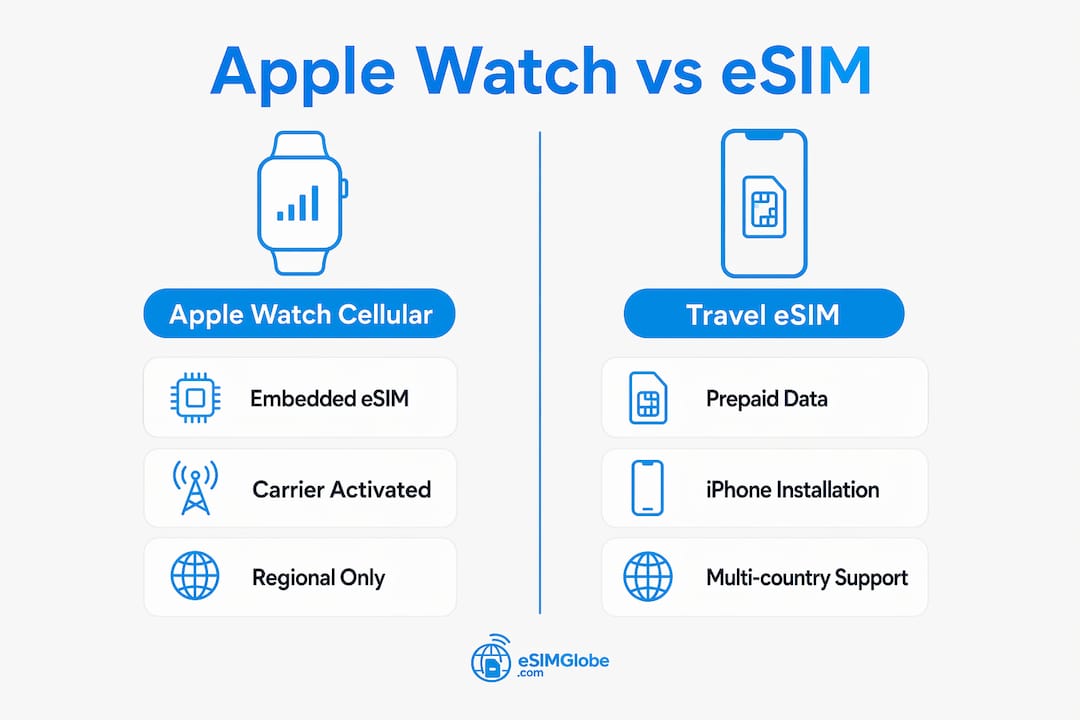
Apple Watch cellular is not a standalone eSIM slot you can load freely. The watch uses an embedded eSIM that requires carrier-level integration with Apple. Activation happens through the Watch app on a paired iPhone, following carrier-specific provisioning steps. A generic travel eSIM QR code cannot be scanned or installed by the watch directly because the watch has no UI for that flow and no carrier-binding credentials to complete it.
Apple sells cellular Apple Watch models as regional variants, each optimized for specific LTE, UMTS, and 5G bands. A watch purchased in the Americas may not support the bands your destination country uses, which limits roaming even when a carrier plan technically exists.
The Family Setup exception (Apple Watch for Your Kids) allows a watch to operate on an independent carrier plan without a paired iPhone nearby. It still requires a carrier that explicitly supports Family Setup, and it does not allow installing generic prepaid travel eSIMs. It is not a universal workaround for international travel.
| Apple Watch Model Group | Cellular Support | Compatibility Note |
|---|---|---|
| Apple Watch SE (2nd gen) | GPS + Cellular variant | Carrier-provisioned; regional band variants apply |
| Apple Watch Series 6, 7, 8 | GPS + Cellular variant | Carrier-provisioned; regional band variants apply |
| Apple Watch Ultra, Ultra 2 | All models include cellular | Wider band support; still carrier-provisioned |
| Apple Watch Series 10 | GPS + Cellular variant | Carrier-provisioned; regional band variants apply |
| Apple Watch GPS only (any model) | No cellular | Wi-Fi and Bluetooth only; no carrier plan possible |
How do you install a prepaid eSIM on your iPhone and keep the Apple Watch connected?
- Buy the right Esimglobe plan. Select your destination country or region, choose a duration (daily, multi-day, or regional bundle), and complete checkout. Delivery is instant by email.
- Activate the eSIM on your iPhone. Go to Settings > Cellular > Add eSIM. Scan the QR code from your Esimglobe confirmation email or use the activation link. Confirm the eSIM downloads and label it (e.g., “Travel”).
- Set the travel eSIM as your primary data line. Go to Settings > Cellular > Cellular Data and select the Esimglobe eSIM. Keep your domestic SIM active for calls and texts if needed.
- Open the Watch app on your iPhone. Go to My Watch > Cellular > Set Up Cellular. Follow the carrier steps if your domestic carrier supports watch roaming; otherwise, the watch will use Bluetooth or Wi-Fi to route through the iPhone’s active data connection.
- Run a quick verification. Walk to another room without your phone. Check that the watch shows signal dots and can load a notification or map. Return and confirm the iPhone’s Esimglobe eSIM shows active data.
- If using Dual SIM, set the travel eSIM as the default data line and keep the domestic SIM for voice
- The watch follows the iPhone’s active cellular data line when connected via Bluetooth
Pro Tip: Label each eSIM line clearly in Settings > Cellular. “Travel” vs. “Home” prevents accidentally routing data through your domestic plan and triggering roaming charges.
What are the best strategies for keeping an Apple Watch usable abroad?
Short trips (1–7 days). Buy a country-specific Esimglobe plan for your destination. Keep your iPhone’s Bluetooth on and the watch within range. This covers the vast majority of watch features: notifications, maps, health tracking, and Apple Pay.

Border-hopping or multi-country trips. Regional Esimglobe plans cover multiple countries under one data bucket, so you avoid buying a new plan at every border. Check the eSIM travel tips guide for region-specific coverage details before you buy.
Long-term digital nomads. Multi-week or monthly plans reduce per-day cost. Pair them with watchOS Power Reserve mode during long transit days to extend battery life. Background app refresh on the watch should be limited to essential apps only.
When phone-free watch use is required. Some destination carriers offer Apple Watch-compatible companion plans, but availability is country-specific and rare. Confirm directly with the local carrier before relying on this.
Prepaid data-only eSIM plans typically range from daily passes to 30-day bundles. Short-trip plans (3–7 days) are the most common purchase for travelers pairing an iPhone with an Apple Watch.
For a full breakdown of plan shapes and pricing, the travel eSIM guide covers regional vs. country options in detail.
How do you fix the most common Apple Watch connectivity problems abroad?
Watch shows “No Service” after you switch to a travel eSIM on the iPhone. The watch’s carrier plan is separate from the iPhone’s eSIM. Open the Watch app > My Watch > Cellular and re-add or verify the carrier plan. If your domestic carrier doesn’t support roaming, the watch will rely on Bluetooth and Wi-Fi only.
Bluetooth or Wi-Fi drops.
- Confirm Bluetooth is on in iPhone Settings
- Both devices must share the same Apple ID and iCloud account
- Enable Wi-Fi Assist on the iPhone (Settings > Cellular > Wi-Fi Assist)
Airplane Mode issues. Turning on Airplane Mode disables all radios. After landing, turn it off and wait 30–60 seconds for both devices to reconnect. If the eSIM doesn’t reactivate, restart the iPhone first, then the watch.
Carrier provisioning failures.
- Note your iPhone IMEI (Settings > General > About) and your Apple Watch ESN
- Call your domestic carrier’s international support line
- Confirm VoLTE is enabled and Apple Watch roaming is active on your account
- Request a manual re-provisioning if the watch still shows no service
Battery drain. Enable Power Reserve on the watch during long days. On the iPhone, set a data cap or low-data mode for the travel eSIM line in Settings > Cellular.
Short answers to the questions travelers search most
Can an Apple Watch scan a travel eSIM QR code? No. The watch has no interface for scanning or installing third-party eSIM profiles. Activation requires the Watch app on a paired iPhone and carrier-side provisioning.
Does the Apple Watch use my iPhone’s phone number? In the standard companion plan setup, yes. The watch shares the iPhone’s number. Family Setup creates an independent line, but it still requires a carrier that supports that feature and does not allow generic travel eSIMs.
Will my Apple Watch roam automatically overseas? Only if your domestic carrier supports Apple Watch roaming and VoLTE in the destination country, and your account type is eligible. Many carriers restrict watch roaming to postpaid plans.
How long does eSIM activation take? Esimglobe delivers eSIM profiles instantly by email. Installation on the iPhone takes under five minutes. Carrier provisioning for the watch plan, if supported, typically completes within a few minutes of following the Watch app steps.
Is it safe to install a prepaid travel eSIM? Yes, when purchased from a verified provider. Always use the official activation link or QR code from your confirmation email. Avoid scanning QR codes from unknown sources, and confirm the sender domain matches the provider’s official website.
Security note: Esimglobe uses telecom-grade security for all eSIM profile delivery. Activation links are single-use and tied to your order.
Key Takeaways
You cannot install a generic prepaid travel eSIM directly on an Apple Watch; the reliable solution is to install the eSIM on your paired iPhone so the watch stays connected via Bluetooth, Wi-Fi, or the iPhone’s cellular data.
| Point | Details |
|---|---|
| No direct watch eSIM install | Generic prepaid travel eSIMs cannot be installed on an Apple Watch; use the paired iPhone instead. |
| Carrier confirmation is critical | Call your carrier before travel to confirm Apple Watch roaming, VoLTE support, and account eligibility. |
| iPhone-first setup | Install your Esimglobe plan on the iPhone, set it as the primary data line, and keep Bluetooth on. |
| Regional band limits apply | Apple Watch cellular models are region-specific; confirm your watch supports destination LTE bands. |
| Esimglobe for iPhone | Esimglobe prepaid plans for 170+ countries keep your iPhone data active so the Apple Watch stays online. |
Why the iPhone-first approach is the only practical choice for most travelers
The conventional assumption is that a cellular Apple Watch is fully independent. In practice, that independence is narrow. Carrier-provisioned companion plans are the norm, and most carriers restrict watch roaming to postpaid accounts with specific VoLTE configurations. Trying to source an independent watch plan at your destination adds time, cost, and uncertainty at exactly the moment you want none of those things.
The iPhone-first approach sidesteps all of that. A prepaid data-only eSIM on the iPhone covers the watch’s connectivity needs across nearly every use case: notifications, navigation, health monitoring, and Apple Pay all work normally via Bluetooth. The only feature you lose is independent cellular emergency calls when the phone is out of range, which is a genuine but narrow trade-off.
Phone-first vs. independent watch plan:
- Phone-first (Esimglobe on iPhone): Fast setup, works in 170+ countries, no carrier negotiation required, watch stays functional via Bluetooth
- Independent watch plan: Rare availability, postpaid requirement, country-specific, adds setup time at destination
Esimglobe is fully compatible with this workflow. It is the practical choice for travelers who want their Apple Watch to function reliably abroad without carrier negotiations at the gate.
Esimglobe keeps your Apple Watch connected abroad
Travelers who pair an Apple Watch with an iPhone need one thing above all else: a reliable iPhone data connection that the watch can use. Esimglobe delivers exactly that. Prepaid data-only plans for 170+ countries, instant delivery to your email, multi-currency checkout in USD, EUR, or GBP, and 24/7 support mean that you can activate a plan before you leave the house and verify it works before you reach the airport.
Select your destination, choose a plan duration, complete checkout, and install the eSIM on your iPhone in under five minutes. The Apple Watch connects through the iPhone automatically. No carrier negotiations, no physical SIM swap, no roaming surprises. Esimglobe also publishes device compatibility guides covering iPhone and Apple Watch workflows so you can confirm your setup before departure. Visit Esimglobe to select your plan and get connected.
Useful sources and further reading
Apple official documentation:
- Apple Watch Carriers page: carrier compatibility, regional variants, and roaming requirements
- Set Up Cellular on Apple Watch: step-by-step activation via the Watch app
- Use Dual SIM with Apple Watch GPS + Cellular: Dual SIM behavior and watch plan eligibility
Esimglobe resources:
- eSIM for iPhone: International Traveler’s Guide: full iPhone eSIM installation walkthrough
- eSIM Purchasing Tips for International Travelers: plan selection and duration guidance
- eSIM for Long-Term Travelers: advice for digital nomads on multi-week plans
Partner resources:
- Smart Check-In for Couples: Your 2026 Travel Guide: connectivity tips for hotel stays, including on-site eSIM activation support
- What Is a Seamless Travel Experience? Your 2026 Guide: travel planning perspective covering device setup and guest connectivity
| Resource | Type | Best For |
|---|---|---|
| Apple Watch Carriers page | Official Apple documentation | Carrier compatibility and roaming requirements |
| Set Up Cellular on Apple Watch | Official Apple support | Step-by-step watch activation |
| Esimglobe iPhone eSIM Guide | Provider documentation | iPhone eSIM install and Apple Watch workflow |
| Esimglobe Long-Term Traveler Guide | Provider documentation | Multi-week plan selection for digital nomads |
FAQ
Can you put a travel eSIM directly on an Apple Watch?
No. Apple Watch requires carrier-provisioned activation through the Watch app on a paired iPhone; it cannot scan or install generic third-party travel eSIM QR codes.
Does Apple Watch work without the iPhone when abroad?
It depends on your carrier. If your domestic carrier supports Apple Watch roaming and VoLTE at your destination, the watch can operate independently. Without that support, it relies on Bluetooth or Wi-Fi connection to your iPhone.
Which Apple Watch models support cellular?
GPS + Cellular variants of the Apple Watch SE (2nd gen), Series 6 through 10, and all Apple Watch Ultra models support cellular. GPS-only models do not support any carrier plan.
How does Esimglobe work with Apple Watch?
Esimglobe provides a prepaid data-only eSIM for your iPhone. Once active, the Apple Watch connects through the iPhone via Bluetooth or Wi-Fi, keeping all standard watch features functional abroad without requiring a separate watch plan.
Is the Apple Watch Family Setup feature useful for travel?
Family Setup allows a watch to run on an independent carrier line, but it still requires a carrier that supports the feature and does not permit generic prepaid travel eSIMs. It is not a practical workaround for most international travelers.