






















Yes, you can transfer an eSIM to a new phone. If you’re moving between two iPhones, Apple’s eSIM Quick Transfer handles it directly, device-to-device. For every other combination (Android to Android, Android to iPhone, or iPhone to Android), your carrier reissues the eSIM as a new QR code or activation code.
- iPhone to iPhone: Use Quick Transfer during setup or from Settings.
- Android to Android: Many phones transfer automatically during setup if both run Android 12 or later.
- Cross-platform or unsupported devices: Contact your carrier for a fresh QR code.
Pro Tip: Check your OS version before you start. Quick Transfer and Android’s automatic option both quietly fail on older software, and the fix is usually a five-minute update, not a call to support.
Key Takeaways
Transferring an eSIM to a new phone works reliably when you match the method to the device combination: Quick Transfer for iPhone to iPhone, automatic transfer for Android to Android, and a carrier reissue for everything else.
| Point | Details |
|---|---|
| Match method to device pair | Use Quick Transfer for iPhone to iPhone, Android’s built-in transfer for Android to Android. |
| Carrier reissue for cross-platform | Moving between iOS and Android almost always needs a new QR code or activation code from your carrier. |
| Confirm before wiping | Test calls and data on the new phone before factory-resetting or deleting the old eSIM profile. |
| Have verification ready | Keep your carrier login and any one-time PIN accessible before starting the transfer. |
| Use Esimglobe as a stopgap | Esimglobe’s instant prepaid eSIM plans cover connectivity gaps while a carrier reissue or transfer is pending. |
Official Sources and Further Reading
For step-by-step device instructions straight from the source, check Apple Support’s eSIM transfer guidance and Google’s Pixel Phone Help pages on SIM transfer. If Quick Transfer or automatic Android transfer doesn’t appear, your carrier’s own support site (AT&T, T-Mobile, Verizon, and others each publish their own eSIM reissue steps) is the next stop.
Table of Contents
- Before You Start: Essential Checklist and Quick Prep
- How Do You Transfer an eSIM to a New iPhone?
- How Do You Transfer an eSIM to a New Android Phone?
- Can You Transfer an eSIM Between Android and iPhone?
- What Carrier Rules Can Block an eSIM Transfer?
- What Do You Do When an eSIM Transfer Fails?
- What Happens to Your Old eSIM After the Transfer?
- Why Is Transferring an eSIM Different From Swapping a Physical SIM?
- Need Data While Your Transfer Sorts Itself Out?
- FAQ
Before You Start: Essential Checklist and Quick Prep
A failed eSIM transfer almost always traces back to one of a handful of overlooked details. Confirm these before you touch either phone.
- Software: iPhone needs iOS 16 or later (newer iOS versions add smoother multi-number transfers and broader carrier support). Android needs version 12 or later with current Google Play Services.
- Connectivity: Turn on Wi-Fi and Bluetooth, keep both devices charged, and set a screen lock on the Android device. Automatic transfer options often check for a lock screen before they’ll appear.
- Account access: Have your carrier login, any account PIN, and your phone number handy in case verification kicks in.
- Timing: Don’t factory-reset the old phone yet. Wait until the new phone shows a cellular signal and you’ve confirmed calls and data work.
Pro Tip: Keep both phones on the same Wi-Fi network during setup. Some transfer flows use local wireless discovery, and a shaky or separate connection is a common reason the transfer option never shows up.
How Do You Transfer an eSIM to a New iPhone?
Apple’s eSIM Quick Transfer works when both iPhones support it. If either device or your carrier doesn’t, you’ll fall back to a carrier-issued QR code.
During setup (new iPhone):
- Sign in with your Apple ID during the setup screens.
- When prompted, choose Transfer From Nearby iPhone and select the eSIM plan to move.
- Confirm on the old iPhone, then wait for the transfer to complete. Your carrier may redirect you to a confirmation page.
After setup, from Settings:
- Open Settings > Cellular > Add eSIM.
- Choose Transfer From Nearby iPhone and pick the plan.
- Follow any on-screen carrier prompts to finish activation.
If Quick Transfer isn’t available, request a new eSIM from your carrier’s app, website, or support line. You’ll get either a QR code to scan or an SM-DP+ address and activation code to enter manually. After activation, test calls and data before doing anything else to the old phone.
Apple’s own documentation notes that when a carrier requires it, you’re redirected to a carrier page to finish activation, meaning Quick Transfer sometimes hands off the last step to your provider rather than completing it end to end.
Pro Tip: If the transfer option doesn’t appear at all, it’s almost always an iOS version mismatch or a carrier that hasn’t enabled Quick Transfer support yet, not a broken phone.
How Do You Transfer an eSIM to a New Android Phone?
Most Android phones let you transfer an eSIM right during initial setup, no carrier call needed. If you skip that step or set up the phone before switching SIMs, Settings has the same option.
During setup:
- When prompted for a SIM, choose Transfer SIM from another device (wording varies slightly by manufacturer).
- Hold the old phone near the new one and confirm the transfer on both screens.
- Wait for the new phone to show a signal, then verify data works.
After setup, from Settings:
- Go to Settings > Network & internet > SIMs.
- Tap Add SIM, then choose Transfer SIM from another device (Pixel) or the equivalent Download a new eSIM / Add eSIM option (Samsung and other OEMs).
- Follow the prompts on both devices to finish.
Automatic transfer depends on both phones running Android 12 or later with updated Google Play Services and an active screen lock. Consumer eSIM adoption increased significantly in recent years, which is a big part of why more phone makers are building these automatic flows in the first place. If your phone doesn’t detect the transfer automatically, contact your carrier to activate the eSIM manually.
Pro Tip: Samsung and Pixel use different menu labels for the same function. If “Transfer SIM” isn’t listed, look for “Add SIM” or “Download a new eSIM” instead.
Can You Transfer an eSIM Between Android and iPhone?
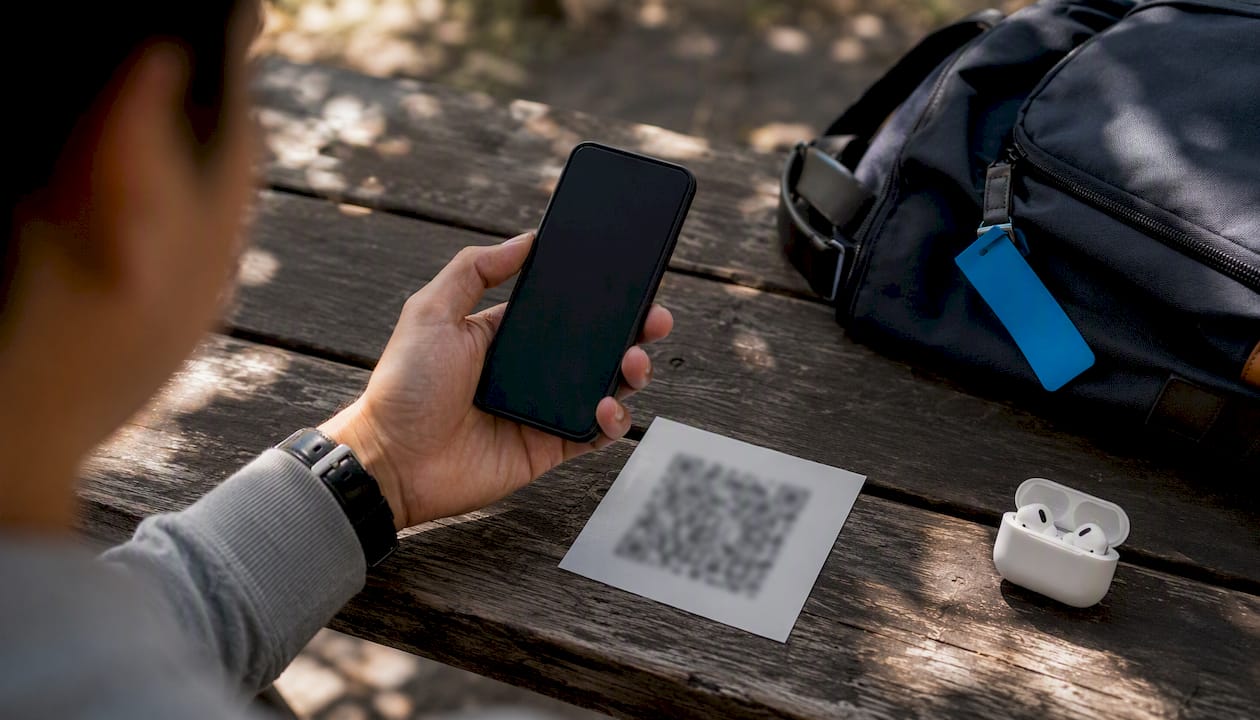
Moving between operating systems almost always requires your carrier, since Quick Transfer only works iPhone to iPhone, and Android’s automatic transfer only works between two Android devices. The workaround is a carrier reissue.
- Request a new QR code or activation code through your carrier’s app, website, or customer support.
- Confirm your identity if asked, sometimes with a one-time PIN sent by text or email.
- Scan the QR code, or enter the SM-DP+ address and code manually, on the new device.
Call your carrier directly if your account has a lock enabled, you’re on a prepaid plan with reissue restrictions, the IMEI on file doesn’t match your new device, or a QR code has expired before you could scan it.
Pro Tip: Request the new QR code only after your new phone is fully set up and connected to Wi-Fi. Codes can expire, and re-requesting one twice in a day sometimes trips a carrier’s fraud check.
What Carrier Rules Can Block an eSIM Transfer?
Carrier-side settings cause more failed transfers than device bugs do. A few things to check before you assume something is broken.
- Account or device locks: Many carriers apply a wireless account lock that has to be turned off before an eSIM can move to a new device.
- One-time PINs: Expect a text or account PIN as a verification step. Have your phone number and account access ready.
- Prepaid restrictions: Some carriers limit how often a prepaid line can get a new eSIM reissued. Check your account settings if you hit a wall.
AT&T’s documented process for swapping a SIM or eSIM between devices includes a step where a one-time PIN may be required to complete verification, a fairly typical pattern across major carriers.
What Do You Do When an eSIM Transfer Fails?
Most failures resolve with a short diagnostic pass before you need to escalate to your carrier.
- Update both phones’ OS and, on Android, Google Play Services.
- Restart both devices, then toggle Airplane Mode off and on.
- Reconnect both phones to Wi-Fi and retry the transfer.
- Confirm the device is carrier-unlocked if you recently switched providers.
- If you get an activation error, the QR code may already be used or expired. Request a fresh one.
- No service after activation? Wait a few minutes for the network to register, toggle cellular data off and on, then test with Wi-Fi turned off.
If none of that works, contact carrier support with your account details and the new device’s IMEI ready. A store visit is rarely required unless there’s a persistent SIM lock or provisioning error on the account.
| Issue | Quick fix |
|---|---|
| Transfer option missing | Update OS and Google Play Services, restart both devices |
| Activation error | Request a new QR code; confirm IMEI with carrier |
| No service post-transfer | Wait a few minutes, toggle cellular data, retest with Wi-Fi off |
| Persistent failure | Contact carrier with account details and IMEI |
What Happens to Your Old eSIM After the Transfer?
Your old eSIM profile typically deactivates automatically the moment the new one activates. Confirm the new phone has signal and working data before you do anything else.
- Delete the old eSIM profile only after you’ve verified calls and data work on the new device.
- Remove the carrier account from the old phone, then factory-reset it, in that order, not before.
- If you’re selling or giving away the old phone, double-check the carrier shows the line deactivated on that device and clear any stored account data first.
Pro Tip: A factory reset before you’ve tested the new phone is the single most common way people end up needing an emergency carrier call. Test first, wipe second.
Why Is Transferring an eSIM Different From Swapping a Physical SIM?
An eSIM is a software credential, not a physical chip you move between slots. That’s the core distinction.
- Moving a physical SIM is just a mechanical swap. Moving an eSIM requires your carrier’s provisioning servers to authorize or reissue the profile for the new device.
- Industry coverage of eSIM transfers describes this as a server-side handshake rather than a simple re-insertion, which is exactly why QR codes and SM-DP+ activation codes exist.
- Device-to-device options like Quick Transfer are essentially a shortcut around that handshake, working only when both the devices and the carrier support it.
A quick lesson from watching people transfer eSIMs
Keep the old phone powered on and nearby for the entire process, and run one real test before wiping it: turn off Wi-Fi for ten seconds and confirm cellular data still works on the new phone. Premature wipes remain the single most common, and most avoidable, mistake we see in customer notes.
Need Data While Your Transfer Sorts Itself Out?
Carrier reissues don’t always happen instantly. If you’re mid-transfer, traveling, or waiting on a verification PIN, going without data for a day isn’t ideal, especially abroad.
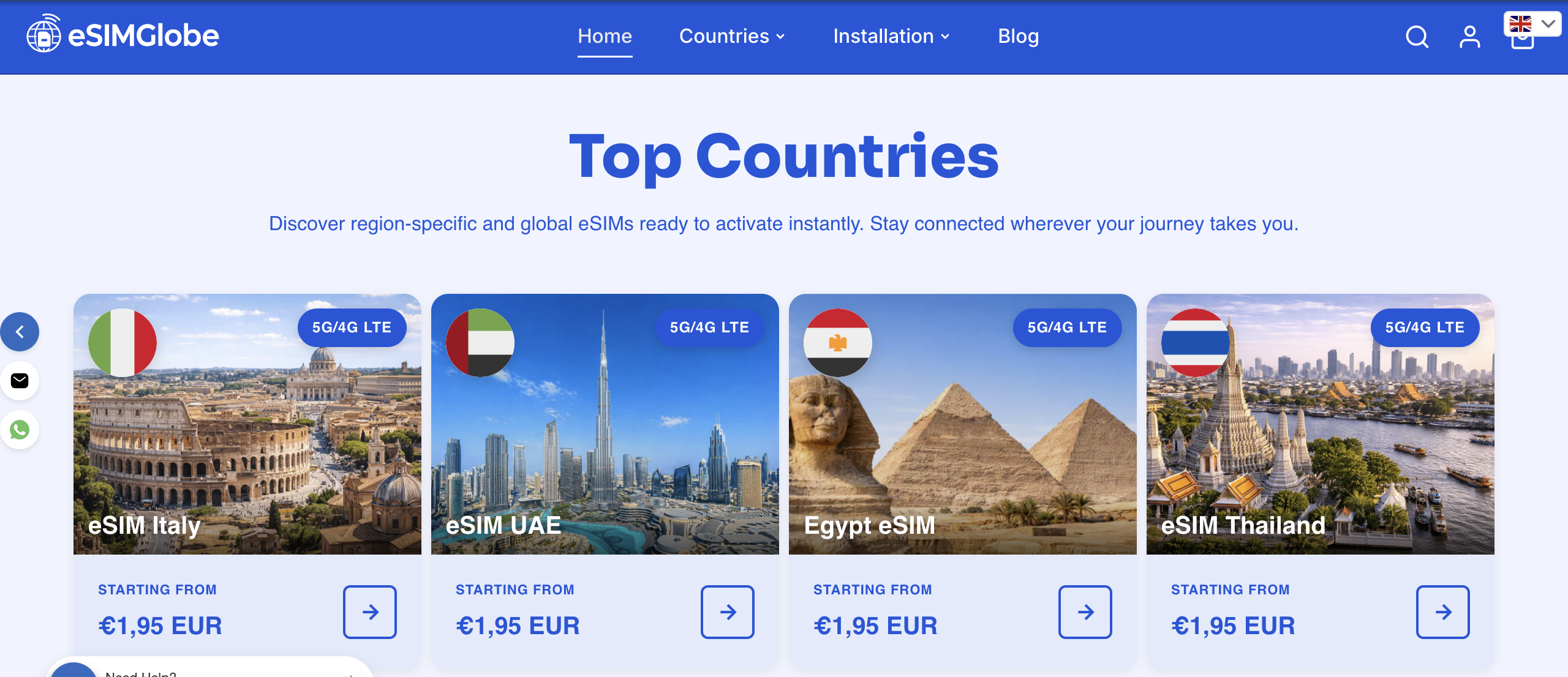
Esimglobe sells prepaid, data-only eSIM plans for more than 170 countries, delivered by email in minutes, with no store visit and no subscription to manage. It’s a practical stopgap: install a temporary data plan while your carrier finishes reissuing your primary eSIM, or use it as your main connectivity solution on your next trip regardless of what’s happening with your other line. Plans are selectable by country, region, and currency, with 24/7 support if something doesn’t activate cleanly. This isn’t a replacement for the device or carrier transfer steps above. It’s a way to stay connected while those steps play out. If you’re heading abroad soon, check data-only eSIM plans for travelers or browse plans directly at Esimglobe to get connected in minutes.
FAQ
Can I move an eSIM from one phone to another?
Yes. iPhone to iPhone uses Apple’s Quick Transfer, Android to Android often transfers automatically during setup, and cross-platform moves typically require a carrier-issued QR code.
How do I transfer my eSIM to a new device?
On iPhone, go to Settings > Cellular > Add eSIM and choose Transfer From Nearby iPhone. On Android, go to Settings > Network & internet > SIMs > Add SIM and choose Transfer SIM from another device.
What’s the fastest way to transfer an eSIM?
Device-to-device transfer, Quick Transfer on iPhone or the built-in option on Android, is faster than a carrier reissue since it skips waiting for a new QR code.
Why can’t my eSIM be transferred automatically?
Usually an outdated OS, missing Google Play Services update, no screen lock set on Android, or a carrier that doesn’t yet support device-to-device transfer for your plan.
What happens to my old eSIM once the new one is active?
It typically deactivates automatically. Confirm the new phone has working calls and data before deleting the old profile or resetting the old device.