






















Most eSIM data failures come down to three settings, not a broken profile. Turn on Data Roaming for the eSIM line, set that eSIM as your default mobile data line, and check the APN. These steps resolve most “installed but no data” cases without needing a new profile.
Run through this before anything else:
- Enable Data Roaming for the eSIM line
- Set the eSIM as your default/primary data line
- Toggle Airplane Mode on, wait ten seconds, turn it off
- Confirm the APN matches your provider’s activation instructions
Pro Tip: Every time you change a setting, cycle Airplane Mode or restart the device. Networks often need that trigger to re-register, even when the setting itself was correct.
Key Takeaways
Most eSIM no data problems trace back to Data Roaming being off, the wrong default data line, or a mistyped APN, not a broken profile.
| Point | Details |
|---|---|
| Check Data Roaming first | Travel eSIMs route through local networks classified as roaming; leaving it off blocks all data. |
| Set the eSIM as default data | A phone using the wrong line for data will show signal but never load anything. |
| Verify APN values exactly | Match APN, username, and password character for character against the provider’s activation instructions. |
| Save activation details before reinstalling | Keep the QR code, EID, and ICCID on hand in case you need to remove and reinstall the profile. |
| Contact EsimGlobe if issues persist | EsimGlobe can re-provision a profile, reissue an activation link, or sell a replacement plan when other fixes fail. |
Where to Find Official Guidance
- FCC roaming guidance covers how carriers handle international connections and what to check before traveling.
- FCC unlocking guidance explains how a locked device can block network registration even with a valid eSIM installed.
Table of Contents
- Why Is My eSIM Not Working? Start With These Fixes
- How Do You Check and Fix APN Settings?
- Should You Reinstall the eSIM Profile?
- What Are the Exact Settings Paths for iPhone and Android?
- What Should You Try If Basic Fixes Don’t Work?
- When Should You Contact Your eSIM Provider?
- What Actually Causes Most eSIM Data Failures?
- FAQ
Why Is My eSIM Not Working? Start With These Fixes
Data Roaming is a very common reason an eSIM shows full signal but zero internet. Travel and prepaid eSIMs connect through local partner networks in the country you’re in, and phones classify that connection as roaming, even though the plan is prepaid and won’t generate surprise charges from a home carrier. If Data Roaming is off for that line, the device simply refuses to pass data through it.
Here’s the order that gets people back online fastest:
- Turn on Data Roaming for the eSIM line. Do this first. It’s the fix that solves the problem more often than any other single step.
- Set the eSIM as your default mobile data line, and turn off automatic data switching so your phone doesn’t quietly fall back to a physical SIM with no data plan.
- Cycle Airplane Mode, then restart the phone. If data still doesn’t work, repeat once.
- Check data saver and battery saver modes. Either one can silently block background data or throttle a specific line without an obvious warning.
Pro Tip: Do these four steps before touching APN settings or reinstalling anything. Most “eSIM data not working” reports get solved right here, and reinstalling a profile you didn’t need to touch just creates more risk.
How Do You Check and Fix APN Settings?
An Access Point Name (APN) is the gateway your phone uses to translate a cellular signal into actual internet access. Get it wrong, and you’ll see full bars and the correct carrier name in your status bar, while every app still fails to load. That mismatch between visible signal and dead data is the clearest sign of an APN problem.
On iPhone, go to Settings > Mobile Service (or Mobile Data) > [your eSIM line] > Mobile Data Network. On Android, the path is typically Settings > Network & Internet > SIMs > [eSIM line] > Access Point Names, though Samsung and Pixel devices phrase this slightly differently.
Check these fields against your provider’s activation email or app:
- APN name (must match exactly, including case sensitivity in some cases)
- Username and password fields, if the plan requires them
- Whether automatic network selection has picked an unsupported local network
Never guess at an APN string. One documented case shows a European travel eSIM requiring the APN, username, and password all set to the same word, “orange,” with no variation. A single wrong character breaks the connection even though everything else looks correct.
If automatic selection isn’t working, switch to manual and pick a network your provider explicitly lists as supported.
Should You Reinstall the eSIM Profile?
Before removing anything, confirm the plan is actually active. Check the provider’s app, your confirmation email, or an account dashboard for activation status and the validity window. A profile that shows “installed” on your phone can still be inactive on the provider’s side.
If the plan checks out as active and you still have no data, gather this before contacting support:
- EID (the device’s eSIM identifier)
- ICCID (the profile’s unique number)
- Order or activation ID, country, and the network name showing in your status bar
- Screenshots of your APN settings and signal bar
Only remove and reinstall a profile if you still have the original QR code or activation link saved. Screenshot everything first.
- Providers often check billing status, plan start date, and whether the profile was generated for a different device’s EID.
- If a profile gets regenerated on the provider’s end, remove the old one from your device before installing the new one, or you’ll end up with two conflicting profiles.
Pro Tip: A profile tied to the wrong EID is one of the most overlooked causes of “eSIM installed, no data.” If you switched phones recently, this is worth checking early, not last.
What Are the Exact Settings Paths for iPhone and Android?
iPhone (iOS):
- Confirm the eSIM is set as Mobile Data line: Settings > Mobile Service > Mobile Data and select the eSIM.
- Enable Data Roaming: Settings > Mobile Service > [eSIM line] > Data Roaming, toggle on.
- Check APN: Settings > Mobile Service > [eSIM line] > Mobile Data Network.
- Toggle Allow Cellular Data Switching off if the phone keeps jumping between lines unexpectedly.
- Turn the line off and back on: Settings > Mobile Service > [eSIM line], toggle the line itself.
Android (generic, with Samsung/Pixel notes):
- Open Settings > Network & Internet > SIMs.
- Tap the eSIM line and enable Data Roaming.
- Go to Access Point Names under the same line to verify APN values.
- For manual network selection, go to Network Operators (Samsung labels this under Mobile Networks; Pixel keeps it under the same SIMs menu) and pick a supported network.
Take screenshots of every setting before you remove an eSIM profile. If you don’t have the original activation QR code saved, or your provider can’t reissue one instantly, removing the profile can leave you offline with no way back in.
What Should You Try If Basic Fixes Don’t Work?
If the checklist above didn’t fix it, move to deeper resets, but treat these as last resorts since they carry more risk.
- Reset network settings (iOS: Settings > General > Transfer or Reset iPhone > Reset > Reset Network Settings; Android: Settings > System > Reset Options). This clears saved Wi-Fi passwords and network preferences, so know that going in.
- Cycle Airplane Mode and restart again, then remove and re-add the cellular line without deleting the eSIM profile itself.
- Check for OS updates. Older software sometimes mishandles eSIM registration on newer network configurations.
- Verify device compatibility. If your plan requires 5G or specific LTE bands your device doesn’t support, no setting will fix it. Confirm compatibility on the device compatibility guidance in EsimGlobe’s traveler guide before assuming the profile is broken.
Pro Tip: After any major change, run one simple test, like loading a webpage or checking a speed test app, before making another change. Stacking multiple fixes at once makes it impossible to know what actually worked.
When Should You Contact Your eSIM Provider?
Contact support when the profile shows “installed” but never registers on a network, when APN settings are confirmed correct but nothing loads, or when the profile appears invalid or missing entirely.
Have this ready before you reach out:
- Order or activation ID
- EID and ICCID
- Device model and OS version
- Country and the exact network name from your status bar
- Screenshots of Settings and your signal bar
Support teams typically re-provision the profile, confirm activation status, or check coverage and data caps on their end.
Pro Tip: Note the exact time the issue started and the exact network name shown on your phone. That detail alone speeds up triage significantly.

What Actually Causes Most eSIM Data Failures?
Field-checklist data points to a clear ranking of causes. Data Roaming being switched off for the eSIM line ranks as the top cause, since travel eSIMs route through local partner networks that phones classify as roaming by default.
- Data Roaming disabled for the specific line
- Incorrect APN, username, or password values
- Wrong line set as default mobile data
- Profile not properly associated with the account, or replaced by a newer profile
- Device lock or band incompatibility blocking network registration
The FCC’s consumer guidance on international roaming backs up why checking roaming settings matters before assuming a deeper problem exists, and its unlocking guidance explains how a locked device can install an eSIM profile yet still get rejected by foreign networks. Each cause maps directly to a step earlier in this checklist, which is exactly why working through them in order, instead of jumping straight to a factory reset, saves the most time.
A Quick Note From the Publisher
Most eSIM no data cases resolve with the main fixes outlined above. If yours doesn’t, gather your order ID, device model, and a screenshot before reaching out.
How EsimGlobe Can Help When Nothing Else Works
If you’ve worked through this checklist and your eSIM still shows no data, EsimGlobe can re-provision your profile, reissue a fresh activation link, or get you a new plan active within minutes if your current one is corrupted beyond repair. This beats waiting on hold with a foreign carrier who has no idea what an eSIM profile even is.
Have your order ID, device model, and a screenshot of your Settings menu ready. That’s usually all support needs to diagnose whether it’s a profile issue on EsimGlobe’s end or a device setting you missed. Before your next trip, it’s also worth reading through EsimGlobe’s traveler workflow guide so activation goes smoothly the first time. If your current plan is unrecoverable, you can pick a fresh one by country or region directly on the EsimGlobe plans page and get a new activation link by email in minutes.
FAQ
Why Does My eSIM Have No Data?
The most common cause is Data Roaming switched off for the eSIM line, since travel eSIMs connect through local partner networks that phones treat as roaming. Incorrect APN settings and the wrong default data line are the next most frequent causes.
Can I Use an eSIM Without Data?
Yes, an eSIM can be installed and used only for calls or texts if the plan supports it, but most travel eSIMs from providers like EsimGlobe are data-only and won’t function for anything until data connects properly.
Can an eSIM Work Without Internet?
An eSIM profile itself doesn’t require an active internet connection to stay installed on your device, but it needs a working data connection to actually deliver internet access once you’re using it abroad.
Why Does My eSIM Have No Internet Connection?
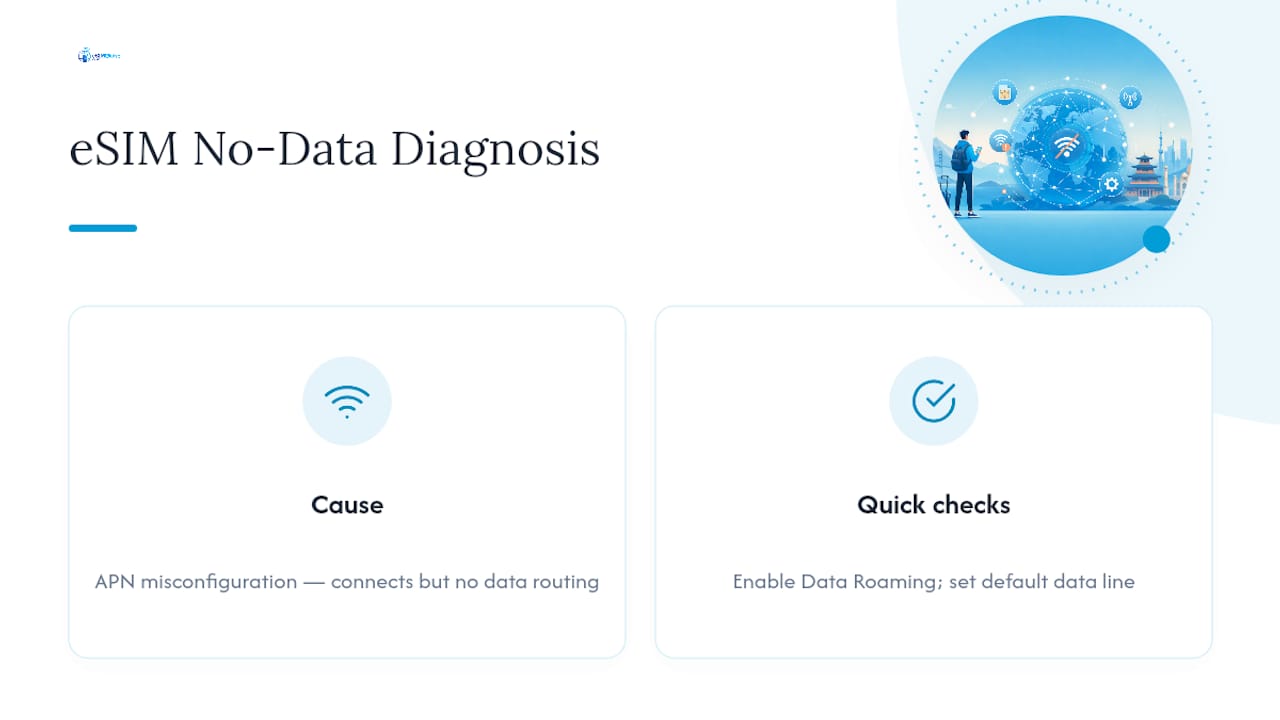
Full signal with no internet usually points to an APN misconfiguration, since the phone connects to the carrier’s network but can’t route data traffic correctly. Checking Data Roaming and the default data line next usually isolates the cause quickly.