






















Turn on Low Data Mode and block cellular access for high-data apps. Those two steps alone cut most unexpected overages. Here is the fastest checklist to apply in under two minutes:
- Low Data Mode (cellular): Settings > Cellular > Cellular Data Options > Data Mode > Low Data Mode
- Low Data Mode (Wi-Fi): Settings > Wi-Fi > tap the ⓘ next to your network > Low Data Mode
- Disable Wi-Fi Assist: Settings > Cellular > scroll to bottom > toggle off Wi-Fi Assist
- Block cellular for heavy apps: Settings > Cellular > scroll to app list > toggle off video, social, and streaming apps
- Turn off Data Roaming (travel): Settings > Cellular > Cellular Data Options > toggle off Data Roaming
Tradeoff: background updates slow down, iCloud Photos sync pauses, and video quality drops on cellular. For most users, those are acceptable costs.
Key Takeaways
The single most effective way to save data on your iPhone is to enable Low Data Mode and block cellular access for high-bandwidth apps before you need to.
| Point | Details |
|---|---|
| Enable Low Data Mode | Go to Settings > Cellular > Cellular Data Options > Data Mode to activate it immediately. |
| Disable Wi-Fi Assist | Turn it off at the bottom of the Cellular screen to stop automatic cellular fallback on weak Wi-Fi. |
| Block cellular per app | Toggle off video, social, and streaming apps in the Settings > Cellular app list. |
| Turn off Data Roaming | Disable it under Cellular Data Options before traveling to prevent carrier roaming charges. |
| Esimglobe prepaid eSIM | A fixed-budget alternative to roaming, covering 170+ countries with instant digital delivery. |
Table of Contents
- How to save data on iPhone with Low Data Mode
- How to stop background apps from draining your cellular data
- How to stop automatic downloads and iCloud uploads from using cellular
- How to reduce data use from Mail, Messages, and background syncing
- Which Location Services settings actually save data?
- How to cut data use from streaming music, podcasts, and video
- How to check which apps are using the most cellular data
- How to save data while traveling abroad
- What’s draining my data? A quick troubleshooting checklist
- A note on data management from the road
- Prepaid eSIMs: a predictable alternative to roaming charges
- Sources and further reading
- FAQ
How to save data on iPhone with Low Data Mode
Low Data Mode is the single most effective toggle on your iPhone for cutting cellular consumption. It works on both your cellular connection and individual Wi-Fi networks, and you set each one separately.
For cellular:
- Open Settings
- Tap Cellular
- Tap Cellular Data Options
- Tap Data Mode
- Select Low Data Mode
For a specific Wi-Fi network:
- Open Settings
- Tap Wi-Fi
- Tap the ⓘ icon next to the network name
- Toggle on Low Data Mode
Once enabled, Low Data Mode pauses automatic iCloud Photos uploads, suspends automatic app updates, reduces video streaming bitrate, and limits most background network activity. Some apps fully suspend background syncs; others simply reduce quality. It behaves as an intelligent limiter rather than a universal off switch, so you keep core functionality while cutting the heaviest data draws.
The tradeoffs are real but manageable: iCloud backups pause until you reconnect to Wi-Fi, app updates queue up, and some media apps stream at lower resolution. Toggle it off when you are back on a reliable Wi-Fi connection.
Pro Tip: Pair Low Data Mode with a Shortcuts automation. Set a shortcut that enables Low Data Mode at a scheduled time each day (for example, 8 AM to 10 PM) so you never forget to activate it during peak usage hours.
How to stop background apps from draining your cellular data
Background App Refresh lets apps update their content while you are not using them. On cellular, that is a quiet but steady drain.
Go to Settings > General > Background App Refresh. You have three options: Off, Wi-Fi, or Wi-Fi & Cellular. Set it to Wi-Fi to allow refreshes only when you are connected to a network, or Off to stop all background refreshing entirely.
For per-app cellular control, go to Settings > Cellular and scroll down to the app list. Every app with a toggle can be individually blocked from using cellular data. Focus on these categories first:
- Video streaming apps (they consume the most data per minute)
- Social media apps with auto-playing video feeds
- Photo backup and cloud storage apps
- Podcast apps with automatic episode downloads
- Navigation apps that cache maps in the background
After making changes, use Reset Statistics at the bottom of the Cellular screen to zero out your counters. Run a 24-hour window and check back. The numbers will show exactly which apps are still pulling data.
Pro Tip: Before a trip or a period of limited data, temporarily disable cellular for entire categories: toggle off all social and entertainment apps at once. Re-enable them individually when you are back on Wi-Fi.
How to stop automatic downloads and iCloud uploads from using cellular
App Store automatic updates and iCloud background syncs are two of the most common sources of surprise data use.
App Store settings:
- Go to Settings > App Store
- Under Automatic Downloads, toggle off App Updates
- Toggle off Automatic Downloads for apps and app data
This stops your iPhone from downloading app updates over cellular. Updates will still download automatically when you are on Wi-Fi, which is the safer behavior anyway since large updates can run several hundred megabytes.
iCloud behavior:
iCloud starts with 5 GB of free storage. When that fills up, uploads stall and can trigger repeated retry attempts over cellular. Go to Settings > [your name] > iCloud > Storage to see which apps and features consume the most space. Disable backup for apps you do not need by tapping Manage Account Storage > Backups > [your device] and toggling off individual apps.
To stop iCloud Photos from uploading over cellular specifically, go to Settings > Photos and confirm that Cellular Data is turned off under the iCloud Photos section.
Security note: Turning off automatic app updates means you will need to update manually. Check the App Store weekly and prioritize security-related updates. A quick Wi-Fi session at home handles this in minutes and keeps your apps current without burning cellular data.
How to reduce data use from Mail, Messages, and background syncing
Mail is a persistent background syncer. The default Push setting means your iPhone maintains a live connection to your mail server and receives messages the moment they arrive. For heavy accounts, that is a constant low-level data draw.
Change fetch settings:
- Go to Settings > Mail > Accounts > Fetch New Data
- Set Push to off for accounts where real-time delivery is not critical
- Under Fetch, select Hourly or Manually
- Tap each account individually and set its schedule
For Messages, go to Settings > Messages and review auto-download settings for photos and videos. On cellular, large media files download automatically by default. Turning that off means attachments load only when you tap them.
Quick toggles to change right now:
- Push off for secondary email accounts
- Fetch set to Manual for newsletters and low-priority inboxes
- Auto-download for MMS/media set to Wi-Fi only
- Mail preview reduced to 1–2 lines (less content fetched per notification)
Pro Tip: Keep Push active for your primary work or personal email only. Set every other account to Manual. You will check those inboxes intentionally rather than having them pull data every few minutes.
Which Location Services settings actually save data?
Location Services does not consume large amounts of data on its own, but apps set to Always use location in the background can trigger network requests you never see.
Go to Settings > Privacy & Security > Location Services. For each app, choose:
- Never for apps that have no legitimate reason to know your location
- While Using for navigation, weather, and maps apps
- Always only for apps where background location is genuinely useful (Find My, for example)
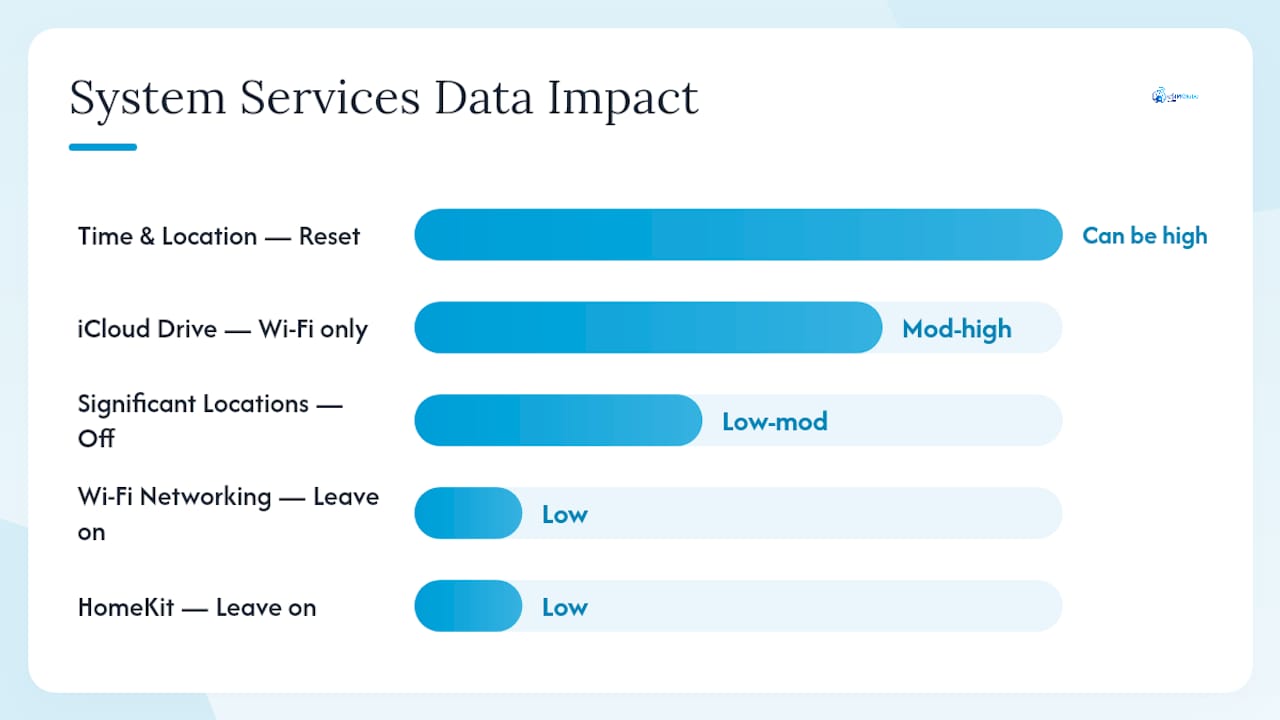
System Services are a separate category. Go to Settings > Cellular > System Services to see what the system itself is consuming. Entries like Time & Location and iCloud-related syncs can accumulate significant data on a device where statistics have never been reset.
| System Service | Typical Data Impact | Recommended Setting |
|---|---|---|
| Time & Location | Can be high if unreset | Leave on; reset stats regularly |
| iCloud Drive | Moderate to high | Restrict to Wi-Fi via Low Data Mode |
| Significant Locations | Low to moderate | Off for most users |
| Wi-Fi Networking | Low | Leave on |
| HomeKit | Low | Leave on if used |
Pro Tip: Disable Significant Locations under Settings > Privacy & Security > Location Services > System Services > Significant Locations. It logs places you visit frequently and syncs that data. Most users have no practical need for it.
How to cut data use from streaming music, podcasts, and video
Streaming is the fastest way to burn through a data plan. A single hour of high-definition video can consume more data than a full day of browsing and messaging combined.
The fix is straightforward: download before you leave Wi-Fi.
- In music apps, set streaming quality to Low or Normal for cellular playback
- In podcast apps, disable automatic episode downloads over cellular and set downloads to Wi-Fi only
- In video apps, download episodes and films at home before a trip
- Set each app’s cellular streaming permission to off if you want to force Wi-Fi-only playback
For storage management, go to Settings > General > iPhone Storage. You can offload unused apps (removes the app but keeps its data) and delete large files to make room for offline content. Offloading is useful when you want to pre-download a season of a show without running out of space.
Pro Tip: The night before any trip, download playlists, podcast queues, and one or two video episodes. Delete them when you return. That single habit eliminates most streaming-related cellular use during travel.
How to check which apps are using the most cellular data
Your iPhone tracks exactly how much cellular data each app has consumed since the last reset. That number is your diagnostic starting point.
Step-by-step:
- Go to Settings > Cellular
- Scroll past the toggles to the app list
- Tap Show All if the list is truncated
- Review the data figure under each app name
- Scroll to the bottom and tap Reset Statistics to start a fresh measurement window
Reset before a trip or at the start of a billing cycle. After 24–48 hours, return to this screen. The apps at the top of the list are your targets. Toggle off cellular access for any app whose data use surprises you.
Actions to take after reviewing:
- Toggle off cellular for the top two or three data consumers
- Disable Background App Refresh for those same apps
- Clear in-app caches where the app’s settings allow it
- Check whether any of those apps have a built-in Wi-Fi-only mode
Pro Tip: Run a 48-hour test window after making changes. If the top of the list shifts to a different app, that app is your next target. Repeat until your daily cellular use matches your plan.
How to save data while traveling abroad
Roaming charges are the most expensive form of data use. A single day of unmanaged roaming can cost more than a month of your domestic plan.
Disable Data Roaming immediately when you land:
- Go to Settings > Cellular
- Tap Cellular Data Options
- Toggle off Data Roaming
With Data Roaming off, your iPhone will not connect to foreign cellular networks for data. Calls and texts over Wi-Fi still work if you have Wi-Fi Calling enabled.
Travel checklist before you depart:
- Enable Low Data Mode on cellular
- Pre-download maps (offline maps in Apple Maps or Google Maps)
- Pre-download media (music, podcasts, video)
- Turn off automatic photo uploads
- Disable Background App Refresh for all non-essential apps
- Verify your carrier’s roaming policy and per-MB rates
For travelers who need reliable data abroad without roaming surprises, a prepaid eSIM is the practical alternative. Esimglobe offers prepaid eSIM plans for 170+ countries with instant digital delivery. You activate before departure, set a fixed data budget, and pay a known amount rather than a variable roaming bill. Check roaming costs and eSIM alternatives before your next trip to compare the real numbers.
Pro Tip: Even with a local eSIM active, keep Data Roaming off on your primary SIM. That prevents your carrier from billing roaming charges if the eSIM signal drops and your phone falls back to the domestic carrier’s roaming agreement.
For business travelers, the mobile data checklist for travelers covers device prep, plan selection, and on-the-ground data management in one place. Business travelers staying at hotels can also take advantage of property Wi-Fi for heavy tasks; a business traveler guest guide covers what to expect from hotel connectivity and when to rely on your own data plan instead.
What’s draining my data? A quick troubleshooting checklist
If your data disappears faster than expected, run through this sequence before calling your carrier.
- Reset Statistics (Settings > Cellular > Reset Statistics) and wait 24 hours
- Check System Services (Settings > Cellular > System Services) for entries with unexpectedly high numbers
- Inspect the top three apps in the cellular list and toggle off any that surprise you
- Confirm Wi-Fi Assist is off (Settings > Cellular > scroll to bottom)
- Confirm Data Roaming is off if you are traveling or near a border
- Check iCloud Photos to verify it is not uploading over cellular
Usage numbers in Settings update in near real time, but the System Services totals can lag by a few minutes. After resetting stats, give the device at least a full day of normal use before drawing conclusions.
Pro Tip: Cross-check your iPhone’s stats against your carrier’s app or your eSIM dashboard. If the carrier shows higher consumption than your phone does, Wi-Fi Assist or a background system service is likely the gap. Esimglobe’s eSIM plans include data monitoring so you can track remaining data without relying solely on the phone’s built-in counter.
A note on data management from the road
The settings in this guide reflect how real travelers manage data day to day. Low Data Mode, per-app cellular controls, and a prepaid eSIM cover the vast majority of situations where data runs out unexpectedly. The travelers who consistently avoid overages are not the ones with the largest plans. They are the ones who reset their stats, check the top of the list, and block the apps that do not need cellular access.
Prepaid eSIMs: a predictable alternative to roaming charges
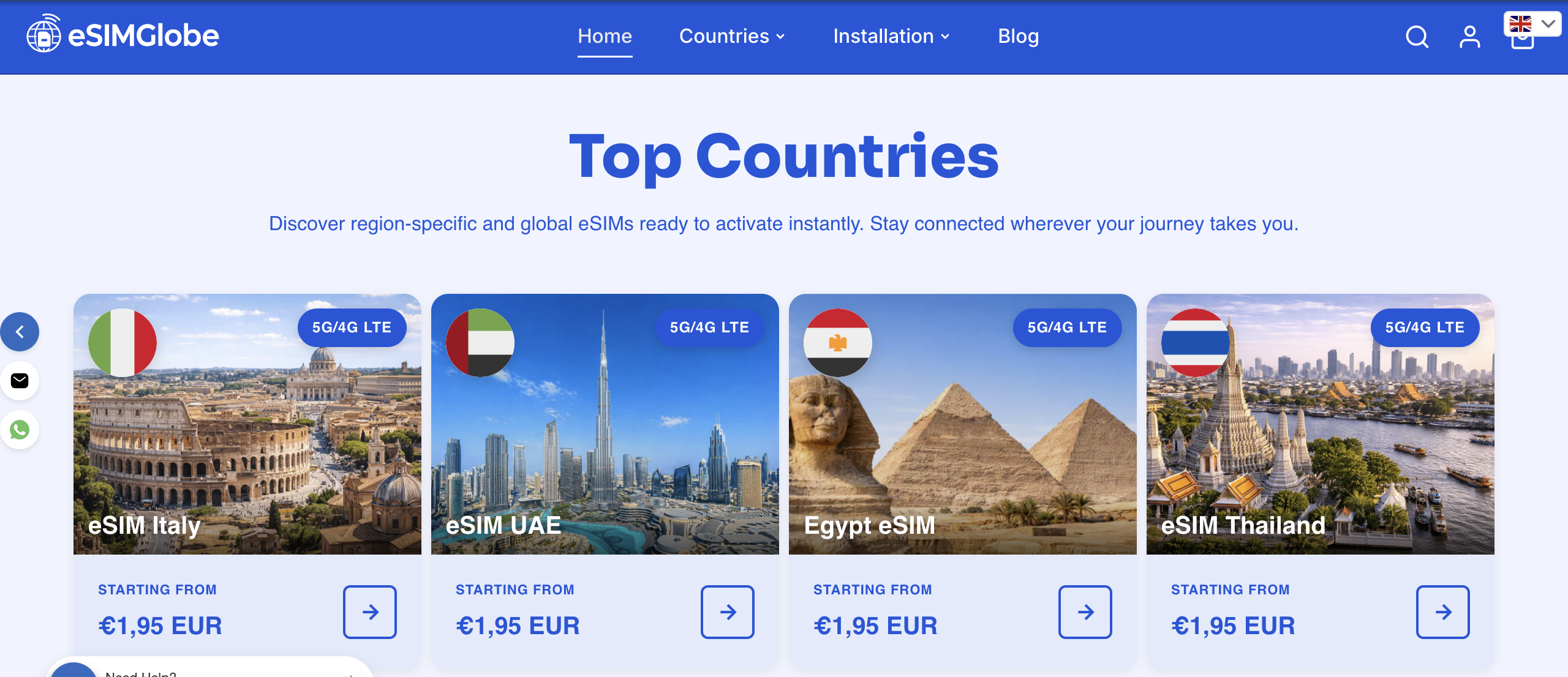
Roaming on your domestic plan abroad means variable charges and no hard ceiling on what you can spend. A prepaid eSIM from Esimglobe gives you a fixed data budget at a known price, active in 170+ countries, delivered instantly to your email before you board.
The right tool depends on the situation. Use hotel or airport Wi-Fi for low-stakes browsing. Keep your domestic plan active for calls and texts at home. Buy a prepaid eSIM when you need reliable cellular data abroad without the risk of a surprise bill at the end of the month.
Short trip with moderate data needs? An eSIM is almost always the lower-cost option compared to per-day roaming add-ons from U.S. carriers. Activate it before departure, set Low Data Mode, and your data budget stays exactly where you set it.
Browse prepaid eSIM plans for your destination and activate before your next trip.
Sources and further reading
Official Apple guidance:
- Apple Support: Use Low Data Mode on your iPhone and iPad
- Apple Support: View or change cellular data settings on iPhone
- Apple Support: Back up iPhone
- Apple Support: Manage storage on iPhone
- Apple Support: Check your iCloud storage on any device
Esimglobe travel resources:
- How to avoid roaming charges when traveling abroad
- Stay connected abroad without roaming
- eSIM for iPhone 15: travel-ready guide
FAQ
How do I reduce data use on my iPhone fast?
Enable Low Data Mode under Settings > Cellular > Cellular Data Options, then scroll down the Cellular screen and toggle off cellular access for video and social apps. Those two steps cut most unexpected usage immediately.
What is draining my iPhone data?
The most common culprits are video streaming apps, social media with auto-play feeds, iCloud Photos uploading over cellular, and Wi-Fi Assist falling back to cellular on weak networks. Check Settings > Cellular for a per-app breakdown.
What should I turn off to save data on my iPhone?
Turn off Wi-Fi Assist, disable Background App Refresh for non-essential apps, set Mail fetch to Manual or Hourly, and block cellular access for streaming and social apps. If you are traveling, also turn off Data Roaming.
How do I save my iPhone data before a trip abroad?
Disable Data Roaming under Settings > Cellular > Cellular Data Options, enable Low Data Mode, pre-download maps and media on Wi-Fi, and consider a prepaid eSIM from Esimglobe for predictable data costs in 170+ countries.