






















The quickest fix for an eSIM APN problem is to verify that your APN is set correctly and, where your carrier allows it, enter the APN values manually on your device. Most cases of signal-with-no-data trace back to a missing or incorrect Access Point Name, not a hardware fault or a plan issue.
Before touching APN settings, run through these checks first:
- Mobile data toggle: Settings → Cellular (iOS) or Mobile Network (Android) — confirm it is on.
- Data roaming: Travel eSIMs almost always register as roaming sessions. Enable data roaming explicitly.
- Default data SIM: On dual-SIM devices, confirm the eSIM is selected as the active data SIM.
- Airplane mode toggle: Flip airplane mode on for 10 seconds, then off. This forces the modem to re-register on the network.
- Restart the device: A full reboot clears transient modem states that a toggle alone won’t fix.
If data still doesn’t work after those five steps, the APN itself needs attention. Manual entry is required when the eSIM profile didn’t include APN values, which happens often with travel and MVNO eSIMs on Android. On iOS, APN fields are sometimes locked by the carrier or a configuration profile — in that case, reinstalling the profile or contacting support is the path forward.
Pro Tip: Before you change anything, screenshot your current APN screen. If you enter incorrect values, you’ll have a reference point to restore the original state.
Key Takeaways
The most reliable fix for an eSIM APN problem is to enter the carrier’s APN string manually on your device, enable data roaming, confirm the eSIM is the active data SIM, and toggle airplane mode to force a modem reconnect.
| Point | Details |
|---|---|
| Check data roaming first | Travel eSIMs register as roaming sessions; data roaming must be on or the carrier rejects the session. |
| APN string is the core fix | Enter the provider’s APN string manually when the profile omits it — this resolves most signal-with-no-data cases. |
| iOS fields may be locked | Greyed-out APN fields on iOS mean a carrier profile or MDM controls the APN; contact your provider for a config push. |
| Reinstall only after APN attempts | Remove and re-add the eSIM only after confirming APN entry, data roaming, device unlock, and OS version. |
| Esimglobe support | Esimglobe’s 24/7 team can re-provision profiles and push carrier APN settings for plans covering 170+ countries. |
Table of Contents
- What is an APN and why does it control your eSIM data?
- How does APN provisioning work with eSIMs?
- How to find, check, and edit APN on iPhone and iPad
- How to find, check, and edit APN on Android
- Which APN fields actually matter?
- How to verify your APN changes worked
- Common eSIM APN problems and how to fix them
- When should you reinstall the eSIM or contact support?
- A note on APN issues from Esimglobe
- Esimglobe support gets your eSIM data working faster
- Useful sources and further reading
- FAQ
What is an APN and why does it control your eSIM data?
APN stands for Access Point Name. It is the identifier your device sends to the carrier’s network to select the correct packet data gateway — the server that routes your IP traffic to the internet. Without a valid APN, the carrier’s network accepts your device’s registration (which is why you see signal bars) but has no instruction on where to send your data packets.
For eSIMs, this matters more than it does for physical SIMs. A traditional SIM card often ships with APN values pre-burned or pushed automatically by the carrier. An eSIM profile is a digital file, and whether it includes APN data depends entirely on how the provider built the profile. Travel eSIMs and MVNO profiles frequently omit APN values, leaving the device to fall back on defaults that don’t match the network.
Key reasons an eSIM APN problem produces signal but no internet:
- The profile was installed without APN data included.
- The device defaulted to an APN string from a previous SIM or carrier.
- A recent iOS update reset a manually entered APN.
- The APN type is set incorrectly, blocking data or tethering.
- Data roaming is off, so the carrier gateway rejects the session.
How does APN provisioning work with eSIMs?
Under normal conditions, APN provisioning is automatic. When you install an eSIM profile, the carrier’s system pushes a configuration that includes APN values alongside the authentication credentials. On iOS, Apple uses .mobileconfig carrier bundles and carrier settings updates to deliver this configuration. When it works, you never see the APN screen at all.
Android handles provisioning differently, and more variably. Google’s carrier database covers major carriers, but travel eSIMs and MVNOs often fall outside it. The result: Android installs the eSIM profile, registers on the network, and then has no APN to work with. Manual entry becomes necessary.
A few provisioning behaviors worth knowing:
- iOS carrier settings updates can push new APN values automatically when you connect to Wi-Fi. Go to Settings → General → About and tap “Update” if a carrier settings prompt appears.
- iOS updates (major OS versions) can reset manually entered APN values. After any iOS upgrade, re-check your APN if data stops working.
- Android’s carrier database is device-specific. Pixel devices use Google’s database; Samsung One UI uses its own variant. Neither reliably covers all travel eSIM providers.
- MDM-managed devices (corporate phones) may have APN fields locked by a mobile device management policy. You cannot edit them without administrator access.
Pro Tip: Check your eSIM provider’s app or help pages for the exact APN string before attempting manual entry. Many providers publish their APN values in their setup documentation or within a companion app on the App Store or Google Play.
How to find, check, and edit APN on iPhone and iPad
Confirm the eSIM is active
- Go to Settings → Cellular (or Mobile Data in some regions).
- Tap the eSIM line. Confirm it shows “On” and that This Line is set as the data line.
- If you see “No Service,” the eSIM may not be fully activated — contact your provider before editing APN.
View or edit the APN on iOS
- Go to Settings → Cellular → Cellular Data Network (or Mobile Data Network).
- Under the Cellular Data section, locate the APN field.
- Enter the APN string your provider supplied. Leave Username and Password blank unless your provider specifies values.
- Tap the back arrow. Do not tap “Reset Settings” — that wipes your entry.
- Toggle airplane mode on, wait 10 seconds, toggle it off.
- Open a browser and load a plain URL (try
m.google.com) to confirm data is working.
When APN fields are greyed out on iOS
This is the most common iOS-specific frustration. The fields are locked when:
- The carrier has set a configuration profile that controls APN.
- The device is enrolled in MDM.
- The carrier database entry for your eSIM provider locks the fields by default.
What to do:
- Go to Settings → General → VPN & Device Management and check for installed profiles. A carrier profile from a previous provider may be overriding your current eSIM’s APN.
- Remove any outdated configuration profile, then re-check the APN screen.
- If fields remain locked, contact your eSIM provider and ask them to push a configuration profile or provide the APN string via a
.mobileconfigfile.
Pro Tip: Save your provider’s APN string in your phone’s notes app before you travel. If an iOS update resets your APN mid-trip, you can re-enter it in under a minute without hunting for the provider’s website on limited data.
How to find, check, and edit APN on Android
Before you start
- Confirm the eSIM is activated: Settings → Network & Internet → SIMs (Pixel) or Settings → Connections → SIM Manager (Samsung).
- On dual-SIM devices, set the eSIM as the Preferred SIM for mobile data.
- Enable Data Roaming for the eSIM line — travel eSIMs almost always need this on.
- Toggle mobile data off and back on.
Pixel (stock Android) path
- Settings → Network & Internet → Internet → [your eSIM carrier name].
- Tap the gear icon next to the carrier.
- Tap Access Point Names.
- Tap the existing APN entry to edit, or tap + (Add) to create a new one.
- Enter the APN string, set APN Type to
default,supl, and set APN Protocol to IPv4/IPv6. - Tap the three-dot menu → Save, then tap the radio button next to your new entry to select it.
- Toggle airplane mode on and off to reconnect.
Samsung One UI path
- Settings → Connections → Mobile Networks → Access Point Names.
- Tap an existing entry to edit or tap + to add a new APN.
- Fill in the APN field. Set APN Type to
default,supland APN Protocol to IPv4/IPv6. - Tap Save (three-dot menu, top right), then tap the radio button to select the entry.
- Toggle airplane mode to force a modem reconnect.
Other Android OEMs
The path is typically Settings → Mobile Network → APN or Settings → Connections → Mobile Networks → APN. The field names and save mechanics are consistent across most OEMs even when the navigation path differs.
Key checks after editing:
- Confirm the APN entry has a filled radio button (selected state).
- Data roaming is on for the eSIM line.
- The eSIM line is set as the default data SIM.
- Run an airplane mode toggle after saving.
Pro Tip: If your mobile hotspot works but browsing doesn’t (or vice versa), create a second APN entry with the same APN string but set APN Type to dun for tethering. Some carriers route hotspot traffic through a separate gateway.
Which APN fields actually matter?
Most APN screens show eight or more fields. Only a few require attention for a standard data connection.
| Field | Purpose | Typical value |
|---|---|---|
| APN | Gateway identifier sent to the carrier | Provided by your eSIM provider (e.g., internet) |
| Username | Authentication credential | Blank unless provider specifies |
| Password | Authentication credential | Blank unless provider specifies |
| MCC | Mobile Country Code | Pre-filled — do not edit |
| MNC | Mobile Network Code | Pre-filled — do not edit |
| APN Type | Defines what traffic the APN handles |
default,supl for data; add dun for hotspot |
| APN Protocol | IP version for data sessions |
IPv4/IPv6 (try IPv4 if IPv6 causes issues) |
| APN Roaming Protocol | IP version for roaming sessions | Match APN Protocol |
Required fields: APN (the string itself) and APN Type. Every other field can stay at its default unless your provider explicitly tells you otherwise.
MCC and MNC identify your carrier’s network. They are pre-populated from the eSIM profile and should not be changed — editing them can prevent the device from registering on the network at all.
APN Protocol is the most common secondary fix. If you have an APN string entered correctly but data is still intermittent or slow, switching from IPv4/IPv6 to IPv4 alone resolves the issue on some networks that don’t fully support IPv6 sessions.
- Required: APN string, APN Type
- Leave alone: MCC, MNC, Server (unless instructed)
- Adjust if data is unstable: APN Protocol, APN Roaming Protocol
Pro Tip: Change only the APN string and APN Type first. If data still doesn’t work, try switching APN Protocol to IPv4. Never change MCC or MNC unless a carrier support agent explicitly instructs you to.
How to verify your APN changes worked
After saving APN changes and toggling airplane mode, run these checks in order:
- Watch the status bar. A 4G, LTE, or 5G icon should appear within 30 seconds of the modem reconnecting. No icon means the modem hasn’t registered — repeat the airplane toggle or reboot.
-
Load a lightweight page. Open a browser and navigate to
m.google.comor1.1.1.1. A page load confirms basic IP routing is working. - Run a speed test. A brief test at fast.com or Speedtest confirms throughput, not just connectivity. Even 1 Mbps confirms the APN is routing correctly.
-
Test DNS. If the page loads but some apps don’t connect, try navigating directly to
1.1.1.1(an IP address, no DNS needed). If that loads but domain names don’t, the issue is DNS, not APN. -
Test hotspot (if needed). Enable the mobile hotspot and connect a second device. If hotspot fails while browsing works, add a
dunAPN Type entry as described above.
If data is still blocked after these steps:
- Confirm data roaming is on for the eSIM line.
- Reboot the device fully (not just airplane toggle).
- Re-open the APN screen and confirm the entry is selected (radio button filled).
- Re-run the five tests above in order.
Device indicators to watch on Android: the APN entry’s radio button must be filled, and the mobile network icon must show a data indicator (not just signal bars). On iOS, the carrier name in the status bar and a data icon (4G/5G) confirm registration; if you see the carrier name but no data icon, the APN is still incorrect or locked.
Common eSIM APN problems and how to fix them
Travel and telecom blogs consistently identify a missing or incorrect APN as the leading cause of signal-with-no-data on travel eSIMs. Here is a direct map of root causes to fixes:
- APN missing or incorrect: Enter the provider’s APN string manually and select the entry. This resolves the majority of eSIM connectivity issues on Android.
- Data roaming off: Enable data roaming for the eSIM line. Travel eSIMs register as roaming by definition — without this, the carrier gateway rejects the data session.
- Wrong default data SIM: On dual-SIM devices, the physical SIM may still be set as the data SIM. Switch the default to the eSIM in SIM settings.
- Carrier-locked device or MDM: You cannot edit APN on a carrier-locked device or an MDM-managed phone without administrator credentials. Contact your carrier or IT administrator.
- Profile omission on Android: Some eSIM profiles install without APN data. Use the provider’s documented APN string to create a manual entry, or reinstall the profile after confirming the provider has updated it.
- OS update reset APN: After a major iOS update, manually re-enter the APN string. Keep the string saved in your notes app before updating.
- MDM-configured APN: If a corporate MDM profile controls the APN, report the issue to your IT team with the correct APN string from your eSIM provider. They can push an updated configuration.
When a modem re-register (airplane toggle) doesn’t help and a reboot doesn’t either, reinstalling the eSIM profile is the next step. This is also the right move when the profile itself is corrupted or when the provider has updated their APN configuration since you first installed.
Pro Tip: When contacting support, include: device make and model, OS version, eSIM profile name or ICCID, the exact APN string you entered, data roaming status, and the timestamp and result of your last connectivity test. This cuts resolution time significantly.
When should you reinstall the eSIM or contact support?
Before reinstalling, confirm all of these
- You have attempted manual APN entry with the correct string from your provider.
- Data roaming is enabled.
- The device is SIM-unlocked (not carrier-locked).
- The OS is on the latest version.
- You have saved the APN string you used (for re-entry after reinstall).
How to remove and re-add an eSIM
On iOS:
- Settings → Cellular → tap the eSIM line → Remove Cellular Plan.
- Confirm removal. The profile is deleted from the device.
- Re-scan the QR code or use the activation link your provider emailed.
- After reinstallation, check Settings → Cellular → Cellular Data Network for APN values.
On Android:
- Settings → Network & Internet → SIMs (Pixel) or Settings → Connections → SIM Manager (Samsung) → tap the eSIM → Delete eSIM.
- Re-scan the QR code or enter the activation code.
- After reinstallation, check APN settings and re-enter values if needed.
Android eSIM activation issues are commonly resolved by ensuring the device is unlocked, connected to Wi-Fi during activation, and running the latest OS version. Some activation errors require a carrier-side fix — if reinstallation fails, the provider needs to re-provision the profile on their end.
Support checklist (copy this into your support message)
- Device make, model, and OS version
- eSIM profile name and ICCID (found in Settings → Cellular → [eSIM line] → SIM card info on iOS, or Settings → About Phone → SIM Status on Android)
- APN string entered and APN Type used
- Data roaming status (on/off)
- Steps already attempted (toggle, reboot, reinstall)
- Exact error behavior (no data icon, page won’t load, speed test result)
- Timestamps of tests
Pro Tip: Ask your provider specifically whether they can push a carrier configuration profile or perform a carrier-side APN push. Some providers can send an updated .mobileconfig file (iOS) or trigger an OTA profile update that sets APN automatically, bypassing manual entry entirely.
A note on APN issues from Esimglobe
APN problems are among the most common support requests Esimglobe receives from travelers, and they are almost always solvable. The steps in this guide cover the full range of scenarios — from a quick data roaming toggle to a full profile reinstall. Esimglobe provides eSIM plans for 170+ countries with 24/7 support, and the support team can re-provision profiles, push APN configuration, and walk through device-specific steps when self-service troubleshooting hasn’t resolved the issue. If you reach the support checklist stage, use the list above when you contact Esimglobe — it gives the team everything needed to resolve the issue on the first contact.
Esimglobe support gets your eSIM data working faster
When manual APN entry and profile reinstallation haven’t restored your connection, the issue is often on the carrier or provisioning side, not the device. Esimglobe’s 24/7 support team handles exactly this: profile re-provisioning, carrier-side APN pushes, and guided reinstallation for travelers who need data restored now, not after a long back-and-forth.
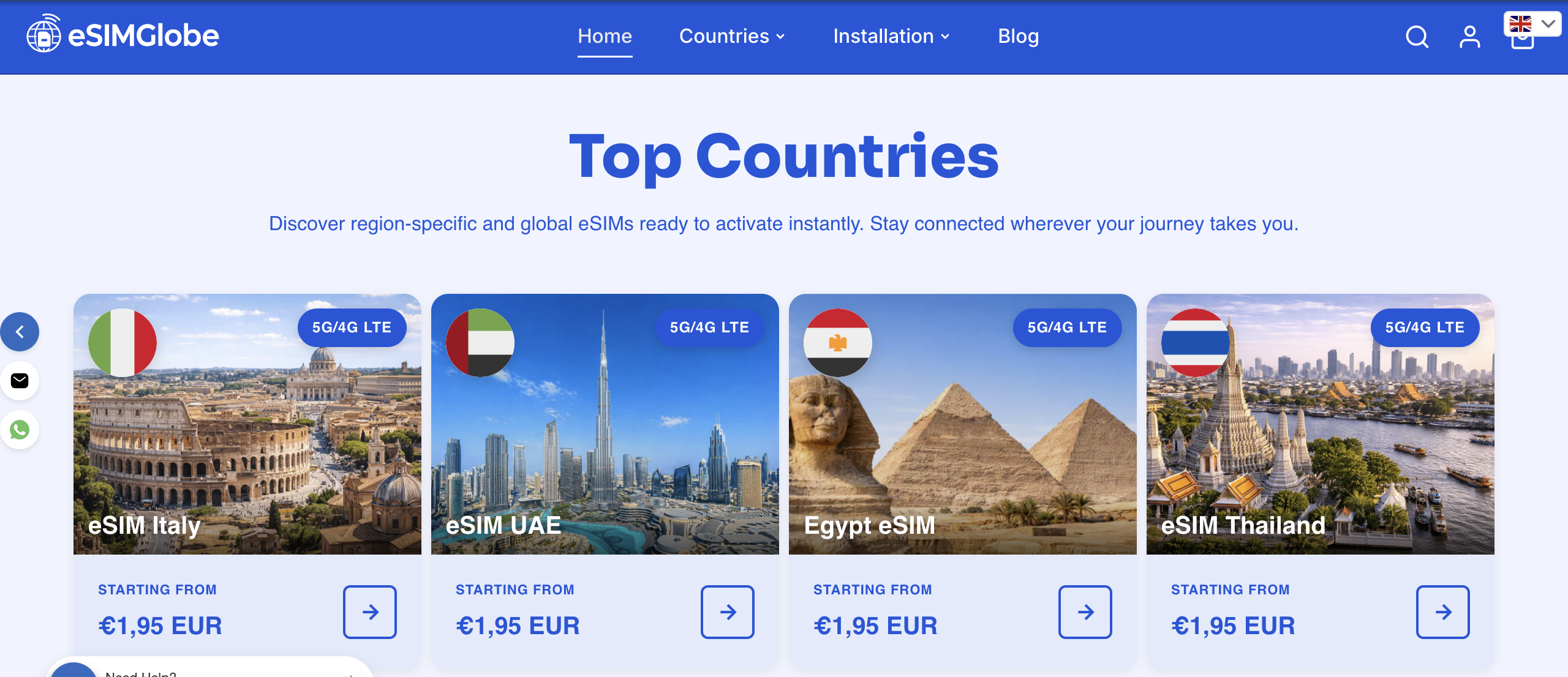
Esimglobe covers 170+ countries with prepaid data-only plans delivered instantly by email. Plans are available in USD, EUR, and GBP with no subscription. If you’re still seeing an eSIM data connection error after working through this guide, open a support chat at esimglobe.com with the checklist from Section 9 ready. The team can identify whether the fix is a carrier-side APN push, a profile re-provision, or a device setting you haven’t tried yet, and get you connected without delay. For travelers planning ahead, Esimglobe’s eSIM purchasing tips cover how to choose a plan that minimizes APN configuration issues before you land.
Useful sources and further reading
Official documentation and authoritative references for the steps in this guide:
- Apple Support — View and edit your APN on iPhone and iPad: — The primary reference for iOS APN field behavior, greyed-out field conditions, and the effect of configuration profiles and iOS updates on APN settings.
- GSMA (gsma.com): — The international standards body for eSIM provisioning specifications. Authoritative source for how APN provisioning is defined at the network level.
- Esimglobe blog — device guides and travel tips: Esimglobe publishes device-specific installation guides and travel connectivity tips that complement the APN troubleshooting steps above. The eSIM vs. local SIM guide is useful if repeated APN failures lead you to consider switching to a local SIM.
- Business travel connectivity: For travelers whose eSIM connectivity affects work schedules and hotel check-ins, this business travel convenience guide covers how connectivity gaps affect the full travel experience.
FAQ
How do you set the APN for an eSIM?
Go to your cellular settings, find Access Point Names (Android) or Cellular Data Network (iOS), and enter the APN string your eSIM provider supplied. Save the entry, select it on Android, then toggle airplane mode to reconnect.
Why does my eSIM show signal but no data?
Signal confirms network registration; data requires a valid APN to route IP traffic. A missing or incorrect APN is the most common cause — enter the provider’s APN string manually to resolve it.
How do you fix eSIM network issues on Android?
Confirm the eSIM is set as the default data SIM, enable data roaming, and enter the APN manually via Settings → Network & Internet → Internet (Pixel) or Settings → Connections → Mobile Networks → APN (Samsung). Toggle airplane mode after saving.
Why isn’t my data working after installing an eSIM?
The eSIM profile may not have included APN values, or data roaming may be off. Enter the APN string from your provider, enable data roaming, and run an airplane mode toggle. If data still fails, reinstall the profile or contact your provider’s support team.
When should you contact eSIM support instead of troubleshooting further?
Contact support when APN fields are locked by a carrier profile or MDM, when reinstalling the eSIM profile doesn’t restore data, or when activation fails with an error code. Provide your device model, OS version, ICCID, APN string used, and a description of the exact error.