






















Yes, Wi-Fi calling works on an eSIM, as long as your home carrier supports Wi-Fi calling on that specific line and you have the feature turned on. The technology has nothing to do with whether your SIM is physical or digital. It depends entirely on your carrier’s network configuration.
Three caveats matter before you count on it during a trip. First, most travel eSIMs sold for international use are data-only. They give you internet access but do not register your phone for voice calls, so they cannot themselves enable Wi-Fi calling. Second, carrier policy on international Wi-Fi calling varies widely. Some carriers bill a Wi-Fi call to your home number as local, others charge international rates depending on where you are standing. Third, on iPhone, a setting called Allow Cellular Data Switching can quietly reroute your voice line onto your travel eSIM’s data connection, which sometimes triggers charges you did not expect.
The single action to take right now: open your home line’s settings, confirm Wi-Fi Calling is switched on, and check that Data Roaming is off for that line. If you are not sure your carrier supports it abroad, call them before you fly.
- Verdict: Wi-Fi calling generally works with an eSIM if your carrier enables it on that line.
- Caveat: data-only travel eSIMs don’t provide voice registration.
- Action: toggle Wi-Fi Calling on, confirm Data Roaming is off, verify with your carrier.
Key Takeaways
Wi-Fi calling works on an eSIM setup when your home carrier enables the feature on your voice line, but the eSIM itself never provides voice service on its own.
| Point | Details |
|---|---|
| Verdict is conditional | Wi-Fi calling works with an eSIM only if your home carrier supports it on that specific line. |
| Data-only eSIMs can’t call | Most travel eSIMs provide data only and never register for voice, so Wi-Fi calling must already be active on your home number. |
| Watch iPhone data switching | Allow Cellular Data Switching can pull your travel eSIM’s data to support your home line’s calls, risking unexpected charges. |
| Verify carrier billing first | Carriers bill Wi-Fi calls abroad differently, some as local, some as international, so confirm the policy before you travel. |
| Pair with a data eSIM | Esimglobe’s prepaid, data-only eSIM plans across 170+ countries keep your connection stable while your home line handles Wi-Fi Calling. |
Useful Sources for Device Steps and Carrier Policy
- Esimglobe’s eSIM travel tips guide walks through hotel Wi-Fi setup and pre-departure checks.
- Esimglobe’s international traveler’s eSIM guide compares data-only plan options for different trip types.
- Esimglobe’s eSIM purchasing tips explain how to pick the right plan size and coverage before you buy.
Table of Contents
- Does WiFi Calling Work With an eSIM the Same Way It Does With a Physical SIM?
- How Do You Enable WiFi Calling on iPhone With an eSIM?
- How Do You Enable WiFi Calling on Android With an eSIM?
- What Happens to Calls on a Dual-SIM Phone With an eSIM?
- Why Isn’t WiFi Calling Working on My eSIM?
- Will My Carrier Charge Extra for WiFi Calling Abroad?
- Is WiFi Calling Safe on Hotel or Public Wi-Fi?
- What Can You Use Instead if WiFi Calling Isn’t an Option?
- What Should You Check Before Relying on WiFi Calling While Traveling?
- Keep Your Data Reliable While You Sort Out Voice
- FAQ
Does WiFi Calling Work With an eSIM the Same Way It Does With a Physical SIM?
Wi-Fi calling, technically called VoWiFi, routes your voice call over an internet connection instead of a cellular signal. Your phone tunnels the call to your carrier’s IMS core, the same backend system that normally handles calls over 4G or 5G VoLTE. From the network’s point of view, it does not matter whether the SIM behind that phone number is a physical card or an embedded eSIM profile. Wi-Fi calling is a carrier service tied to your phone number, not a feature baked into the eSIM technology itself.
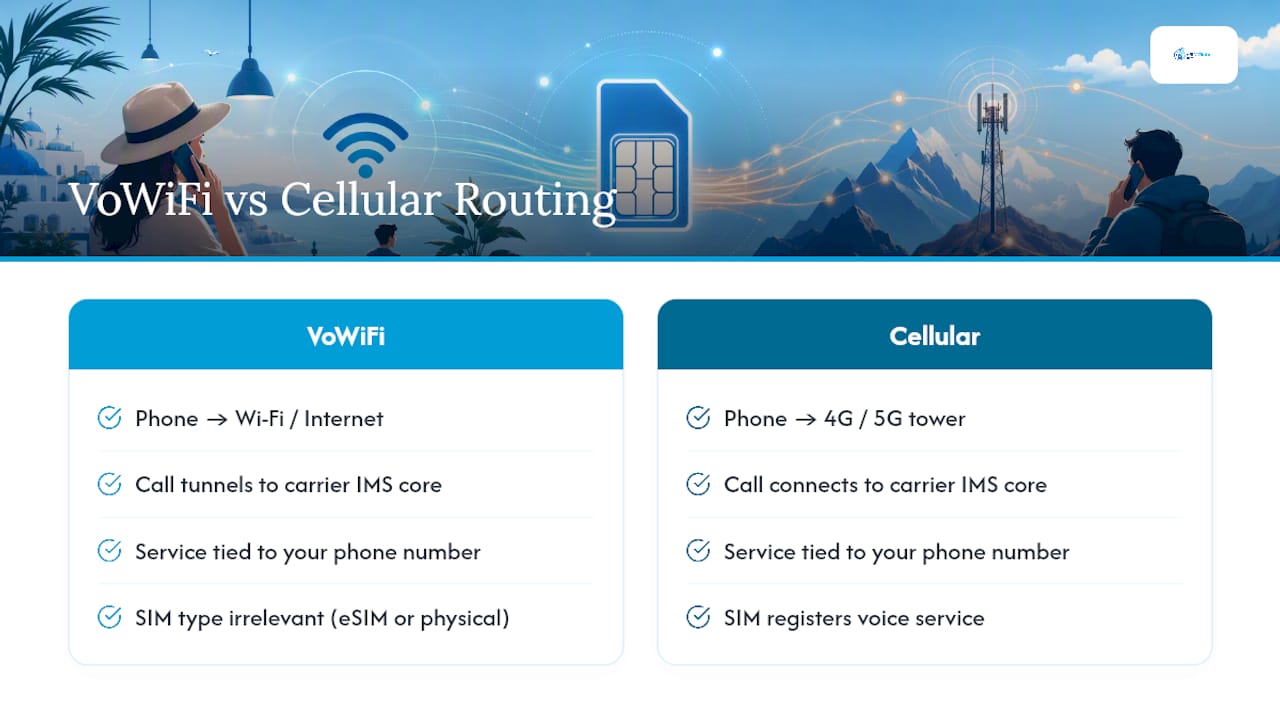
That distinction explains why so many travelers get confused. A travel eSIM purchased for a trip abroad is almost always data-only. It hands your phone an IP connection so you can browse, use maps, and message over apps, but it never registers your device for voice service on that profile. Ask a data-only eSIM to “make a Wi-Fi call” and there is simply no voice line attached to it. The eSIM is a data pipe, not a phone number.
Wi-Fi calling has to already be active on your home carrier line, the one tied to your actual phone number, before you leave. The eSIM you install for a destination is a separate, independent data connection that runs alongside it.
Carrier policy adds another layer of limits. Some carriers treat a Wi-Fi call placed while you’re overseas as if you never left, billing it at your normal domestic rate. Others apply international long-distance charges once your phone detects it’s connecting from a foreign IP address, even though the call itself rides over Wi-Fi rather than a cell tower. This is exactly the kind of detail that varies by provider and even by destination, so verifying your carrier’s specific Wi-Fi calling terms before departure is worth the five-minute phone call.
How Do You Enable WiFi Calling on iPhone With an eSIM?
Apple’s Dual SIM system lets an iPhone run a physical SIM and an eSIM, or two eSIMs, at once, and Wi-Fi Calling settings apply per line. Here’s how to check and configure it:
- Open Settings, then tap Cellular (or Mobile Data depending on region).
- Tap the line that is your home voice number, not your travel data eSIM.
- Select Wi-Fi Calling and toggle Wi-Fi Calling on This iPhone to on.
- Confirm your emergency address if prompted; carriers require this for Wi-Fi calling activation.
- Back in Cellular settings, tap Default Voice Line and make sure it points to your home number, not the eSIM.
- Scroll to Allow Cellular Data Switching and consider turning it off before travel (more on why in the next section).
Once both lines are configured, the status bar will show which carrier is handling calls, and you may see “Wi-Fi” appear next to the carrier name for the line using VoWiFi.
To test it before you actually need it:
- Turn on Airplane Mode, then turn Wi-Fi back on manually so cellular signal is fully bypassed.
- Have someone call your home number and confirm the call connects and audio works cleanly.
- Send yourself a text from another phone to confirm SMS delivery over Wi-Fi.
- Watch for the “Wi-Fi Calling” label near the signal bars during the test call.
If the call fails in Airplane Mode with Wi-Fi on, the feature isn’t properly active on that line yet.
How Do You Enable WiFi Calling on Android With an eSIM?
Android’s menu paths vary by manufacturer, but the underlying steps are consistent across most current devices:
- Open Settings and go to Network & Internet, then tap SIMs (on Pixel and stock Android) or Connections > SIM Card Manager (on Samsung’s One UI).
- Select your home voice line, the physical SIM or eSIM tied to your actual number.
- Tap Wi-Fi Calling and switch it on.
- Confirm or update your emergency address if the carrier requests it.
- If you’re running dual SIM, check that the correct line is set as your default for calls under SIM Card Manager or a similarly named menu.
- Look for a mobile data switching option, often labeled something like “switch data when signal is weak,” and disable it if you want to avoid unexpected roaming data use.
Samsung phones typically surface Wi-Fi Calling as its own toggle inside SIM Card Manager, while Pixel phones bury it one level deeper inside each SIM’s individual settings page. Other OEMs like Motorola and OnePlus generally mirror the stock Android path.
To confirm it’s working, switch on Airplane Mode, re-enable Wi-Fi only, and place a call to another phone. A small “Wi-Fi Calling” icon or label usually appears in the status bar or notification shade during the call. If you see “No Service” instead, the line has not registered for VoWiFi and the call will fail rather than falling back automatically.
What Happens to Calls on a Dual-SIM Phone With an eSIM?
Two common setups cover most travelers. In the first, your home number stays on its original SIM or eSIM with Wi-Fi Calling enabled, and a second, data-only eSIM handles internet access abroad. In the second, less common setup, both lines are eSIMs, with one carrying voice and the other purely data.
Whichever setup you use, three settings determine how calls actually route:
- Default Voice Line must point to the number people actually call you on, not the travel data eSIM.
- Wi-Fi Calling needs to be active specifically on that voice line, checked individually since each line has its own toggle.
- Data Roaming should be off for your home line so it doesn’t pull cellular data (and charges) while abroad.
A typical working state looks like this: Home Line A shows “Wi-Fi Calling” in the status bar and handles all your calls and texts, while Travel eSIM B sits quietly in the background doing nothing but serving data. If instead you see Home Line A showing “No Service” with no Wi-Fi Calling indicator, incoming calls will likely fail or go straight to voicemail.
Pro Tip: On iPhone, leave Allow Cellular Data Switching off during travel. Apple’s own documentation notes that with it on, your phone can pull data from your travel eSIM to maintain your home line’s voice connection, and if that data connection is a paid roaming plan rather than your local Wi-Fi, you can rack up charges without ever noticing the switch happened.
Why Isn’t WiFi Calling Working on My eSIM?
Work through this list in order. Most Wi-Fi calling failures trace back to one of the first three items.
- Confirm the Wi-Fi Calling toggle is actually on for your home voice line, not your data eSIM. It’s easy to toggle the wrong line on a dual-SIM phone.
- Verify your carrier supports Wi-Fi calling from your current country. Some carriers geofence the feature and disable it entirely outside their home region.
- Check that your data-only eSIM is providing a stable connection. Wi-Fi calling still needs a working internet path, whether that’s the eSIM’s mobile data or a Wi-Fi network; if the eSIM’s data has dropped, voice calls over that path will drop too.
- Restart your phone. IMS registration for voice services occasionally gets stuck and a restart forces re-registration.
- Reset network settings (Settings > General > Transfer or Reset iPhone > Reset Network Settings on iOS; Settings > System > Reset Options on most Android phones) if the toggle and restart don’t help.
- Test with a VoIP app as a control. If WhatsApp or FaceTime can place a call over the same Wi-Fi network but native Wi-Fi Calling can’t, the problem is carrier-side, not your internet connection.
Quick reference for where these live: on iPhone, Wi-Fi Calling sits under Settings > Cellular > [your line]. On Android, it’s under Settings > Network & Internet > SIMs, or Connections > Wi-Fi Calling on Samsung devices.
If none of this resolves the issue, a few workarounds keep you reachable:
- Set up call forwarding from your home number to a VoIP number or a second phone you know is reachable.
- Rely on a VoIP app for outbound calls while you troubleshoot the carrier-side issue.
- Double-check that two-factor authentication codes sent by SMS are still arriving; if Wi-Fi calling is down, SMS delivery over the same registration can be affected too, which matters if you’re locked out of an account mid-trip.
Will My Carrier Charge Extra for WiFi Calling Abroad?
Billing for Wi-Fi calls made outside your home country is inconsistent across carriers, and that inconsistency is where most surprise charges come from. Some providers treat a Wi-Fi call the same as if you were standing in your home city, charging your normal per-minute or included-minutes rate no matter where in the world you’re connecting from. Others detect that your phone is registering from a foreign IP address and apply international long-distance rates to that same call, even though it never touched a local cell tower.
Before you leave, run through this checklist with your carrier:
- Ask directly whether Wi-Fi calling is permitted and billed at domestic rates while abroad.
- Confirm whether calling a local number in your destination country over Wi-Fi counts as an international call from your carrier’s perspective.
- Ask whether SMS sent over Wi-Fi calling carries a separate charge from voice minutes.
- Get the answer in writing if possible, a screenshot of the carrier’s own support page is worth more than a verbal answer from a call center rep.
- Note how your carrier handles emergency calls (911 or local equivalents) over Wi-Fi calling, since some networks route these differently or restrict them entirely when you’re outside your home country.
If your carrier’s answer is vague or unfavorable, a short-term international add-on for voice minutes might cost less stress than gambling on Wi-Fi calling rates you can’t confirm in advance.
Is WiFi Calling Safe on Hotel or Public Wi-Fi?
Wi-Fi calling itself is encrypted end-to-end inside your carrier’s IMS tunnel, so the voice content of your calls is protected even on a shared hotel network. The bigger risk sits at the network layer: a poorly secured public Wi-Fi network can still expose metadata or expose your device to man-in-the-middle attacks aimed at other traffic on the same network, even if your calls stay encrypted.
A few habits reduce exposure without adding much friction:
- Prefer your phone’s own mobile hotspot or a known, password-protected hotel network over open public Wi-Fi when possible.
- Trust that VoWiFi’s built-in encryption protects call content, but don’t assume the same about other apps running on the same connection.
- Turn on a personal VPN for an extra layer of protection, especially on networks you don’t control.
- Avoid logging into banking or other sensitive accounts on open, unsecured Wi-Fi regardless of whether Wi-Fi calling is active.
What Can You Use Instead if WiFi Calling Isn’t an Option?
If your carrier doesn’t support Wi-Fi calling where you are, or your line simply won’t cooperate, a few fallback options keep you reachable.
- VoIP apps (WhatsApp, Signal, FaceTime): free over any internet connection, but only work if the other person also uses the same app.
- Call forwarding to a VoIP number: forward your home number to a virtual number tied to an app, so callers reach you without knowing you switched. A shift toward VoIP among both businesses and travelers has made this setup increasingly simple to configure.
- A voice-capable local SIM: gives you a real local number and full call functionality, but means carrying a second physical card and losing your home number’s convenience.
- Limited roaming: enabling a small international roaming allowance as a backup, useful as a safety net rather than a primary plan.
Setup tip: forwarding your home number takes just a few minutes through your carrier’s app or dial-code system, and it’s the fastest fix when you’re already mid-trip.
What Should You Check Before Relying on WiFi Calling While Traveling?
Run this list before you leave the house, not after you land:
- Confirm Wi-Fi Calling is enabled on your actual home voice line.
- Set Default Voice Line correctly if you’re running dual SIM.
- Turn off Data Roaming on your home line to prevent accidental charges.
- Install and test your data-only travel eSIM ahead of time so maps and messaging work the moment you land.
- Send yourself a test text and call to confirm two-factor authentication codes will actually reach you.
Pro Tip: Test everything from your hotel room on night one, not from the airport. Connect to the hotel Wi-Fi, enable Wi-Fi Calling, and have someone call your home number from a different line. If the call connects and audio is clean, you’re set for the rest of the trip.
Pro Tip: Disable Allow Cellular Data Switching on iPhone before you fly, not after you notice a strange charge. It’s the single most common way a Wi-Fi calling setup quietly turns into a roaming bill.
For a fuller rundown of setup steps and hotel Wi-Fi practices, Esimglobe’s eSIM travel tips guide covers the same checklist in more detail.
A quick note from the field
On a trip to Lisbon, I tested Wi-Fi calling the first night in the hotel room rather than trusting it blindly at the airport. The call connected instantly, but only after I’d disabled Allow Cellular Data Switching the day before. That one toggle is the detail travelers miss most. Verify your carrier’s policy before you go, then test it the moment you land.
Keep Your Data Reliable While You Sort Out Voice
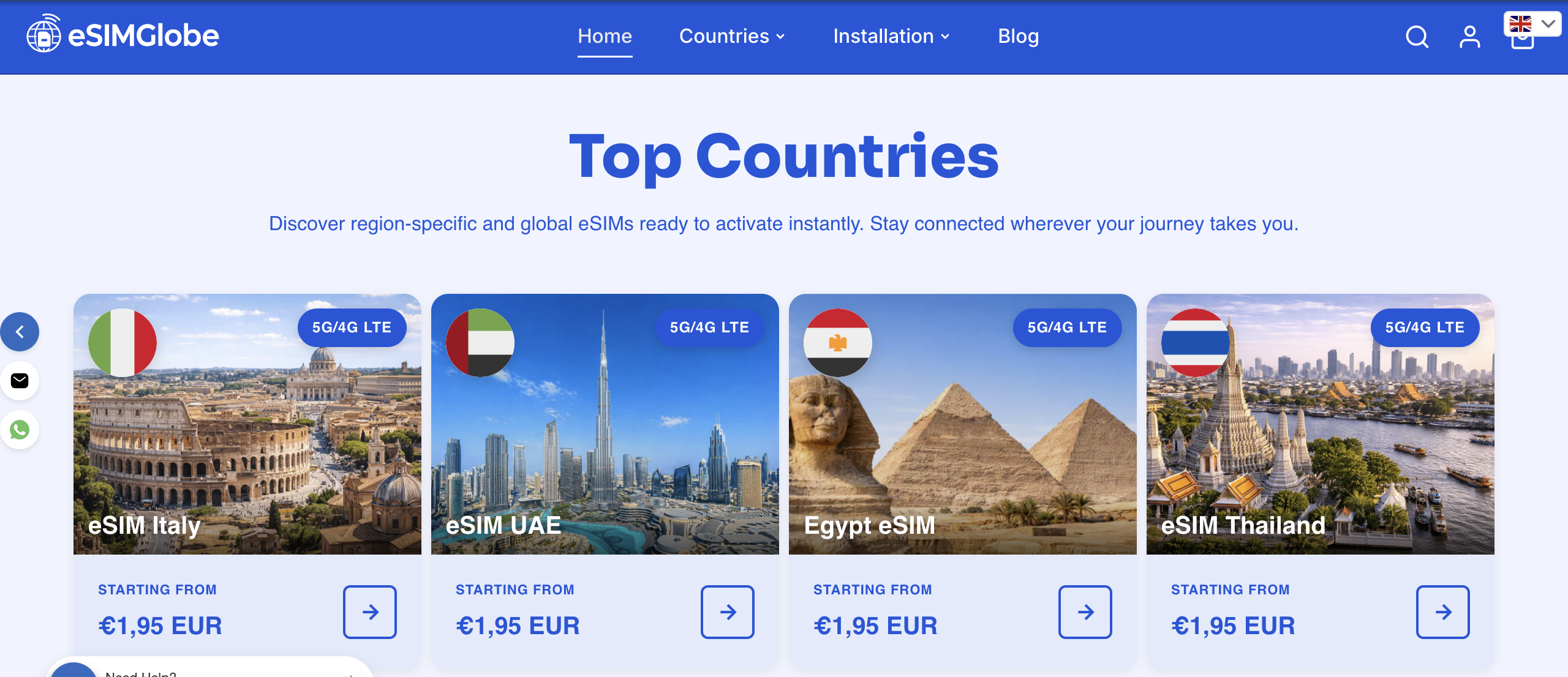
Wi-Fi calling handles your voice line, but you still need a dependable data connection to make any of it work, maps, messaging, and the Wi-Fi network your calls ride on all depend on it. Esimglobe sells prepaid, data-only eSIM plans covering more than 170 countries, delivered instantly by email so you can install one before you board.
A few reasons travelers choose this route over hunting for local SIM shops or guessing at roaming add-ons:
- Plans are prepaid with no subscription or contract, so you pay only for the trip you’re taking.
- Delivery is instant by email, meaning you can activate a plan from your phone before you land.
- Coverage runs on high-speed 4G LTE and 5G networks, selectable by country, region, or currency.
- Support runs 24/7 if you hit an activation snag mid-trip.
Since a stable data connection is what makes Wi-Fi calling possible in the first place, pairing your home carrier’s Wi-Fi Calling with a dedicated data eSIM covers both sides of staying reachable abroad. Check available plans and pick your destination on the Esimglobe eSIM plans page before your next trip.
FAQ
Can I use Wi-Fi calling if I have an eSIM?
Yes, if your home carrier supports Wi-Fi calling on that line and the feature is turned on. A separate data-only travel eSIM does not provide this on its own.
Why can’t I make phone calls on my eSIM?
Most travel eSIMs are data-only and were never designed to carry voice, so there is no phone service to place a call on in the first place. Voice calling has to come from your home carrier line with Wi-Fi Calling enabled.
Do I need to turn off my primary line when using an eSIM?
No, keep your primary line active for calls and texts, and use the eSIM purely for data. Just confirm Default Voice Line still points to your home number so calls route correctly.
Can I make calls using Wi-Fi over cellular on my iPhone?
Yes, iPhone supports this through Settings > Cellular > [your line] > Wi-Fi Calling. Once enabled, the phone will use available Wi-Fi for calls automatically when cellular signal is weak or absent.