






















TL;DR:
- iOS 26 significantly improves spam call filtering with silencing, filtering, and blocking options.
- Combining built-in tools, carrier filtering, and third-party apps offers the most effective spam protection.
- Regularly reviewing Recents and saving contacts helps avoid missing important calls from unknown numbers.
Spam calls have reached a breaking point for most iPhone users. The good news is that iOS 26 filters over 95% of spam for users who activate its new screening tools, a dramatic leap from what older iOS versions could manage. But getting that result without accidentally blocking your doctor, a job recruiter, or a delivery driver takes more than flipping one switch. This guide breaks down every available method, explains the real trade-offs, and helps you build the right combination for your daily life.
Table of Contents
- Understanding spam call blocking on iPhone
- Built-in iPhone features for blocking spam calls
- Carrier spam filtering and third-party call blockers
- Smart usage, exceptions, and avoiding missed important calls
- Layered blocking: Combine methods for best results
- A practical stance on iPhone spam call blocking: What actually works
- Take control of your calls with smarter tech solutions
- Frequently asked questions
Key Takeaways
| Point | Details |
|---|---|
| Layer your blockers | Combining built-in, carrier, and app blockers yields the highest spam call reduction. |
| Use Ask Reason | The Ask Reason feature helps block spam while letting important unknown calls reach you safely. |
| Review call logs | Regularly check your Recents and Voicemail to ensure no critical calls are missed. |
| Adjust for needs | Pick the settings combination that fits your spam level and your need to receive legitimate unknown calls. |
Understanding spam call blocking on iPhone
Spam calls are not all the same. Some are robocalls pushing fake warranties. Others are live scammers impersonating government agencies. A third category is aggressive telemarketing, technically legal but deeply unwanted. Knowing the difference matters because each type responds differently to blocking methods.
Older iOS versions offered limited tools. You could manually block individual numbers, but that approach fails against rotating caller ID numbers, which most spam operations use today. The “Silence Unknown Callers” feature, introduced in iOS 13, was a big step forward but came with a blunt trade-off: silence everything unknown, including legitimate first-time callers.
iOS 26 changes the equation significantly. It introduces a layered architecture with three distinct approaches:
- Silencing: The call is sent directly to voicemail without ringing your phone.
- Filtering: The call is categorized and moved to a separate list, such as a Spam folder in Recents.
- Blocking: The caller is fully rejected, hears one ring or nothing, and cannot leave a voicemail in your standard inbox.
Understanding these three concepts is essential before you configure anything. Many users confuse silencing with blocking and end up surprised when a “blocked” number still leaves a voicemail.
iOS 26 now offers three Screen Unknown Callers options: Never (the default, no screening), Ask Reason for Calling (an AI prompts the caller to state their name and reason, then provides you a transcript), and Silence (sends the call directly to voicemail). This is a meaningful upgrade over the binary on/off toggle that existed before.
Here is a quick comparison of the three core concepts:
| Method | Caller hears | You hear | Voicemail possible |
|---|---|---|---|
| Silence | Ringing | Nothing | Yes |
| Filter | Ringing | Nothing | Yes, in Spam folder |
| Block | One ring or nothing | Nothing | No (standard inbox) |
Getting your iPhone setup optimized from the start means understanding which of these outcomes you actually want before you start changing settings.
Built-in iPhone features for blocking spam calls
iOS 26 gives you several native tools. Here is how to set each one up and when to use it.
1. Silence Unknown Callers
Navigate to Settings > Apps > Phone > Silence Unknown Callers and toggle it on. This setting silences calls from any number not saved in your contacts, not found in your recent call history, and not suggested by Siri based on emails or messages. Silenced calls go straight to voicemail and appear in your Recents list so you can review them later.
2. Screen Unknown Callers: Ask Reason for Calling
This is the new AI-powered option in iOS 26. When an unknown caller dials you, the system answers on your behalf and asks the caller to state their name and reason for calling. You receive a live transcript on your screen. You can then choose to answer, decline, or let it go to voicemail. It is the most nuanced option available.
3. Screen Unknown Callers: Silence
Similar to Silence Unknown Callers but operates through the Screen Unknown Callers menu. It applies specifically to the AI screening flow rather than the broader silence toggle.
4. Manual blocking
From the Phone app Recents, tap the info icon next to any number and select Block this Caller. In iOS 26, all blocked contacts are centralized in Settings > Privacy & Security > Blocked Contacts, making it easier to review and remove blocks.
5. Filter Unknown Callers (iMessage equivalent)
This applies to text messages but works alongside call filtering to create a consistent experience for unknown contacts across both calls and texts.
Here is a comparison of the built-in options:
| Feature | Best for | Risk |
|---|---|---|
| Silence Unknown Callers | Heavy spam, few expected unknowns | Missing legitimate first-time calls |
| Ask Reason (AI screening) | Balanced users, mixed call types | Occasional caller confusion |
| Manual blocking | Known repeat offenders | Does not scale against rotating numbers |
| Carrier spam filter | Broad fraud call filtering | Varies by carrier accuracy |
Pro Tip: If you are expecting a call from a new number (a doctor’s office, a contractor, a recruiter), temporarily disable Silence Unknown Callers for that window. Re-enable it once the call has come through.
Setting up these features takes under five minutes and delivers an immediate reduction in disruptions. The key is choosing the right combination rather than relying on a single toggle.
Carrier spam filtering and third-party call blockers
Built-in iOS tools are powerful, but your carrier adds another layer of protection that works independently of Apple’s software.
Enabling carrier spam filtering
Go to Settings > Apps > Phone > Call Filtering > Spam. This setting silences carrier-identified spam and fraud calls, moving them to a dedicated Spam list in your Recents tab. The carrier uses its own network-level data to flag numbers before the call even reaches your device. This catches a different category of spam than Apple’s contact-based silencing does.
Major U.S. carriers including AT&T, Verizon, and T-Mobile each maintain their own spam databases. Their accuracy varies, but network-level filtering is particularly effective against large-scale robocall operations because carriers can see call patterns across millions of users simultaneously.
Third-party call blocking apps
- Apps like Hiya and Call Control are available in the App Store and use community-sourced databases to identify spam numbers.
- Enable them by going to Settings > Apps > Phone > Call Blocking & Identification.
- These apps use community databases to flag numbers reported by other users, giving them a broader reach than any single carrier’s data.
- Apple does not officially endorse any specific third-party app, so review privacy policies before installing.
- Most reputable apps offer a free tier with basic protection and a paid tier with real-time lookup and caller ID.
Privacy considerations
Third-party apps typically request access to your call log or contact list to function. This is a meaningful privacy trade-off. Before installing any app, check what data it collects, how long it retains it, and whether it shares data with advertisers. Apps that operate on a subscription model with no advertising are generally more privacy-friendly than free apps supported by data monetization.
Pro Tip: Use carrier spam filtering and one third-party app together as a baseline layer beneath your iOS built-in settings. This three-layer approach catches spam that any single method would miss.
The combination of carrier filtering and a community-database app creates a net that catches spam originating from sources that Apple’s contact-based logic cannot detect on its own.
Smart usage, exceptions, and avoiding missed important calls
Aggressive spam blocking creates a real risk: missing calls that matter. Doctors calling from hospital switchboards, delivery drivers calling from dispatch numbers, and job recruiters calling from unfamiliar lines all look identical to spam from a blocking system’s perspective.
“The goal is not zero unknown calls at any cost. The goal is zero unwanted calls while staying reachable for what matters.”
Here is how to protect yourself from the most common pitfalls:
-
Save contacts proactively. When you schedule a medical appointment, save the clinic’s main number and any alternate numbers they provide. Do the same for contractors, recruiters, or any service you are expecting to hear from.
-
Check Recents and Voicemail daily. Silenced calls appear in Recents and may leave voicemails. A quick 30-second scan each morning catches anything important that was silenced overnight.
-
Use Ask Reason instead of full silence when your situation is mixed. If you regularly receive calls from new numbers for professional or personal reasons, Ask Reason is far safer than Silence Unknown Callers. The AI transcript lets you decide in real time without committing to answering.
-
Temporarily disable blocking before expected calls. If you are waiting for a callback from a new number and you are not sure what number they will use, turn off Silence Unknown Callers for that hour. The inconvenience is minor compared to missing the call entirely.
-
Do not rely on callbacks alone. If you miss a call and suspect it was legitimate, call back the number directly. Spam operations rarely answer callbacks, while real callers almost always do.
The edge cases are real. Legitimate first-time callers including doctors, deliveries, and recruiters are the most common casualties of aggressive blocking. Building habits around reviewing Recents and saving contacts ahead of expected calls eliminates most of this risk without weakening your spam defenses.
Layered blocking: Combine methods for best results
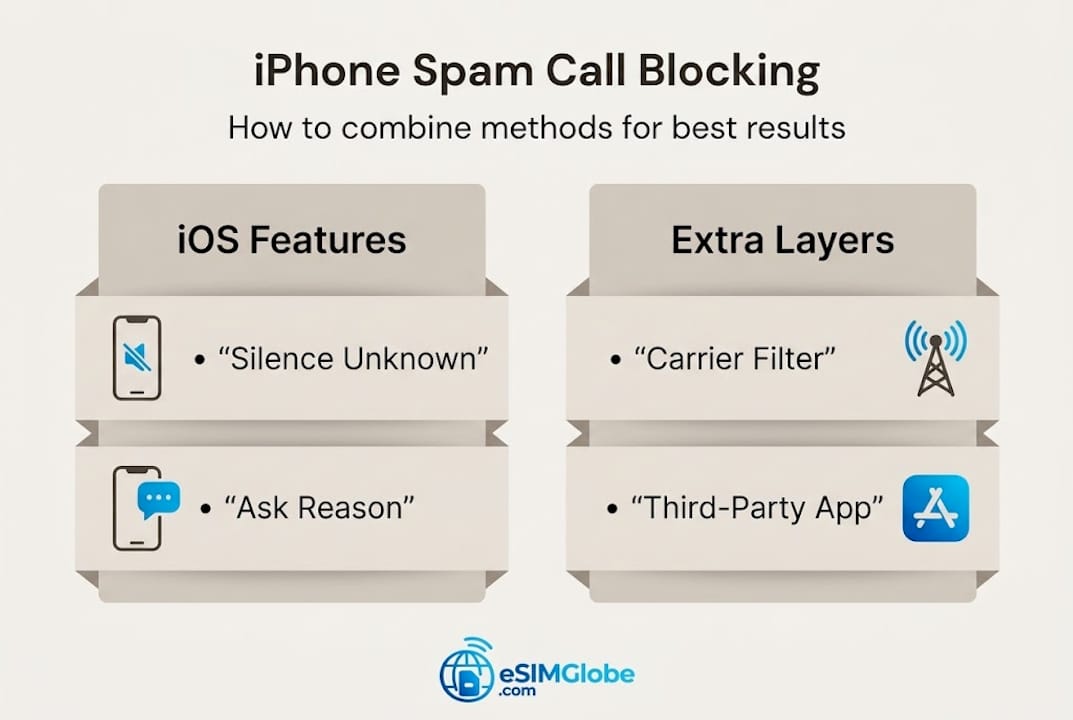
No single method eliminates all spam. A layered approach using built-in, carrier, and app-based tools consistently delivers the best results across different user profiles.
Here is how the layers reinforce each other:
- Layer 1 (iOS built-in): Silence Unknown Callers or Ask Reason handles calls from numbers not in your contacts or recent history.
- Layer 2 (Carrier filtering): Catches network-identified fraud and robocall numbers before they reach your device.
- Layer 3 (Third-party app): Flags numbers reported by community databases, covering spam that neither Apple nor your carrier has cataloged yet.
- Layer 4 (Manual blocks): Targets specific repeat offenders that slip through the other layers.
- Layer 5 (Regular review): Checking Recents and Voicemail closes the loop on anything silenced or filtered.
Combining Silence or Ask Reason with carrier spam filtering and an occasional Recents check gives most users near-complete spam elimination without sacrificing reachability.
Here is a quick reference for different user profiles:
| User type | Recommended configuration |
|---|---|
| Minimal spam, mixed unknowns | Ask Reason + Carrier filter |
| Heavy spam, few expected unknowns | Silence Unknown Callers + Carrier filter + third-party app |
| Professional with frequent new contacts | Ask Reason only + manual blocks for repeat offenders |
| Traveler with new local numbers | Carrier filter + third-party app + regular Recents review |
Reporting spam matters. When a spam call slips through, report it. In the Phone app, tap the info icon next to the number in Recents and select Report as Junk. This data feeds back into Apple’s and your carrier’s databases, improving accuracy for everyone. Third-party apps also benefit from in-app reporting features. The more users report, the faster new spam numbers get flagged across the entire network.
The layered model is not complicated to set up. Most of the configuration happens once, and then the system runs in the background. The only ongoing habit required is a brief daily check of Recents and Voicemail.
A practical stance on iPhone spam call blocking: What actually works
After mapping every available tool, the clearest takeaway is this: Ask Reason is the most underused feature in iOS 26. Most users default to either doing nothing or enabling full silence. Ask Reason sits in the middle and handles the majority of real-world situations better than either extreme.
Full silence is the right choice when spam volume is so high that it disrupts daily function and you have reliable habits for checking Recents. It is not the right default for most people, because the cost of missing an important call is often higher than the cost of answering one more spam call.
Reporting is not optional. Users who treat it as an afterthought end up with degraded filtering accuracy over time. The databases that power both carrier and third-party filtering depend on active user reporting to stay current. Checking Recents is not a fallback for when blocking fails. It is a core part of the system working as intended.
The practical reality is that 95% spam reduction is achievable for most iPhone users within 15 minutes of configuration. The remaining 5% requires ongoing habits, not more settings.
Take control of your calls with smarter tech solutions
Optimizing your spam call blocking is one part of a broader mobile privacy and control strategy. When you travel or use a new number abroad, spam exposure increases because your number appears in unfamiliar networks and databases.
EsimGlobe provides United States eSIM options and international data plans that let you maintain a clean, dedicated number for travel without exposing your primary number to new spam sources. Using a separate eSIM for travel keeps your main number protected and your call filtering settings intact. EsimGlobe also maintains a clear data sharing opt-out policy, giving users direct control over how their information is handled. Seamless global connectivity and spam-free calling work best when your mobile setup is built with both in mind.
Frequently asked questions
Will using Silence Unknown Callers or Screen Unknown Callers block all spam calls?
These features stop most spam, but some calls may still get through; combining built-in, carrier, and third-party layers works best for near-complete protection.
How can I avoid missing important calls from numbers not in my contacts?
Use the Ask Reason setting in Screen Unknown Callers or check Recents and Voicemail regularly so legitimate calls from doctors, recruiters, or delivery services are not missed.
Are third-party call blocking apps safe to use on iPhone?
Most reputable apps are safe, but review privacy policies carefully; Apple does not officially endorse any specific call blocking or identification app.
Do blocked calls notify the caller or alert me?
Blocked callers hear one ring or are sent to voicemail; silenced calls appear in Recents so you can review them, but you receive no active notification.
What should I do if emergency or delivery calls are being blocked?
Save expected contacts in advance, use Ask Reason for real-time screening, or temporarily disable Silence Unknown Callers before anticipated calls from new numbers.