






















TL;DR:
- Millions of travelers rely on Samsung phones with eSIM capability, yet many still face high roaming fees or struggle with activation. Verifying device compatibility and completing setup at home before departure prevents issues, while correct data line selection ensures reliable connectivity abroad. Proper management of dual SIM settings and awareness of QR code limitations optimize the eSIM experience during international travel.
Millions of travelers carry Samsung phones that are fully capable of running an eSIM, yet they still pay expensive roaming fees or waste time hunting for physical SIM cards at airport kiosks. The confusion around eSIM Samsung compatibility, activation, and carrier settings is real, but it is not complicated once you know what to look for. This guide breaks down exactly which Samsung devices support eSIM, how to activate and manage one for international travel, and what to do when things go wrong. Read this before your next trip and you will save both time and money.
Table of Contents
- Key Takeaways
- eSIM Samsung compatibility: which devices qualify
- How to activate eSIM on Samsung for travel
- Managing dual SIMs on Samsung while traveling
- Troubleshooting Samsung eSIM connectivity issues abroad
- Best practices for international travel with Samsung eSIM
- My take on Samsung eSIM after years of international travel
- Get your Samsung eSIM plan through Esimglobe
- FAQ
Key Takeaways
| Point | Details |
|---|---|
| Check model compatibility first | Not every Samsung device has eSIM hardware; verify in Settings before assuming your phone qualifies. |
| Activation requires a Wi-Fi connection | You need internet access to download an eSIM profile, so set this up before leaving home. |
| One data line active at a time | Samsung dual SIM devices run two numbers, but only one SIM can handle cellular data simultaneously. |
| QR codes are single-use | Most eSIM QR codes expire after first scan; never expect a code to work twice on different phones. |
| Verify data line after arrival | Travelers regularly lose mobile data by failing to select the travel eSIM as the default data line. |
eSIM Samsung compatibility: which devices qualify
Not every Galaxy phone in your drawer supports eSIM. eSIM is built into compatible devices as a hardware component, meaning this is not something you can enable through a software update. If the chip is not physically present in your specific model variant, the eSIM option will not appear anywhere in your settings.
The good news is that Samsung’s current lineup covers a wide range of price points and form factors. Here is the breakdown of confirmed eSIM-compatible Samsung devices:
- Galaxy S series: S20, S21, S22, S23, S24, and S25 (all variants including Plus, Ultra, and Edge)
- Galaxy Z series: Z Fold2 through Z Fold7, Z Flip3 through Z Flip7
- Galaxy Note series: Note20 and Note20 Ultra
- Galaxy A series: Select A-series 5G models (varies by region and carrier)
- Galaxy tablets: Tab S7, S8, S9, S9 FE, and S10 series with LTE/5G connectivity
The critical catch is the phrase “varies by region and carrier.” eSIM availability depends on model variant and not just the model name itself. The same Galaxy S25 sold in the United States through a carrier may have eSIM disabled or locked, while the unlocked international variant fully supports it. A Samsung Galaxy A54 5G sold in Europe might have the eSIM menu present, while the same physical model sold in certain Asian markets does not.
To verify your specific device, go to Settings › Connections › SIM manager. If you see an option labeled “Add eSIM” or “Add mobile plan,” your device supports it. If that option is missing entirely, checking device compatibility in Settings early saves you from discovering the problem at the departure gate.
Pro Tip: If you recently switched to a new Samsung phone, check eSIM availability before your trip rather than relying on your previous device’s capabilities. Carrier-branded variants sometimes remove eSIM support even from flagship models.
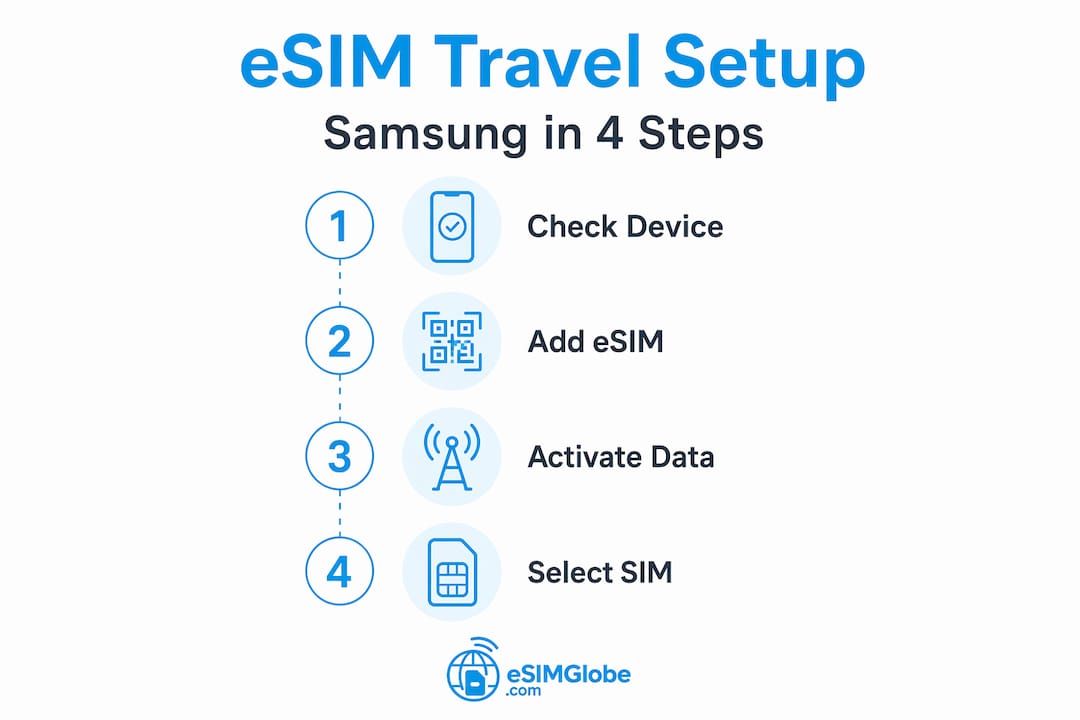
How to activate eSIM on Samsung for travel
The Samsung eSIM activation process follows a consistent path across supported models, though the exact screen labels may shift slightly between One UI versions. Having a clear picture of the full flow prevents the frustration that catches most first-time users.
Here is the complete setup process:
- Connect to Wi-Fi. You cannot download an eSIM profile over a data connection you do not yet have. Connect to your home Wi-Fi or a trusted hotspot before starting.
- Open Settings. Navigate to Settings › Connections › SIM manager.
- Select “Add eSIM” or “Add mobile plan.” Some Samsung models display this as “Download a SIM instead.” Both take you to the same place.
- Choose your method. You can scan a QR code provided by your eSIM carrier or enter an activation code manually if the carrier provides one.
- Scan the QR code. Carriers provide a QR code that contains the eSIM profile data. Point your camera at it inside the SIM manager screen.
- Confirm download. Samsung will prompt you to confirm the plan details. Accept and wait for the profile to install. This usually takes under two minutes on a solid Wi-Fi connection.
- Label the eSIM. Give your new eSIM a clear label like “Travel Europe” so you can identify it quickly in the SIM manager later.
- Set data preferences. When prompted, choose which SIM to use for mobile data. For travel, select your new eSIM as the default data line.
The full activation process via Settings covers most standard scenarios, but Esimglobe’s step-by-step activation guide walks through carrier-specific variations that Samsung’s built-in interface does not always explain.
One issue that catches travelers off guard is the single-use nature of eSIM QR codes. Most eSIM QR codes expire after first use, meaning you cannot scan the same code on a new phone if you upgrade or factory reset your device. If you are setting up a new Samsung phone before a trip, complete the eSIM activation before wiping your old device. If the code no longer works, contact your provider directly or use their app to generate a fresh activation.
Pro Tip: Complete your Samsung eSIM setup at home, not at the airport. Activation occasionally requires your carrier to push the profile from their end, which can take 15 to 30 minutes. Starting this process with a lounge Wi-Fi network and a departure in 45 minutes is a situation to avoid.
Managing dual SIMs on Samsung while traveling
Samsung’s dual SIM capability is one of its clearest advantages for international travelers. You can keep your home SIM active for calls and texts while running a local travel eSIM for data. Understanding how the settings work prevents the most common traveler mistake: paying for an eSIM plan that never carries a single byte of data because the wrong SIM is set as default.
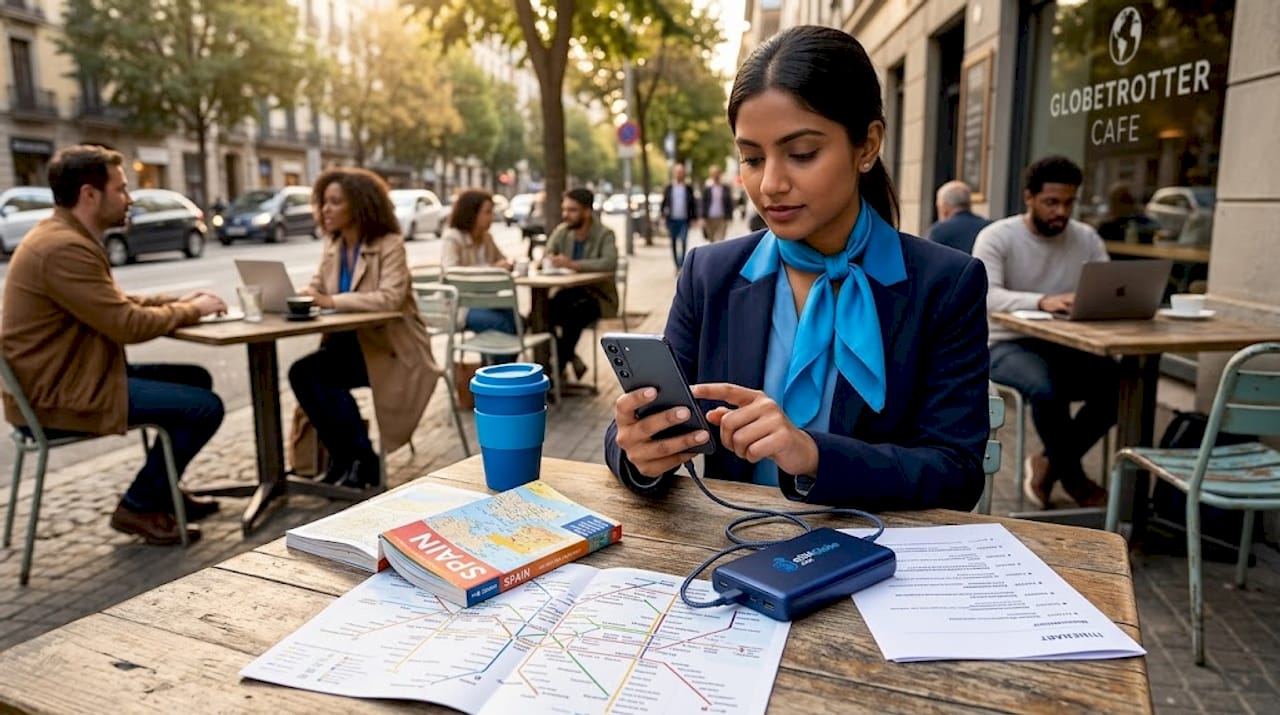
Samsung dual SIM devices support one physical SIM and one eSIM simultaneously. Both numbers receive calls and texts at the same time, but only one SIM can handle cellular data at any given moment. This is the detail that creates the most confusion.
Here is a comparison of how the two SIMs function in a dual SIM travel setup:
| Feature | Home SIM (physical) | Travel eSIM |
|---|---|---|
| Receives calls and texts | Yes | Yes |
| Default data line | Should be turned off | Set as primary |
| Roaming charges | High if data is active | Covered by travel plan |
| Removable | Yes | No (digital profile) |
| Useful for | Maintaining home number | All data usage abroad |
To configure your data line, go to Settings › Connections › SIM manager › Mobile data and select your travel eSIM. Samsung also lets you set separate defaults for calls and texts, which is useful if you want your home number to handle voice calls while the eSIM handles all data.
A few key points to manage well in any travel dual SIM setup:
- Turn off data roaming on your home SIM to prevent accidental charges
- Set your travel eSIM as the default data line before landing, not after
- Use Samsung’s SIM manager shortcut from the notification bar for faster switching
- Confirm which number displays when you make a call so contacts receive the right callback number
Successful international eSIM use depends on data line selection more than the installation itself. Getting the eSIM on the device is the easier half. Configuring it correctly is where most travelers stumble.
Troubleshooting Samsung eSIM connectivity issues abroad
You land, you turn airplane mode off, and your Samsung shows “No Service” on the travel eSIM. This is more common than it should be, and most causes have straightforward fixes.
Work through these steps in order before contacting your provider:
- Toggle the eSIM off and on. Go to Settings › Connections › SIM manager, tap your travel eSIM, and disable then re-enable it. This forces the device to re-register with the local network.
- Check data line selection. Confirm your travel eSIM is set as the active data SIM. This single step resolves the issue for a large portion of travelers who report “no data” after landing.
- Verify roaming is enabled. Tap the travel eSIM in SIM manager, then check that “Data roaming” is turned on if your plan covers multiple countries.
- Reset APN settings. Resetting APN settings in Settings › Connections › Mobile networks › Access Point Names can resolve “No Service” issues when the phone has incorrect network access data. Delete any wrong APN entries and add the one your eSIM provider specifies.
- Switch network mode. Go to Settings › Connections › Mobile networks › Network mode and manually select your local network’s technology (LTE or 3G) rather than leaving it on automatic. Some foreign networks do not handshake cleanly with automatic mode.
- Restart the device. A full power cycle after making the above changes helps the phone re-scan for available networks.
If none of these steps restore connectivity, the issue may be on the carrier’s activation side rather than your device. Contact your eSIM provider’s support line with your ICCID number (found in Settings › About phone › Status information).
One specific scenario deserves attention. If you scanned an old QR code on a new Samsung phone and the profile appears installed but shows no signal, the carrier may not have transferred the subscription to the new device identifier. In that case, a new QR code or a fresh activation through the provider’s app is the only path forward.
Pro Tip: Screenshot your APN settings before you leave home. If you need to reset them abroad without Wi-Fi access, having a photo of the correct values means you can re-enter them manually without needing to contact support.
Best practices for international travel with Samsung eSIM
Using an eSIM on a Samsung device for international travel is practical and cost-effective when you approach it with preparation. The travelers who run into problems are almost always those who set things up at the last minute or skip the verification steps.
The core benefits of eSIM for international travel are real. You avoid the expense of roaming plans from your home carrier, which can run $10 to $15 per day for basic data access. You skip the airport SIM kiosk lines and the risk of buying a plan that does not cover your actual destination. And you keep your home number active for incoming calls without carrying two phones.
Here are the best practices worth building into your travel routine:
- Verify eSIM compatibility at least one week before departure. Do not assume. Open SIM manager and confirm the “Add eSIM” option is present on your specific device.
- Purchase your travel eSIM plan before you board. Most eSIM plans activate immediately or within minutes of QR code installation. Having it installed and configured before takeoff means you have data the moment you land.
- Disable data roaming on your home SIM. Do this in SIM manager before departure so accidental data usage does not trigger roaming fees.
- Save your QR code as a screenshot and as an email. If your phone is lost or reset, you may need the QR code image to contact your provider and request a replacement activation.
- Download your eSIM provider’s app. Many providers offer apps that let you manage your plan, check usage, and reactivate without needing a new QR code.
For frequent business travelers, carrying a hotel stay gift certificate alongside a properly configured Samsung eSIM setup makes the entire trip logistics smoother since both connectivity and accommodation confirm before departure.
Pro Tip: The moment you land in a new country, open SIM manager and manually confirm your travel eSIM is the active data line. This 15-second check prevents the confusion of “why is my data not working” during the first hours of a trip.
You can find additional guidance on managing connectivity across multiple destinations in Esimglobe’s eSIM travel tips resource.
My take on Samsung eSIM after years of international travel
I have used eSIM Samsung setups on multiple devices across dozens of trips, and the single biggest lesson I have learned is that the technology itself is not the hard part. The hard part is the gap between what travelers assume will work and what actually requires configuration.
The QR code issue is the one I have seen trip people up most often. I watched a colleague try to install her “saved” QR code on a new Galaxy S24 after upgrading from an S21 mid-trip. The code had already been consumed on the old device. She spent two hours at a hotel lobby trying to resolve it, when a five-minute call to her provider before the upgrade would have generated a fresh code. Travelers should expect to activate anew via the provider’s app or website whenever they switch devices.
The data line selection problem is equally common and far less obvious. I have personally arrived in a country with a working eSIM profile installed, only to find no data because my home SIM was still set as the data line. I now make the SIM manager check part of my landing routine the same way I check my gate at a connection.
What genuinely changed for me was realizing that eSIM hardware support is not a software toggle. Once I understood that certain regional variants of the same Samsung model simply do not have the chip, I started checking model variant numbers before recommending a device to anyone who travels regularly.
For anyone newer to this setup, my advice is direct: verify compatibility, buy your eSIM plan before you leave, complete the install on home Wi-Fi, and do the data line check when you land. Those four steps eliminate about 90% of the problems I have seen travelers encounter.
— daniele
Get your Samsung eSIM plan through Esimglobe
Esimglobe offers international eSIM plans compatible with Samsung devices across hundreds of destinations worldwide. The platform gives you a clear country and region selector, transparent pricing in USD, EUR, and GBP, and activation support that works with Samsung’s built-in SIM manager. No physical SIM card, no airport kiosk, no roaming surprises.
Whether you are heading to one country or managing data across a multi-stop itinerary, Esimglobe’s eSIM plans are built for exactly this use case. Plans are available for immediate purchase, QR code delivery is instant, and the activation process maps directly onto the Samsung setup steps covered in this guide. Browse current plans and regional coverage at Esimglobe before your next departure.
FAQ
Which Samsung phones support eSIM in 2026?
Samsung Galaxy models with eSIM support include the S20 through S25 series, Z Fold and Z Flip series from Fold2 onward, Note20, and select A-series 5G models. Availability varies by regional variant.
How do I enable eSIM on a Samsung device?
Go to Settings › Connections › SIM manager › Add eSIM, then scan the QR code provided by your eSIM carrier. A Wi-Fi connection is required to download the profile.
Can I use two SIMs at once on Samsung with eSIM?
Yes. Samsung supports one physical SIM and one eSIM simultaneously, allowing both numbers to receive calls and texts. However, only one SIM can carry data at a time, so set your travel eSIM as the default data line.
Why is my Samsung eSIM showing no service abroad?
The most common causes are incorrect data line selection and disabled data roaming. Check SIM manager to confirm the travel eSIM is set as the active data SIM, enable roaming on that line, and reset APN settings if the issue persists.
Can I reuse an eSIM QR code on a new Samsung phone?
No. Most eSIM QR codes are single-use and expire after first activation. If you switch Samsung devices, contact your eSIM provider for a new QR code or use their app to generate a fresh activation.