






















A mobile hotspot does not inherently use more data than using apps directly on your phone. In practice, though, hotspot sessions almost always consume more because connected devices — laptops especially — load full desktop websites, trigger background updates, and stream at higher resolutions by default.
Three things to do right now:
- Stop any large downloads running on connected devices.
- Switch streaming apps to standard definition or the lowest available quality.
- Turn off your hotspot when no device actively needs it.
Key Takeaways
A mobile hotspot does not multiply data on its own, but connected devices running background updates, cloud syncs, and high-quality streaming routinely double or triple what you would use on your phone alone.
| Point | Details |
|---|---|
| Hotspot itself is neutral | The feature forwards data; the connected device’s behavior determines total consumption. |
| 4K streaming is the biggest drain | 4K video uses 6–8 GB per hour — one movie can exceed a plan’s entire hotspot allotment. |
| Background processes are the hidden cost | OS updates, cloud backups, and autoplay video run silently and can consume gigabytes unnoticed. |
| Check your plan’s hotspot allotment | “Unlimited” plans cap high-speed hotspot separately; confirm your threshold in your carrier app. |
| Esimglobe for travel | Prepaid eSIM plans from Esimglobe offer a fixed, predictable data allotment for short-term heavy use abroad. |
Table of Contents
- Does hotspot use more data than regular phone browsing?
- Why connected devices quietly drain your hotspot allowance
- How much data do common activities actually use?
- How to check your hotspot data usage and plan limits
- Practical steps to cut hotspot data consumption
- Battery, security, and leaving your hotspot on
- What telecom professionals look for when diagnosing hotspot overuse
- The setting most people skip
- Prepaid eSIM plans for short-term heavy hotspot needs
- Useful sources
- FAQ
Does hotspot use more data than regular phone browsing?
A mobile hotspot (also called personal hotspot or tethering) turns your phone into a wireless router. Connected devices use your phone’s cellular data connection to reach the internet, and every byte those devices transfer counts against your plan’s data allowance. There is no separate “hotspot data” that lives outside your plan.
How carriers count that usage varies. Most U.S. plans fall into one of three structures:
- Shared pool: All data, whether used on the phone itself or by tethered devices, draws from one bucket.
- Dedicated high-speed hotspot allotment: The plan grants a fixed amount of high-speed hotspot data (say, 15 GB or 50 GB). After that threshold, hotspot speeds drop to 600 Kbps or lower, even if your phone’s own browsing remains fast.
- Throttled tethering: Some plans allow tethering but cap its speed from the start, regardless of how much data you have left.
Most “unlimited” plans limit or cap high-speed hotspot tethering explicitly. “Unlimited” for phone use rarely means unlimited high-speed hotspot. Before heavy use, check your plan for the phrases “high-speed hotspot” and “tethering allowed” — they are not the same thing. Also look for overage fees, which are uncommon now but still exist on some older plans.
Pro Tip: Log into your carrier’s app or account portal and search for “hotspot” or “tethering” in your plan details. The high-speed allotment is often listed separately from your total data.
Why connected devices quietly drain your hotspot allowance
The hotspot feature itself uses negligible data to broadcast a Wi-Fi signal. The large volume comes entirely from what connected devices do once they join. Android and iOS both treat a hotspot connection as Wi-Fi, which means connected laptops and tablets stop applying the cellular-optimized restrictions they would normally use on a metered mobile connection.
The result: background processes run freely. A laptop joining your hotspot can silently trigger:
- Windows Update downloads — often hundreds of megabytes, sometimes several gigabytes for major updates.
- OneDrive, Google Drive, or iCloud sync — photos and videos upload automatically if cloud backup is enabled.
- Desktop website assets — full-resolution images, video ads, and heavier scripts that mobile browsers skip.
- Autoplay video on social platforms like Instagram, TikTok, and YouTube, which defaults to higher quality on a “Wi-Fi” connection.
A realistic silent drain scenario: a laptop joins your hotspot, pulls a 1.5 GB Windows update, syncs 800 MB of photos to OneDrive, and loads a few desktop news sites. That is roughly 2.5 GB gone before you stream a single video.
Pro Tip: On Windows, go to Settings > Network & Internet > Wi-Fi, click your hotspot network, and toggle “Metered connection” to On. This blocks most automatic Windows Update downloads and pauses OneDrive auto-sync. On macOS, disable iCloud Photos sync and Time Machine backups manually before connecting to a hotspot.
How much data do common activities actually use?
Activity-based estimates give you a practical way to budget your allowance. The figures below reflect typical per-hour consumption; actual use varies by codec, adaptive streaming behavior, and background apps running simultaneously.
| Activity | Estimated data per hour |
|---|---|
| Email and basic web browsing | uses moderate data, typically under 500 MB |
| Music streaming | consumes low to moderate data |
| Standard definition (SD) video | uses a few hundred MB |
| HD video streaming | uses multiple gigabytes |
| 4K video streaming | uses high data volumes |
| Video calls (Zoom, standard quality) | varies from moderate to over 1 GB |
| Online gaming (active session) | uses low to moderate data |
| Large file or OS update download | can vary widely, from hundreds of MB to several GB |
4K streaming can consume 6–8 GB per hour. A single two-hour 4K movie on a hotspot can use 12–16 GB — more than many plans’ entire high-speed hotspot allotment.
How long does 10 GB last? Under light use (email, browsing, music), 10 GB covers roughly 40–60 hours. One HD video stream cuts that to 3–10 hours. A single 4K stream burns through 10 GB in about 1–1.5 hours.
How long does 50 GB last? Light use stretches 50 GB across several weeks of daily browsing. Moderate use mixing HD video calls and streaming lasts 15–30 hours of active use. Heavy use with 4K streaming and background syncs can exhaust 50 GB in a few days.
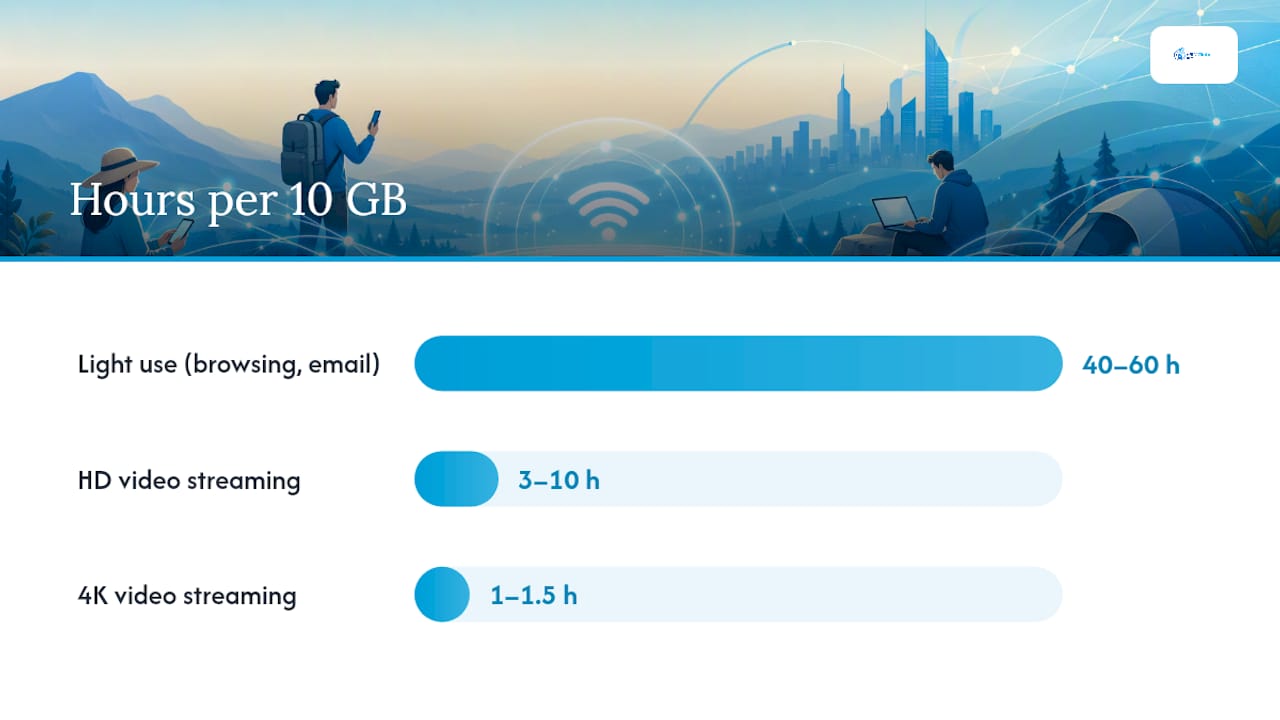
Adaptive streaming adjusts quality automatically, so actual consumption depends on your connection speed and the platform’s default quality setting. Always set streaming apps to a fixed lower resolution rather than leaving them on “Auto.”
How to check your hotspot data usage and plan limits
Knowing your remaining allowance before you hit a throttle threshold prevents unpleasant surprises. Here are the steps for each platform.
On iPhone (iOS):
- Open Settings and tap Cellular.
- Scroll down to see per-app cellular data usage since your last reset.
- To reset the counter at the start of your billing cycle, scroll to the bottom and tap Reset Statistics.
- For hotspot-specific activity, go to Settings > Personal Hotspot — this shows whether the feature is active but does not break out hotspot-only bytes separately from total cellular use.
Apple’s support documentation confirms that when Personal Hotspot is active, the phone uses cellular data for all connected devices, and that usage appears in the standard cellular data counter.
On Android:
- Open Settings and go to Network & Internet (label varies by manufacturer — Samsung uses “Connections”).
- Tap Mobile network, then Data usage or App data usage.
- Some Android builds show a separate “Hotspot” entry under data usage; others roll it into the total.
- Set a data warning or hard limit by tapping Data warning & limit within the same menu.
Note: Samsung One UI, Pixel’s stock Android, and other OEM skins place these menus differently. If you cannot find the data usage screen, search “data usage” in your phone’s Settings search bar.
Checking your carrier plan limits:
- Open your carrier’s app (T-Mobile, Verizon, AT&T, or your carrier’s equivalent) and look for a “Data” or “Usage” dashboard.
- Log into your account portal online and find the current billing cycle summary.
- Look for a line item labeled “Mobile Hotspot,” “Tethering,” or “High-Speed Hotspot” — this is your dedicated allotment, separate from your phone’s data.
Carrier apps and account portals are the authoritative source for precise hotspot allowances. Third-party apps can estimate, but only your carrier’s system reflects real-time throttle thresholds.
Pro Tip: *Enable data usage alerts in your carrier app, and turn on SMS threshold warnings if your carrier offers them.
Practical steps to cut hotspot data consumption
Start with the highest-impact changes first.
Top priority:
- Lower streaming quality to SD (480p) or the lowest fixed setting in Netflix, YouTube, or any streaming app before connecting devices to your hotspot.
- Pause automatic cloud backups on every connected device — iCloud, Google Photos, OneDrive, and Dropbox all upload in the background.
- Disable autoplay video in Instagram, TikTok, Facebook, and Twitter/X settings.
- Avoid large downloads, game installs, or software updates while tethering.
Secondary actions:
- Limit the number of devices connected at once. Each additional device multiplies background drain.
- Schedule OS and app updates to run only on known Wi-Fi networks (Settings > Software Update > Automatic Updates on iPhone; Settings > System > System Update on Android).
- Enable data-saving modes in apps that offer them — Chrome’s “Lite mode” (now deprecated but equivalent settings exist in other browsers), YouTube’s “Data Saver,” and Spotify’s “Data Saver” all reduce consumption.
- Mark your hotspot as a metered connection on any Windows laptop (see the Pro Tip in the section above).
For frequent or heavy users:
Consider a dedicated prepaid data plan for short-term heavy needs, particularly when traveling: our how to stay connected abroad in Saudi Arabia: guide offers useful travel connectivity advice for international travelers. A travel data plan sized to your actual trip usage is often more cost-effective than burning through a domestic plan’s hotspot allotment.

Pro Tip: On Windows, the “Metered connection” toggle is the single highest-impact setting for hotspot conservation. On macOS, the equivalent is manually disabling iCloud Drive sync (System Settings > Apple ID > iCloud > iCloud Drive > toggle off) and pausing Time Machine. On ChromeOS, go to Settings > Network > your hotspot network and enable “Prefer mobile data” restrictions.
Battery, security, and leaving your hotspot on
Running a hotspot affects your phone beyond just data.
Battery and performance:
- Hotspotting keeps your cellular radio and Wi-Fi transmitter active simultaneously, which drains the battery significantly faster than normal use.
- The phone generates more heat, which can throttle processor performance over extended sessions.
- Expect 30–50% faster battery drain during active hotspot use compared to normal phone use.
Security checklist:
- Use a strong, unique password for your hotspot — avoid default SSIDs that reveal your device model.
- Set your hotspot to WPA2 or WPA3 encryption (most modern phones default to WPA2; check under hotspot settings).
- Never leave the hotspot on an open (no-password) network.
- Turn off the hotspot when no device needs it.
Should you leave your hotspot on all the time? No. An idle hotspot still broadcasts a signal, drains battery, and remains open to connection attempts. Most phones offer an automatic timeout setting — on iPhone, the hotspot turns off automatically when no devices are connected for a period. Enable this if your phone supports it.
What telecom professionals look for when diagnosing hotspot overuse
Devices treat a hotspot connection as Wi-Fi and stop applying the cellular-optimized restrictions they use on a direct mobile connection. Android documentation specifically identifies background syncs and updates as key sources of unexpected data use on hotspot-connected devices.
When diagnosing unexpected hotspot drain, professionals check three causes first:
- Large OS or game updates downloaded automatically because the device saw “Wi-Fi.”
- Automatic cloud backup of photos and videos, particularly after a trip with many new files.
- Multiple devices streaming in parallel, each at the quality level the platform defaults to on Wi-Fi.
A practical diagnostic checklist:
- Check the Windows Update history (Settings > Windows Update > Update history) for downloads that coincide with your hotspot session.
- Review iCloud or Google Photos backup logs for large upload events.
- Check per-app data use on connected devices (Android: Settings > Network > Data usage; Windows: Settings > Network > Data usage).
The FCC recommends turning off auto-updates and cloud syncs when cellular data is limited, and provides consumer guidance for monitoring data use. Device vendors including Apple and Google publish support documentation for tracking per-app data consumption.
Real-world scenario: A digital nomad working remotely hits a 50 GB hotspot cap mid-month. The culprit: a laptop pulled a 4 GB Windows update overnight, Google Photos auto-synced 8 GB of trip photos, and two devices streamed HD video for three evenings. That is roughly 20 GB gone to background processes and default streaming quality — before any intentional heavy use.
For travelers who rely on hotspots regularly, a mobile data checklist before each trip prevents exactly this scenario.
The setting most people skip
Most advice on hotspot data focuses on streaming quality, and that is correct — HD and 4K video are the biggest single drains. But the more insidious problem is the background drain that happens before you watch anything.
The metered connection setting on Windows is the single most underused control available to hotspot users. Most people never touch it. Enabling it takes 30 seconds and can save gigabytes per session by blocking automatic updates and pausing cloud sync. On a 15 GB hotspot allotment, that difference can mean the plan lasts the full month instead of running out in week two.
The broader point: treat your hotspot like a constrained resource from the moment a device connects, not after you notice speeds have dropped. Reactive management almost always means you are already throttled.
Prepaid eSIM plans for short-term heavy hotspot needs
Relying on your domestic plan’s hotspot allotment works fine for occasional use. For travelers or anyone facing a week of heavy tethering, a prepaid eSIM data plan offers a cleaner alternative: a fixed, predictable data allotment delivered instantly by email, with no contract and no surprise throttling mid-trip.
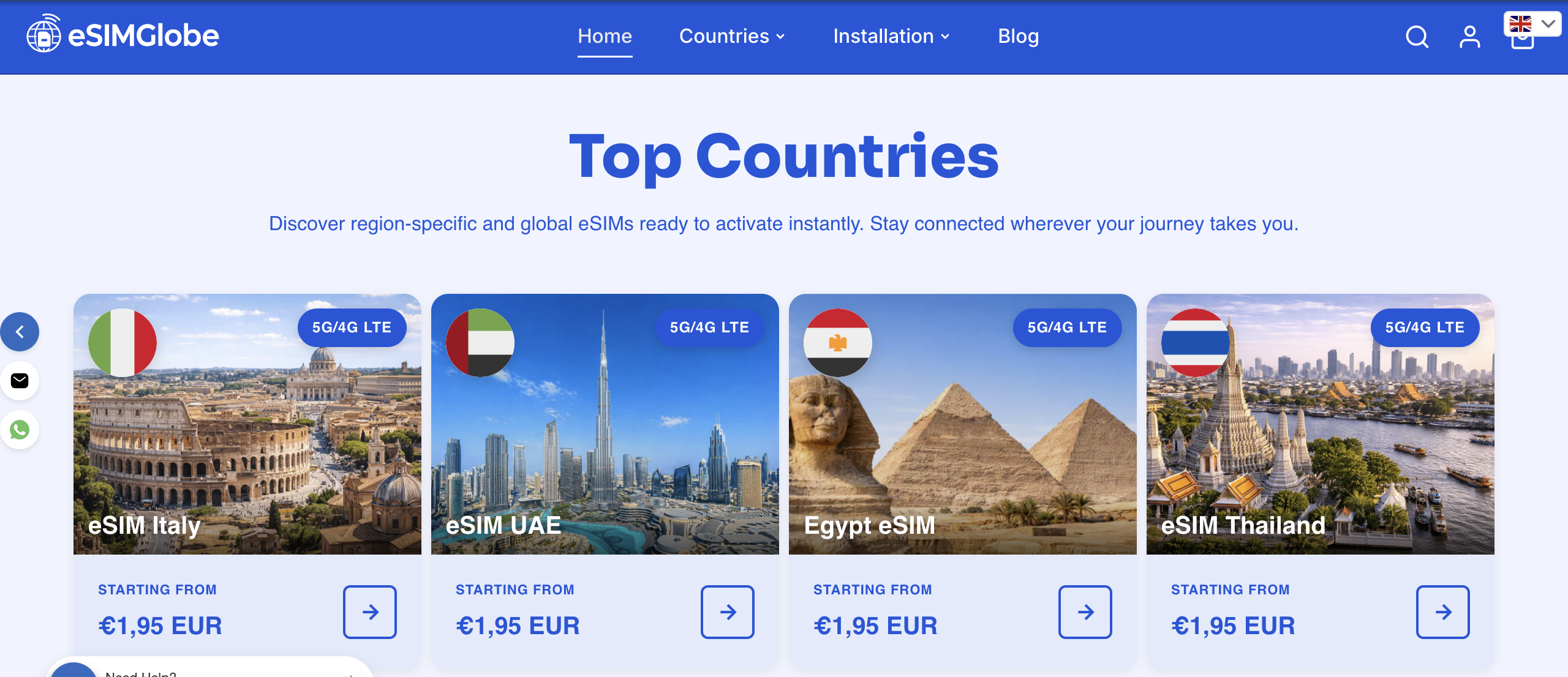
Esimglobe provides prepaid eSIM plans covering 170+ countries, with instant digital delivery and high-speed 4G LTE/5G data. For a traveler who needs to tether a laptop for a week abroad, buying a country-specific eSIM plan sized to actual usage is often cheaper and more predictable than exhausting a domestic plan’s hotspot bucket and paying overage or dealing with throttled speeds. Check your carrier’s hotspot allotment first — if it covers your trip, use it. If it does not, browse Esimglobe’s eSIM plans for a short-term data option sized to your destination. For more on staying connected internationally, the guide to mobile data abroad covers regional options in detail.
Useful sources
- Apple Support: Share your Internet connection on iPhone — apple.com/support
- Android Help: Data usage and network management — support.google.com
- FCC: How to manage your data usage — fcc.gov/consumers
- BroadbandNow: How much data does a hotspot use — broadbandnow.com
- Boost Mobile help center: Hotspot data use explainer — boost.com/support
Carrier account portals and apps remain the authoritative source for your specific plan’s hotspot allotment, throttle thresholds, and overage policies. The sources above cover general guidance; your carrier’s current plan terms govern your actual limits.
FAQ
How long will 10 GB of hotspot data last?
Under light use — email, browsing, and music — 10 GB lasts roughly 40–60 hours. One HD video stream reduces that to 3–10 hours, and 4K streaming exhausts 10 GB in about 1–1.5 hours.
Is hotspot free if you have an unlimited plan?
Not always. Most unlimited plans include a separate high-speed hotspot allotment (commonly 15–50 GB). After that threshold, hotspot speeds drop significantly even though your phone’s own data remains fast.
Is it okay to leave your hotspot on all the time?
No. An idle hotspot drains battery faster, generates heat, and stays open to connection attempts. Turn it off when no device needs it, or enable the automatic timeout setting available on most phones.
What drains hotspot data the most?
4K and HD video streaming are the largest drains, at 6–8 GB and 1–3 GB per hour respectively. Background OS updates and automatic cloud backups are the most common hidden drains, often consuming gigabytes without any visible activity on screen.