






















TL;DR:
- eSIM simplifies international travel by eliminating the need for physical SIM cards at borders.
- Proper preparation, including device compatibility and labeling profiles, ensures smooth activation.
- Verification and correct settings post-activation are crucial for reliable global connectivity.
Swapping physical SIM cards at every border is one of the most frustrating parts of international travel. You land, search for a local carrier kiosk, wait in line, and hope the plan works. Global eSIM activation delivers a reliable alternative to that entire process. With an eSIM (embedded SIM), a digital profile is loaded directly onto your device, no plastic card required. This guide covers device requirements, step-by-step activation for iPhone and Android, troubleshooting fixes, and how to verify everything works before you board.
Table of Contents
- What you need before starting global eSIM activation
- Step-by-step global eSIM activation process
- Troubleshooting common global eSIM activation issues
- Verifying activation and optimizing your eSIM for travel
- What most travelers get wrong about global eSIM activation
- Get worldwide connectivity with an easy eSIM purchase
- Frequently asked questions
Key Takeaways
| Point | Details |
|---|---|
| Prepare before travel | Install your eSIM profile on stable Wi-Fi at home for easier troubleshooting. |
| Follow activation steps | Scan the provider’s QR code and enable data roaming for nearly instant network access abroad. |
| Fix issues proactively | Most activation problems can be solved by checking Wi-Fi, restarting your device, and verifying settings. |
| Save with eSIM plans | Switching to global eSIM saves up to 90% on roaming fees compared to traditional mobile plans. |
What you need before starting global eSIM activation
Preparation is the single biggest factor in a smooth activation. Before you purchase a plan or scan a QR code, confirm your device supports eSIM and that you understand what the plan includes.
Compatible devices
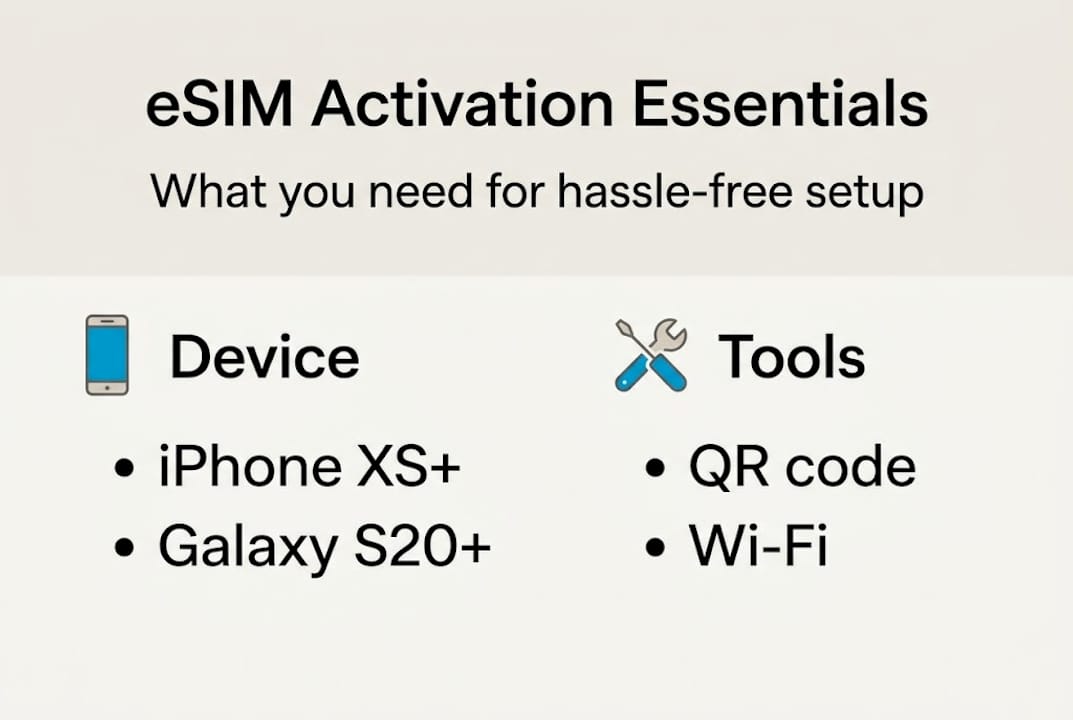
iPhones (XS and later), Galaxy S20+, and Pixel 3+ support eSIM, with most modern devices able to store between 5 and 10 profiles at once. Check your device settings or manufacturer website if you are unsure. Carrier-locked phones may block eSIM installation, so confirm your device is unlocked before purchasing.
What to look for in a provider
Global plans work in 120 to 200+ countries but often lack SMS and voice. Installation is best done before your trip over a stable Wi-Fi connection. Review the plan’s country list carefully, especially if your itinerary includes less-traveled destinations. Understanding eSIM basics for travelers before you buy helps you match the right plan to your actual needs.
Preparation checklist
- Confirm your device is eSIM compatible and carrier-unlocked
- Connect to stable home Wi-Fi before starting
- Update your device OS to the latest version
- Have your QR code or activation code ready from your provider
- Screenshot your QR code and store it in a labeled folder
- Check Apple’s eSIM support page for model-specific instructions
Required tools at a glance
| Tool | Purpose |
|---|---|
| QR code or activation code | Links your device to the purchased plan |
| Stable Wi-Fi connection | Required for profile download |
| Provider app (optional) | Manage data usage and switch profiles |
| Updated device OS | Prevents installation errors |
| Carrier-unlocked device | Allows third-party eSIM profiles |
Pro Tip: Always screenshot your QR code immediately after purchase and label each eSIM profile with the country or region it covers. This prevents confusion when managing multiple profiles across a long trip.
Step-by-step global eSIM activation process
Once you have confirmed compatibility and gathered your materials, the actual activation is fast. The activation process takes 2 to 5 minutes, with the QR code scan itself taking only 10 to 20 seconds.
iPhone activation steps
- Open Settings and tap Cellular
- Tap Add eSIM or Add Cellular Plan
- Select Use QR Code and scan your provider’s QR code
- Confirm the plan details and tap Add Cellular Plan
- Label the new plan (e.g., “Europe Data”)
- Set the eSIM as your default data line
- Enable Data Roaming under the new plan’s settings
Android activation steps
- Open Settings and go to Network & Internet
- Tap SIMs then Add eSIM
- Select Scan QR code and scan your provider code
- Follow on-screen prompts to confirm and install
- Set the eSIM as your preferred data SIM
- Enable Roaming under the new SIM’s settings
Purchasing a plan, scanning the QR code over Wi-Fi, and enabling data roaming yields a 95% success rate. The most common reason that number drops is skipping the data roaming step after installation. For a more detailed walkthrough, visit this detailed eSIM activation guide with platform-specific screenshots.

iPhone vs. Android: key differences
| Feature | iPhone | Android |
|---|---|---|
| Interface | Guided, minimal steps | More manual, varies by brand |
| Profile management | Labeled list in Cellular settings | SIM manager varies by manufacturer |
| Per-app data routing | Not available | Available on select models |
| eSIM profiles stored | Up to 8 (active: 2) | Up to 10 (varies by model) |
Pro Tip: Install and test your eSIM at home before travel. Connect to the profile, disable Wi-Fi, and confirm mobile data loads. This gives you time to contact support if something goes wrong, without airport pressure.
Troubleshooting common global eSIM activation issues
Even with a straightforward process, some travelers hit snags. 34% of first-time travelers face eSIM setup issues from preparation gaps, but the overall download and activation success rate remains above 95%.
Most common obstacles
- Data roaming left off after installation
- Carrier-locked device blocking the profile
- Outdated OS causing QR code scan failure
- Poor Wi-Fi during profile download
- Plan activated too early before departure (some plans start counting on first connection, others on purchase)
- Accidentally deleting a profile with no backup QR code
“40% of ‘not working’ support tickets trace back to data roaming being left off after installation.”
Issues often relate to Wi-Fi quality, carrier locks, OS version, or early plan activation. These are all fixable with a few targeted steps.
Step-by-step fix sequence
- Confirm data roaming is enabled for the eSIM line
- Toggle Airplane Mode on, wait 10 seconds, then off
- Restart your device fully
- Go to carrier/network settings and select the network manually
- If still failing, reset network settings (note: this removes saved Wi-Fi passwords)
- Contact your provider with your order number and device model
For a deeper look at terminology and common understanding eSIM issues, reviewing key eSIM terms before troubleshooting often speeds up the fix process.
Important warning: Do not delete an eSIM profile unless you have the original QR code saved. Most providers allow only one scan per QR code, meaning a deleted profile may require a new purchase or a support ticket to restore.
Verifying activation and optimizing your eSIM for travel
Installing the profile is not the finish line. Verification and a few smart settings adjustments make the difference between smooth connectivity and frustrating gaps abroad.
How to confirm activation
After installation, check for a signal icon next to your eSIM line name in the status bar. Open your provider’s app if available, it will typically show active status and remaining data. You can also disable Wi-Fi and load a webpage to confirm mobile data is working through the eSIM.
Post-activation checklist
- Signal bar shows the eSIM carrier name
- Mobile data loads with Wi-Fi disabled
- Provider app confirms active status
- Data roaming is enabled under eSIM line settings
- Background app refresh is limited to essential apps only
- iCloud, Google Photos, and other sync services are set to Wi-Fi only
Travelers save 70 to 90% on roaming fees with eSIM and can keep their home SIM active for calls and SMS. This dual-SIM setup is one of the most practical configurations for frequent travelers. Review your global eSIM settings to confirm roaming is correctly assigned to the right line.
No voice or SMS on most data-only global eSIMs, so use messaging apps like WhatsApp, Signal, or iMessage over data for communication. This is a common point of confusion for first-time eSIM users who expect full phone functionality.
Pro Tip: Use dual-SIM mode to keep your regular SIM active for calls and SMS while routing all data through your eSIM. This setup avoids surprise roaming charges on your home plan while keeping your number reachable.
Profile management across regions
If your trip covers multiple regions, consider purchasing a regional plan rather than multiple country-specific ones. Switch profiles in your SIM or Cellular settings as you cross borders. Label each profile clearly so you are not guessing which one to activate at 2 a.m. in a new time zone.
What most travelers get wrong about global eSIM activation
The technical success rate for eSIM activation is above 95%. So why do so many travelers still end up at hotel desks asking for Wi-Fi passwords to troubleshoot a connection that should have worked? The answer is almost never the device or the provider.
Preparation drives reliable eSIM activation more than any other factor. Experienced nomads rarely hit issues because they treat eSIM setup the same way they treat packing: done at home, double-checked, never left for the last minute. The travelers who struggle are the ones who try to activate at the airport gate, on spotty terminal Wi-Fi, with a device that has not been updated in six months.
The other overlooked habit is profile labeling. Storing three unlabeled eSIM profiles and guessing which one covers Southeast Asia is an avoidable problem. Two minutes of labeling at home saves real frustration abroad. Our experience activating eSIMs across dozens of markets confirms that small preparation habits eliminate the vast majority of support issues. Activate at home. Label everything. Screenshot the QR code. That is the entire playbook.
Get worldwide connectivity with an easy eSIM purchase
Ready to skip SIM card queues forever? EsimGlobe makes it straightforward to find, purchase, and activate the right plan for your trip.
Browse Global eSIM (120+ areas) plans covering over 120 countries, with 1GB and unlimited data options for every itinerary. Heading to Southeast Asia? Check out the Singapore eSIM as a starting point for regional coverage. Plans are delivered instantly via QR code, ready to install before you leave home. See all eSIM plans and compare options by region, data size, and validity period in one place.
Frequently asked questions
Which phones are compatible with global eSIM activation?
Most modern iPhones (XS and newer) and Android devices like Galaxy S20+ and Pixel 3+ support eSIM activation. Always confirm your device is carrier-unlocked before purchasing a plan.
Does my global eSIM plan start immediately after installing the profile?
No. Plans activate on first network connection, not at installation. Your data allowance begins counting only when your device connects to a supported foreign network.
What should I do if my eSIM isn’t working abroad?
Data roaming left off causes 40% of activation problems. Enable data roaming, restart your device, and try selecting the network manually if auto-connect fails.
Can I keep my home SIM active while using a global eSIM?
Yes. Dual-SIM lets you use your home SIM for calls and SMS while your eSIM handles data. Most modern smartphones support this configuration natively.
Are global eSIMs cost-effective compared to traditional roaming?
Yes. Travelers save 70 to 90% on roaming fees by using eSIM plans instead of standard mobile roaming charges from their home carrier.
Recommended
- How to activate your eSIM: step-by-step guide for travelers – Esimglobe
- Understanding eSIM terms for global travelers: flexible connectivity – Esimglobe
- Buy Global (130+ areas) eSIM for travel - Global139 1GB 7Days – Esimglobe
- Buy Global (120+ areas) eSIM for travel - Global (120+ areas) 1GB 7Days – Esimglobe