






















The safest default is simple: use a personal hotspot or eSIM for anything involving money, work email, or passwords, and save public Wi-Fi for browsing that would not hurt you if someone saw it. If you have no choice but to connect, confirm the network name with staff, stick to HTTPS sites, and turn off auto-join and file sharing before you do anything else. Those three moves close most of the gap between a random airport network and a private cellular connection.
TL;DR:
- Using a personal hotspot or eSIM provides a private, encrypted connection that eliminates the risks posed by fake networks, malware, or compromised hardware.
- Even with HTTPS, metadata such as DNS lookups and server name indications can reveal visited domains, making encryption alone insufficient for full privacy on shared networks.
- Confirm the exact network name with staff, avoid captive portals that request app installs, and turn off auto-join to minimize exposure to spoofed or compromised public Wi-Fi.
- Disabling file sharing, turning off Bluetooth, and setting devices to “public” network mode help prevent attackers from discovering or accessing your device.
- Heading to new destinations? Buying and activating an eSIM before arrival unlocks carrier-level encryption and prevents exposure to insecure or tampered guest networks.
Table of Contents
- What Attackers Can Actually Steal on Public Wi-Fi
- A Prioritized Checklist for Using Public Wi-Fi Safely
- Personal Hotspot, Local SIM, or eSIM: Which Is Actually Safer?
- Limiting Marketing Data Collection on Guest Wi-Fi
- Setting Your Firewall and Network Settings for Public Wi-Fi
- Why DNS Over HTTPS Matters on Shared Networks
- Spotting a Fake or Suspicious Network Before You Connect
- Physical Security Habits That Matter Just as Much
- Why Cellular Beats Public Wi-Fi for Anything That Matters
- Get Connected Before You Ever See a Hotel Login Screen
- Sources Used in This Article
- FAQ
What Attackers Can Actually Steal on Public Wi-Fi
The risk on public Wi-Fi is not vague. It is specific: usernames and passwords typed into unencrypted forms, session cookies that let someone hijack a logged-in account without ever seeing your password, banking details entered on spoofed pages, email contents on older apps that skip encryption, and device identifiers that let a network operator track you across visits.
Most of this happens through a small set of repeatable tricks.
- Evil twin networks: attackers broadcast a name like “Airport_Free_WiFi” that mimics the real one, and phones set to auto-join hop onto it without asking.
- Man-in-the-middle interception: once you are on the attacker’s network, they sit between you and the internet, reading or altering unencrypted traffic.
- Compromised captive portals: the login page itself gets hijacked, sometimes pushing a fake browser update that is actually malware, a tactic security researchers have labeled ClickFix-style attacks.
- Compromised gateway hardware: hotel or conference Wi-Fi routers get breached at the source, meaning even a legitimately named network can be dangerous.
Here is the nuance most guides skip. HTTPS now covers the overwhelming majority of web traffic, and that shift genuinely reduced classic packet-sniffing theft. But encryption protects the content of a connection, not the metadata around it. Anyone watching the local network traffic can often still see the DNS lookups and SNI (Server Name Indication) data revealing which domains you visited, even when they cannot read what you typed. The FTC’s own guidance on public Wi-Fi safety makes the same point: HTTPS is a real improvement, but login pages, captive portals, and legacy apps that still transmit in the clear remain exploitable. Encryption solved yesterday’s problem. It did not solve today’s.
A Prioritized Checklist for Using Public Wi-Fi Safely
Treat public Wi-Fi security as a sequence, not a single toggle. Do these in order.
Before you leave home:
- Turn on automatic OS and app updates so known vulnerabilities get patched without you remembering to check.
- Enable your device’s built-in firewall.
- Use a password manager so a stolen password on one site never doubles as your master key everywhere else.
- Turn on two-factor authentication or, where offered, passkeys for banking, email, and cloud storage.
- Disable auto-join for open networks in your Wi-Fi settings.
The moment you connect: 6. Confirm the exact SSID with staff verbally. Do not guess between “Hotel_Guest” and “Hotel-Guest.” 7. Refuse any captive portal prompt asking you to install an app or “update” to get online. 8. Watch for certificate warnings. A browser flagging a site as insecure on public Wi-Fi is not a glitch to dismiss. 9. Use a reputable VPN when you specifically need to hide your browsing from the network operator.
While you’re on it: 10. Skip banking, tax filing, and shopping logins entirely on shared networks. 11. Turn off file and printer sharing so your device is not discoverable to others on the same network. 12. Forget the network afterward so your device does not silently rejoin next time.
If you suspect you were compromised: 13. Switch to a trusted connection before changing any passwords, never do it from the same suspect network. 14. Review recent account activity for logins you don’t recognize. 15. Report identity theft or fraud at reportfraud.ftc.gov, and file a complaint with IC3 if the incident involved financial loss.
Pro Tip: Set your banking and work email apps to “cellular data only” in your phone settings. Even if your device accidentally joins a hotel hotspot, those specific apps will never transmit over it.
Personal Hotspot, Local SIM, or eSIM: Which Is Actually Safer?
A personal hotspot or eSIM sidesteps the entire shared-network problem because your connection runs through a private, carrier-encrypted session instead of a tunnel dozens of strangers are also using. There is no evil twin to spoof, because there is no shared network to spoof.
If you’re using a personal hotspot, a few habits matter:
- Set a strong, unique hotspot password rather than the four-digit default.
- Disable Bluetooth and file sharing while it’s active.
- Force sensitive apps to cellular-only, so a habit of joining “free” Wi-Fi doesn’t undo the protection.
The tradeoffs are real but small. A hotspot burns your own data plan, and roaming abroad on a home carrier gets expensive fast. That’s where an eSIM changes the math for travelers. Activation takes minutes through a QR code, there is no physical SIM swap, and you get carrier-level encryption in the destination country instead of relying on hotel or airport infrastructure you can’t verify.
Heading to Singapore or planning a Seoul stopover? eSIMGlobe’s eSIM Singapore and eSIM Seoul plans deliver instantly by email, so you can skip the hotel Wi-Fi login screen entirely and land already connected. For a deeper look at how eSIM encryption stacks up against shared networks, see this breakdown of eSIM security and privacy abroad.

Limiting Marketing Data Collection on Guest Wi-Fi
Captive portals exist mostly to collect your information, not to authenticate you. Coffee shops, airports, and hotels use that login screen as a marketing funnel, and the terms you’re forced to accept usually double as a mailing list opt-in.
A few habits limit how much gets attached to your real identity:
- Use a throwaway or alias email address for guest Wi-Fi logins instead of your primary inbox. Plenty of free email providers exist specifically for this.
- Avoid “Continue with Google” or “Continue with Facebook” logins on captive portals. Social logins hand the network operator a direct link between your real identity, your social graph, and your location that day.
- Skip optional profile fields. Name and email are often mandatory; birthdate, phone number, and zip code are frequently optional even when the form doesn’t make that obvious.
- Decline SMS or app-based loyalty sign-ups tied to the guest network unless you actually intend to return.
None of this stops a determined attacker, but it caps the ordinary, legal data harvesting that happens every time you accept a hotel’s terms of service just to check your email. The two risks are different: one is a security threat, the other is a privacy leak you’re volunteering. Treating them the same way, with the same defenses, misses both.
Setting Your Firewall and Network Settings for Public Wi-Fi
Your device’s built-in firewall is doing less work than you think if it’s not actually configured. On both Windows and macOS, confirm the firewall is switched on, then set the network profile to “public” rather than “private” or “home” whenever you connect somewhere unfamiliar. That single setting changes how visible your device is to others on the same network.
A few settings worth checking every time you travel:
- Disable network discovery and file/printer sharing on public networks. Many operating systems do this automatically when you select “public,” but it’s worth confirming manually.
- Turn off AirDrop or similar proximity file-sharing features, or set them to “contacts only” rather than “everyone.”
- Disable Bluetooth when you’re not actively using it, since some attacks use Bluetooth as a secondary entry point.
- On mobile, check that your phone isn’t set to automatically connect to open or previously used networks.
These settings take under two minutes to check and stay in place until you change them again. The point is not to lock down your device permanently, it’s to make sure the “public” mode you’re relying on is actually doing its job rather than sitting on a default from setup day.
Why DNS Over HTTPS Matters on Shared Networks
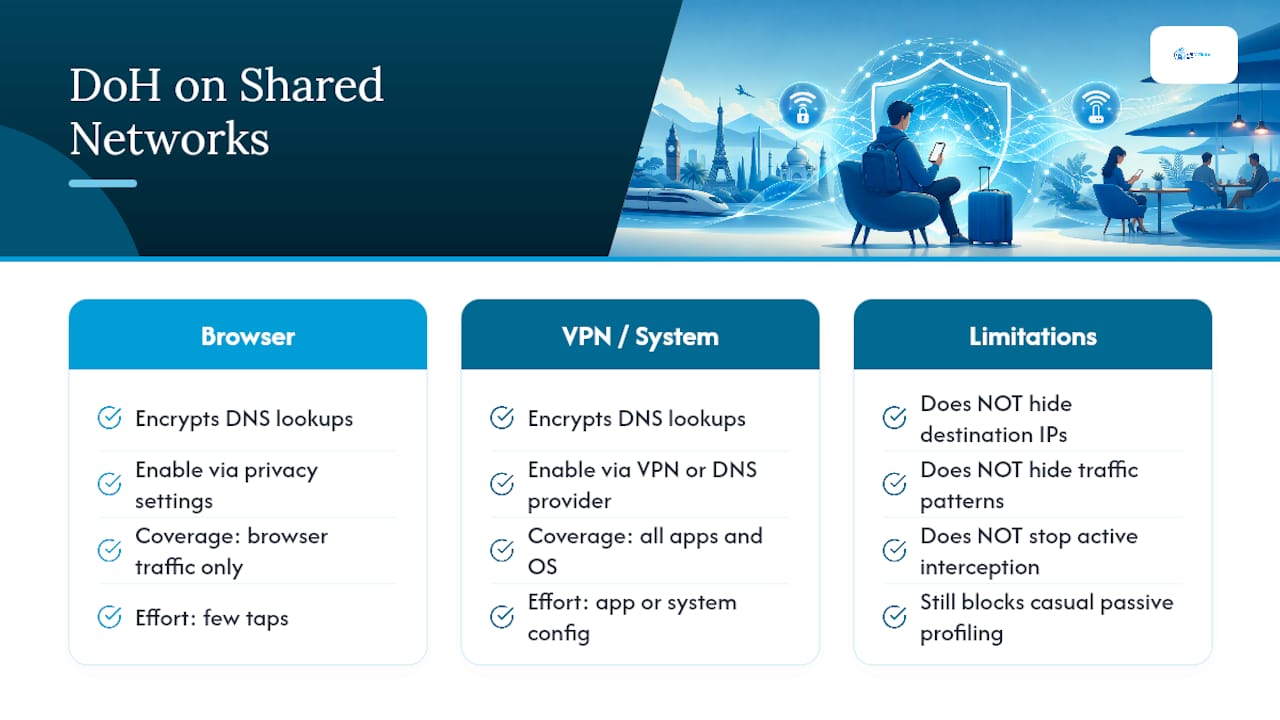
HTTPS encrypts what you send and receive on a website, but the lookup that happens before your browser even loads the page, translating “yourbank.com” into an IP address, has traditionally traveled in the clear. Anyone monitoring the local network can see that DNS query and know exactly which domains you’re visiting, even without reading a single word of your actual traffic.
DNS over HTTPS (DoH) encrypts that lookup too, closing one of the metadata gaps that HTTPS alone leaves open. Most modern browsers, including Chrome, Firefox, and Safari, support DoH natively, and enabling it usually takes a few taps in the browser’s privacy settings rather than any technical configuration. Some VPN services and secure DNS providers offer the same protection at the operating-system level, which covers apps outside the browser too.
It is not a complete fix. Someone actively intercepting your connection through a compromised gateway can still see traffic patterns and destination IPs even with encrypted DNS. But for a network operator or a stranger casually sniffing traffic on the same coffee shop Wi-Fi, DoH removes an easy, passive way to build a profile of your browsing on that connection.
Spotting a Fake or Suspicious Network Before You Connect
The IC3 has documented enough hotspot scams that a pattern has emerged: fake networks tend to look almost right, not obviously wrong. Attackers count on you not checking closely.
Watch for these before you tap connect:
- A network name that’s close but not exact, like “Starbucks-WiFi” instead of the venue’s actual registered SSID.
- Multiple networks with nearly identical names, which usually means one is real and the others are impersonators.
- No password required on a network that should have one, particularly at a business that normally provides a printed password.
- A captive portal asking you to install an app, browser extension, or “security certificate” just to get online. Legitimate guest Wi-Fi never requires a software install.
- Unusually strong or unusually weak signal for the location, which can indicate a rogue access point physically closer to you than the real router.
When in doubt, ask a staff member to state the exact network name out loud rather than pointing at a sign, since signs get tampered with more easily than people’s memory of daily operations.
Physical Security Habits That Matter Just as Much
Digital defenses do nothing if someone is reading your screen over your shoulder or watching you type a PIN. Shoulder surfing is low-tech, requires no hacking skill, and works especially well in the exact places public Wi-Fi gets used most: crowded gate areas, train cars, and coffee shop counters.
A few habits close that gap:
- Sit with your back to a wall when working in a public space, rather than facing outward where anyone behind you can see your screen.
- Use a privacy screen filter on laptops if you regularly work from cafes or airports.
- Cover the keypad or angle your body when entering a PIN at an ATM or card reader near public seating.
- Keep devices physically on you or looped through a bag strap rather than left unattended “just for a minute” while you order coffee.
- Log out of sensitive accounts, don’t just lock the screen, if you’re stepping away from a shared table for any length of time.
None of this requires technical knowledge, and all of it takes seconds. But it’s the layer most security checklists skip entirely, even though a stolen glance at a typed password defeats every firewall setting you configured earlier.
Why Cellular Beats Public Wi-Fi for Anything That Matters
The pattern across every attack type here is the same: they all depend on a shared network. Remove the shared network, and evil twins, compromised gateways, and captive portal malware simply have nothing to exploit. That is the entire logic behind treating cellular data, whether from a personal hotspot or an eSIM, as the default for sensitive tasks rather than the backup plan.
For travel specifically, an eSIM adds something a hotspot alone can’t: local-market data speeds and pricing without hunting for a physical SIM counter after a long flight. eSIM plans activate by QR code before you even land, which means the practical sequence is buy, activate, land, connect, all without touching a hotel’s questionable guest network. Keep a backup plan too. Even reliable cellular coverage has dead zones, so knowing which public networks in your destination are at least run by reputable venues is worth five minutes of research before you go.
— Daniel
Get Connected Before You Ever See a Hotel Login Screen
An eSIM is the alternative to gambling on hotel or airport Wi-Fi. Instead of hoping the guest network is safe, you land already connected through a private, carrier-encrypted line delivered straight to your phone before departure.
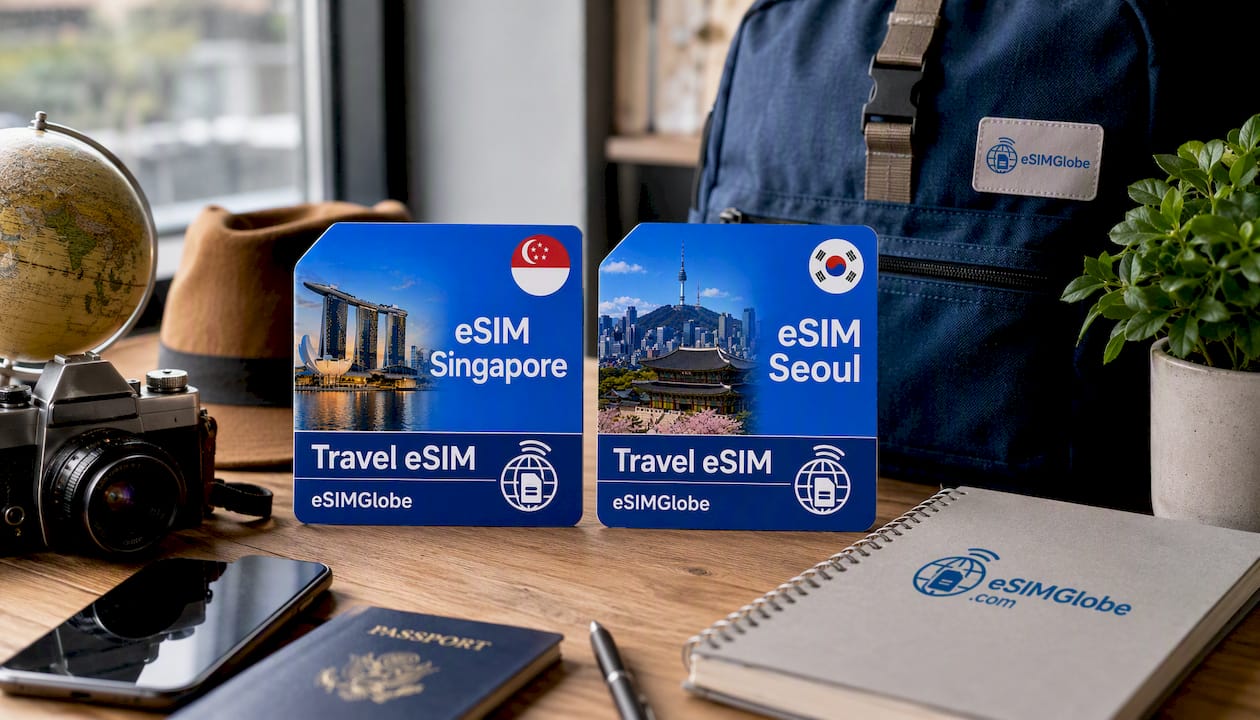
Plans arrive by email in seconds after checkout, activated through a QR code scan, no SIM counter, no captive portal, no login screen collecting your email for a mailing list. Heading to Singapore? The eSIM Singapore plan gets you online the moment you land. Bound for South Korea? eSIM Seoul covers the same need there. Traveling across multiple countries on one trip? The eSIM Asia collection covers seven areas under one plan, and eSIM Europe covers more than 30. For destinations outside those regions, browse the full eSIM Italy, UAE, Thailand, and more selection and pick the plan that matches your itinerary. Buy before you fly, activate on arrival, and skip the network you can’t verify.
Sources Used in This Article
- Are public Wi-Fi networks safe? What you need to know — FTC consumer guidance on captive portals and HTTPS limits
- Report fraud — FTC portal for identity theft and fraud reports
- IC3 advisory on hotspot scams — FBI Internet Crime Complaint Center guidance on evil twin networks
- Techlicious and SpeedtestHQ reporting on public Wi-Fi risks and encrypted DNS practices
FAQ
How unsafe is it to connect to public Wi-Fi?
It depends heavily on the network and what you do on it. Casual browsing on HTTPS sites carries low risk since most web traffic is now encrypted, but banking, shopping, or logging into work accounts on public Wi-Fi remains genuinely risky because of evil twin networks and compromised gateways.
Is it possible to get hacked on public Wi-Fi?
Yes. Attackers use fake hotspots, man-in-the-middle interception, and compromised captive portals to steal passwords, session cookies, and financial information from unsuspecting users. The FTC and IC3 have both documented these attack patterns repeatedly.
Why shouldn’t you connect to public Wi-Fi for sensitive tasks?
Because a shared network gives an attacker a direct path to intercept traffic or trick your device into joining a spoofed version of that network. A private cellular connection through a personal hotspot or an eSIM avoids that shared attack surface entirely.
What is the safest way to connect to public Wi-Fi?
Confirm the exact network name with staff, avoid installing anything through a captive portal, stick to HTTPS sites, and use a reputable VPN if you need to hide your browsing from the network operator. For anything involving money or passwords, switch to cellular data instead. eSIMGlobe’s country and regional plans, including eSIM Singapore, let travelers skip public Wi-Fi for sensitive tasks entirely.